Categories
2. Triobo editor

Special advertising

In addition to standard advertising formats such as full page or part of a page display, you can also use a special format:

Floating advertising

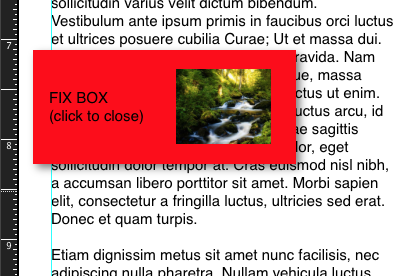
You may create a box that is still visible, although the reader will scroll through the article to next pages (or scroll through a long scrolling article). First, draw up the advertising (images, texts), you may also add a Cross icon for their closing. Group all objects. Place the advertising to where it should be displayed, for example at the bottom of the screen. Set the shadow for entire group and turn on the item Fix position (see article Working with Objects). Also set a group animation so it starts from the left edge, for example, after the page is loaded (when the add width is 300 pixels, set the animation X = -350 – a bit more because of shade). Open (double-click) the group and set On tap action for a Cross icon, so the group is switched (back to the alternate state).

Box with advertising is now displayed above the page and is still at the same place. It will draw its attention by emerging from behind the edge when played. You may click on the X box to close.

Example of floating advertising

Categories
2. Editor Triobo

Speciální inzerce

Kromě standardních formátů inzerce, jako je celostránka nebo část stránky, můžete použít také speciální formát:

Plovoucí inzerce

Můžete vytvořit box, který bude stále viditelný, přestože čtenář bude rolovat článkem na další stránky (nebo se posouvat v dlouhém rolujícím článku). Nejdříve reklamu nakreslete (obrázky, texty), můžete přidat také ikonku křížek pro zavření. Objekty seskupte. Umístěte inzerci tam, kde má být zobrazena, např. při spodním okraji displeje. Celé skupině nastavte stín a také zapněte položku Fix position (viz článek Práce s objekty). Skupině také nastavte Animaci, aby při spuštění stránky například přijela z levého okraje (pokud má inzerce šířku 300 pixelů, nastavte animaci X=-350 — o něco více kvůli stínu). Otevřete skupinu (poklepáním) a pro ikonu křížku nastavte akci On tap, aby skupinu jako takovou přepnul (zpět do alternativního stavu).

Box s inzercí je nyní zobrazen nad stránkou stále ve stejném místě. Upozorní na sebe tím, že na začátku se vynoří zpoza okraje. Klepnutím na křížek lze box zavřít.

Ukázka plovoucí inzerce

Categories
2. Triobo editor

Variable objects, advanced techiques

Creating and setting of variable objects is described in article Variable objects. Variable object can be controlled by individual buttons (for creating buttons, see article On tap action.

Variable buttons

You can create a button that changes its appearance in a situation where the variable object is in a given state. Suppose you have created a variable object with five photos. Under the object now draw a button with text 1. As the On tap action command set a variable object switch to State 1.

Now from this button create also a variable object and create State 2. In this state, set a different color to this button. Note that the On tap action command was transferred from the button itself to the variable object. Now duplicate this variable object, move it, and in both States change the text to 2. Also change the On tap action to switch to State 2. Similarly, create buttons 3 and 4.

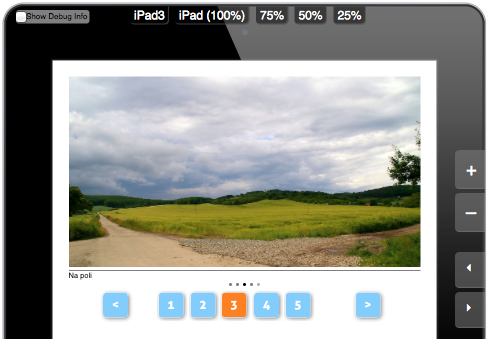
Now open the preview: Button 1 is automatically displayed with cahnged color. If you click on any other button, variable object will be switched to the appropriate state and will also “light up” the appropriate button. Bttons will also light up/down if you manage to control the variable object with other buttons. Move to next/previous state, or drag your finger directly across the variable object (if such a control is enabled for variable object).

Example of variable object with active buttons

State 0

Frequently is also demanded a variable object, which contains eg. some detailed information while various buttons open these states. However, it is suitable to have a state where there is no detailed information listed. This can be automatically the State 0. Therefore simply open a variable object settings and enable the Use State 0 option. In the list of states the State 0 is then found on the first position – can not be duplicated, deleted, or moved elsewhere. This is the default State of variable object when nothing is displayed.

When creating buttons for variable object of State 0 you may also use the Go to State 0 option. (By meaning it corresponds to situation “hide the current state of the variable object”.

Animations, videos and audios within the state of variable objects

If the condition of variable object contains the object that will be animated after the “Startup”, or video/audio with automatic start, then this occurs at the point when reader goes to the given state. Example:

Draw a picture and a text label. To a text label, set the animation when alternate state will have a zero saturation – from this condition is switched after 3 seconds. Set also the item “Switch on hide”. Group objects, from this group create a variable object and gradually duplicate states and replace image sources and text labels. Set that the variable object will be switched by dragging left/right and test it: when you drag your finger the picture switches on and after 3 seconds the label appears.

Now go to any of these states, open a group and draw new object of Audio type. Set for automatic start. Test it: you will hear the sound when you go to given state. Audio Playback ends when you leave the state. Use either the sound effects at the switching of states, or even recorded commentary to a photo.

Categories
2. Editor Triobo

Variabilní objekty, pokročilé techniky

Vytváření a nastavení variabilních objektů je popsáno v článku Variabilní objekty. Variabilní objekt může být řízen samostatnými tlačítky (tvorba tlačítek viz článek Akce Na dotek.

Proměnlivá tlačítka

Můžete vytvořit tlačítko, které změní svůj vzhled v situaci, kdy se variabilní objekt nachází v daném stavu. Předpokládejme, že máte vytvořen variabilní objekt z pěti fotografií. Pod objektem nyní nakreslíte tlačítko s textem 1. Jako akci Na dotek mu nastavíte přepnutí variabilního objektu do Stavu 1.

Nyní z tohoto tlačítka vytvořte také variabilní objekt a vytvořte Stav 2. V tomto stavu tlačítku nastavte jinou barvu. Všimněte si, že akce Na dotek se přenesla z tlačítka samotného přímo na variabilní objekt. Nyní tento variabilní objekt zduplikujte, posuňte a v obou stavech změňte text na 2. Změňte také akci Na dotek na přepnutí do Stavu 2. Stejně tak vytvořte tlačítka 3 a 4.

Nyní otevřete náhled: tlačítko 1 je automaticky zobrazeno změněnou barvou. Pokud klepnete na kterékoli další tlačítko, variabilní objekt se přepne do příslušného stavu a také se “rozsvítí” příslušné tlačítko. Tlačítka se také budou rozsvěcovat/zhasínat, pokud budete variabilní objekt řídit jinými tlačítky Přejdi na další/předchozí stav, nebo přímo tažením prstem přes variabilní objekt (má-li takové ovládání variabilní objekt povolen).
Ukázka variabilního objektu s aktivními tlačítky

Stav 0

Velmi často je požadován variabilní objekt, který obsahuje např. nějaké detailní informace a různá tlačítka otevírají tyto stavy. Je však vhodné, aby existoval stav, kdy není žádná detailní informace vypsána. Tím může být automaticky Stav 0. Stačí otevřít nastavení variabilního objektu a zapnout volbu Use State 0. V seznamu stavů se pak jako první nachází State 0 – nelze ho duplikovat, smazat, ani přesunout jinam. Je to výchozí stav variabilního objektu, kdy není zobrazeno nic.

Při tvorbě tlačítek pro variabilní objekt se Stavem 0 můžete využít také možnosti Přejdi na Stav 0. (Odpovídá významově situaci “skryj aktuální stav variabilního objektu”.

Animace, videa a zvuky uvnitř stavů variabilních objektů

Jestliže stav variabilního objektu obsahuje objekt, který má být animován “po spuštění”, nebo video/zvuk, který má být automaticky spuštěn, dojde k tomuto až v okamžiku, kdy čtenář na daný stav přejde. Příklad:

Nakreslete fotografii a textový popisek. Textovému popisku nastavte animaci, kdy alternativní stav bude mít nulovou sytost – z tohoto stavu se přepne po 3 s. Nastavte také položku “Switch on hide”. Objekty seskupte, ze skupiny vytvořte variabilní objekt a postupně duplikute stavy a nahrazujte zdroje fotografií a textový popisek. Nastavte, že variabilní objekt lze přepínat tažením vlevo/vpravo a vyzkoušejte: při tažení prstem dojde k přepnutí fotografie a teprve po 3 sekundách se objeví popisek.

Nyní do některého ze stavů vstupe, otevřete skupinu a nakreslete nový objekt typu Audio. Nastavte automatické spouštění. Vyzkoušejte: zvuk se ozve v okamžiku, kdy přejdete do daného stavu. Přehrávání zvuku se ukončí, pokud ze stavu odcházíte. Využití: buď zvukové efekty při přepínání stavů, nebo třeba namluvený komentář k fotografii.