Categories
2. Triobo editor

On tap action

Text objects, images and groups of objects may have configured the action On tap. Click on the item and select one of the following actions:
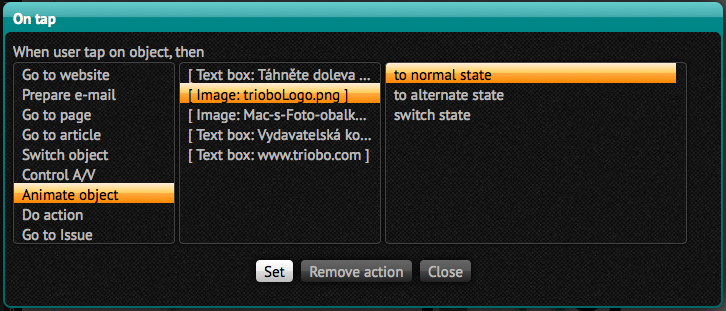
Triobo on tap action setup

  • Go to website – enter web address that will appear in the browser of tablet reader
  • Prepare e-mail – enter e-mail address, click on the object to open the e-mail application on your tablet with such previously prepared email address
  • Go to page – select the page of given article or next/previous page. Selecting the first page can be used for “go to the beginning of the article,” which may be useful with the multipage articles. For non-paged articles, that are long (and scrollable), you can enter value in pixels, to which it will scroll after the button pressing. Zero Value can be used to return to the top.
  • Go to article – select which article the reader it to be transferred to. You can choose from all articles from given edition. You can also go to the next/previous article. The “to last article” command switches the reader to the article from which the current article originated. It is not possible to switch between different editions.
  • Switch object – switches the variable object. At first on the left side of pertinent object select the action that applies to it (in caase there are more of them on page). Then select one of the following actions:
    • to next – switches to the next stage. If this is the last stage of a variable object, this action switches you to the first state
    • to previous – returns to the previous state. If it is the first stage, this action switches you to the last state
    • to first – switches to the first object
    • to last – switches to the last object
    • to state – offers a list of states so you can choose to which action it should switch
  • Control A/V – controls the video or audio. On the left, select which video/audio you want to select, and then select an action:
    • Play – starts playback
    • Stop – stops playback
    • Toggle Play/Stop – switches playback (if not running then it starts, if running, it pauses)
    • Play full screen – starts playing over the full tablet screen (only for video)
  • Animate object – animates object (see chapter 26. animation). Select the object that has animations set, and then select one of the following actions:
    • to normal state – animates object, which is in alternative state into normal state. If the object is already in the normal state, nothing happens
    • to alternate state – animates object, which is in normal state to alternative state. If the object is already in alternative state, nothing happens
    • switch state – switches between object states
  • Do action – executes selected action: opens dialogue sharing for Twitter / Facebook / E-mail (on Android always induces the system dialog Share) or will go to the issue library
  • Go to issue – moves to selected issue. This issue, of course, must be published openly, otherwise the reader will go to the issue library. If the check box Open if ready to read, issue will be open directly (cover page), otherwise the issue detail page will be shown.
  • Set language – if you have reader application with multilanguage support, thanks to this option you can switch language version directly from your publication.
Categories
2. Editor Triobo

Akce “Na dotek” (On tap)

Textové objekty, obrázky a také skupiny objektů mohou mít nastavenu akci On tap (resp. Na dotek). Klepněte na položku a zvolte jednu z následujících akcí:

Triobo nastavení akce Na dotek

  • Go to website – zadejte internetovou adresu, která se čtenáři zobrazí v prohlížeči tabletu
  • Prepare e-mail – zadejte e-mailovou adresu; po kliknutí na tento objekt se otevře e-mailová aplikace v tabletu s touto předpřipravenou mailovou adresou
  • Go to page – zvolte stránku daného článku, případně na další/předchozí stránku. Zvolení první strany lze využít pro akci „přejít na začátek článku“, která se u vícestránkových článků může hodit. U nestránkovaných článků, které jsou ale dlouhé (a plynule rolující) můžete zadat hodnotu v pixelech, na kterou má být po stisku odrolováno. Nulovou hodnotu lze využít pro návrat nahoru.
  • Go to article – zvolte, na který článek má být čtenář přenesen. Na výběr jsou všechny články z daného vydání. Můžete také přejít na další/předchozí článek. Volba „na minulý článek“ přepne čtenáře na článek, ze kterého k stávajícímu článku přišel. Není možné přecházet mezi různými vydáními.
  • Switch object – přepne variabilní objekt. Nejdříve v levé části zvolte, kterého objektu se akce týká (pokud jich je na stránce více). Pak vyberte jednu z akcí:
    • to next – přepne na následující stav. Pokud je to poslední stav variabilního objektu, přepne akce na první stav
    • to previous – přepne na předchozí stav. Pokud je to první stav, přepne akce na poslední stav
    • to first – přepne na první objekt
    • to last – přepne na poslední objekt
    • to state – nabídne seznam stavů a můžete zvolit, na který má akce přepnout
  • Control A/V – ovládá video nebo audio. V levé části zvolte, které video/audio chcete ovládat, a následně vyberte akci:
    • Play – spustí přehrávání
    • Stop – pozastaví přehrávání
    • Toggle Play/Stop – přepne přehrávání (pokud neběží, spustí jej; pokud běží, pozastaví přehrávání)
    • Play fullscreen – spustí přehrávání přes celou plochu tabletu (jen pro video)
  • Animate object – animuje objekt (viz kapitola 26. Animace). Vyberte objekt, který má animace nastavené, a poté zvolte jednu z akcí:
    • to normal state – animuje objekt, který je v alternativním stavu, do normálního. Pokud už je objekt v normálním stavu, nestane se nic
    • to alternate state – animuje objekt, který je v normálním stavu, do alternativního. Pokud už je objekt v alternativním stavu, nestane se nic
    • switch state – přepne mezi stavy objektu
  • Do action – provede vybranou akci: otevře dialog sdílení pro Twitter/Facebook/E-mail (na Androidu vždy vyvolá systémový dialog Sdílet) nebo přejde do knihovny vydání
  • Go to issue – přejde na vybrané vydání. Toto vydání samozřejmě musí být publikované veřejně, jinak čtenář přejde do knihovny vydání. Pokud je zatržena volba Open if ready to read, vydání se rovnou otevře, v opačném případě se zobrazí přehled všech stránek vydání.
  • Set language – u čteček s podporou více jazyků umožní z publikace přepnout jazykovou verzi.