Categories
3. Content publishing for tablets 5. Succesfull digital publication 6. Marketing & digital publications

The Reader design according to publisher’s configuration

Triobo allows publishers to define customized reader appearance on tablets and smartphones. This new feature allows to attract readers and advertisers effectively.

Let me first recall that all reader devices created in any price tariff of Triobo digital publishing are published strictly under the brand and name of the client, with his icon and initial screen.

Exclusive look and new business opportunities

What can be arranged by publisher who is using the Triobo Professional or higher tariff?

  • Wallpaper background – static and dynamic(!). The publisher creates the entire wallpaper directly in Triobo editor, thanks to that the wallpaper can be animated, with interactive features, may even include video, as you will see at the end of this article. The background of the reader is created as any regular page of interactive digital publication. Besides that the publisher determines at what place the overview with issues of digital publications will be displayed (in transparent layer placed over a wallpaper).
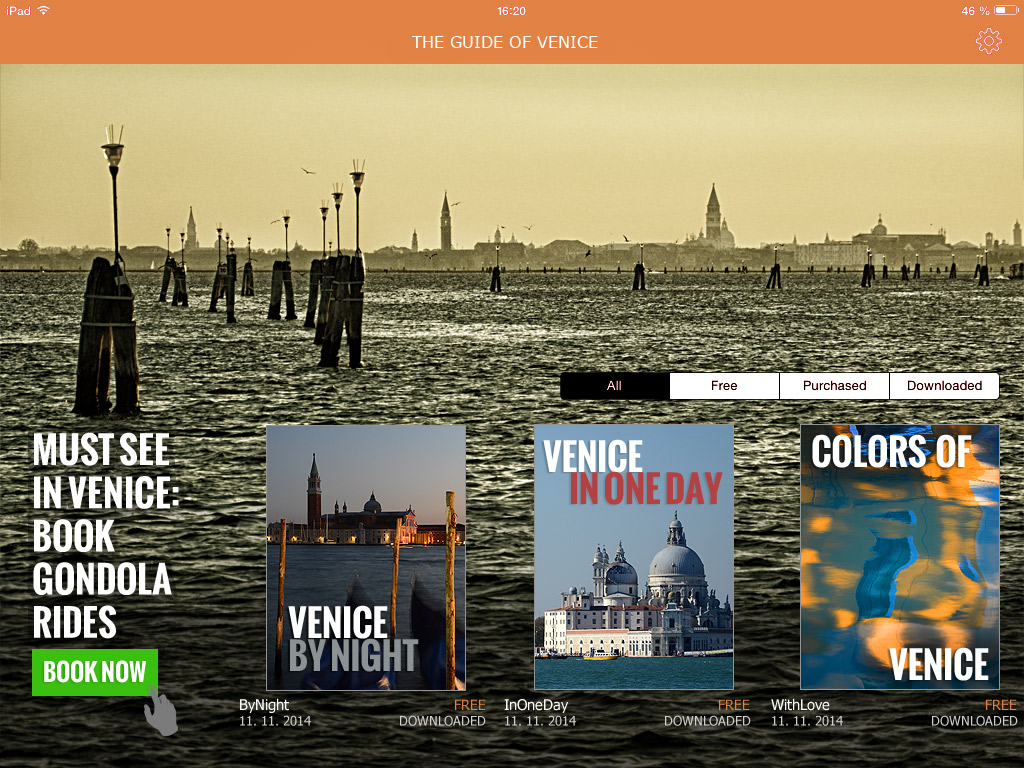
  • Internal or commercial advertising. The previous paragraph implies that the reader background may include any advertisement, again with animations, interactive elements, videos and so on. In the example of Venice Guide (see below), note that the ad may include the click through button to the advertiser’s website.
  • Colors used in the reader. All standard reader features, such as. the upper bar, bookmarks with issue selector, dialog with issue detail that appears when you click on the envelope – all that may be colored according to the publisher’s desire.

And that’s not all:

  • The publisher may create different wallpaper versions for tablet landscape orientation and another one for portrait version (different layout and graphic content may be created).
  • You may have reader with separate wallpapers for tablets and mobiles.
  • The publisher may display a different reader wallpaper for Apple iOS platform layout and another one for Android platform.
  • The reader design can be remotely updated.

How this can look like?

At the Venice Guide example you see the reader with own wallpaper (photo), where a commercial advertising was placed (order for gondola ride). The overview of issues – in our example three separate Guide issues – was positioned so that it aesthetically complements the picture. The entire reader was additionally colored in harmony with photos.
Ukázka vydavatelem definovaného vzhledu čtečky Triobo

How to attract readers? With video-wallpaper!

Categories
2. Triobo editor 6. Marketing & digital publications 7. Vocabulary

Advanced communication with readers – Triobo Push Notification Assistant (Triobo PNA)

A Unique Triobo Push Notification Assistant (Triobo PNA) is a powerful marketing tool for publishers of tablet publications. Triobo PNA significantly broadens the basic range of services that are sending messages to readers (so called. Push notifications, more here) that are displayed on their tablets or smartphones.

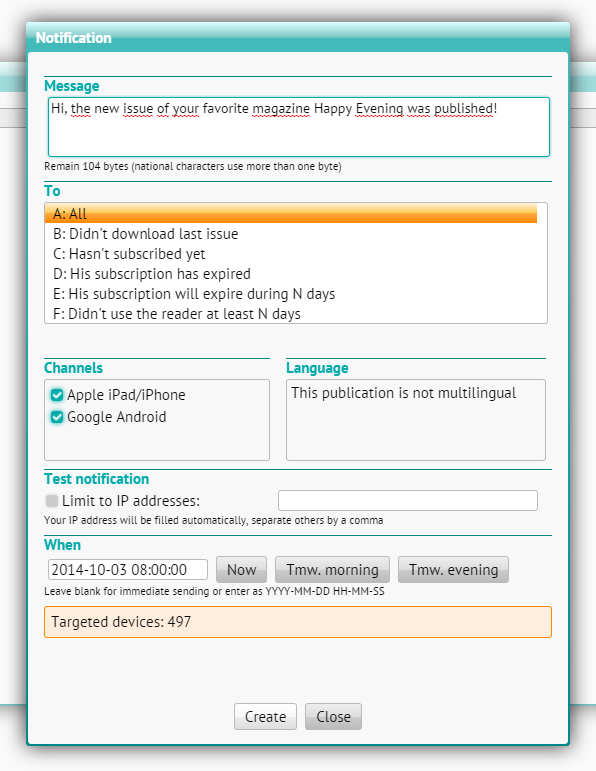
Thanks to the Triobo Push Notification Assistant that publisher can conveniently communicate and reach out specific groups of readers. The publisher then may send a message to:

  • All of his readers
  • Readers, didn’t download the latest issue of tablet magazine
  • Readers, that have not ordered a subscription yet
  • Readers, that their subscription has expired and was not renewed
  • Readers, who’s subscription expires during N days
  • Readers, who have not opened any magazine of a publisher at least N days

The publisher can also send a different message to readers on Apple tablets/phones and different message to other Android users. If the publisher has active multiple language versions, then he can also specify reading groups by language.

Triobo push notifications - advanced assistant

Using the function for notification testing, the publisher can send a test message (note: the reader should not have currently opened your magazine and also he must have enabled push notifications for your magazine – otherwise the message will not be delivered).

The publisher keeps always track about the number of readers whom the message will be sent – in any parameter settings for sending of push notifications, the dialog box at the bottom will recalculate the number of target devices (tablets and phones).

In addition the publisher can schedule sending of push notifications to a specific date and time. In such case, the message is queued for dispatch and will be sent out at specified time.

Triobo Push Notification Assistant is accessible to publishers with the Triobo Professional tariff or higher.

Categories
6. Marketing & digital publications 7. Vocabulary

Automatic cover page update in AppStore

Triobo allows automatic updating of tablet magazine cover pages in Appstore. This concerns digital magazines located in the Kiosk (Newsstand). Triobo have changed the usual practice where publishers placed cover pages of new issues manually, through web iTunesConnect.

Triobo digital publishing can provide so-called. AtomFeed that Apple is able to process automatically; you will save time and worries with cover page updating. This option is available to all customers with Triobo Professional tariff or higher.

Ukázka obálky v iTunes

How to do it?

First of all you need to publish any issue to public Apple iOS reader – you may re-publish any current issue. In this case, do not forget to mark the Rebuild option because you need to create a title page preview in different size (as big as Apple requires).

You will also need to find out where is located your AtomFeed: in the list of publications press the [i] icon (publication properties).

Publication properties

On the right side the reader applications are displayed. For the Apple iOS reader click Properties.

Reader properties

At the bottom you will find the URL, copy it (it looks as follows: http://storage.triobo.com/appleatomfeeds/87-s87x230.xml)

AtomFeed Triobo

If you have any newly published issue (not earlier, because until you publish at least one issue, then there is no AtomFeed in existence), go to the Apple iTunesConnect. In your application, select Newsstand from the top menu.

Click the Add Atom Feed. Enter the URL and nothing else. Save. System check will occur. If everything is OK, the Apple will message you that cover pages will be downloaded once a day (so it will show in App Store tomorrow).

The publication date will be sent to Apple (exactly as you have set it up), and the issue description is being sent out as well – it is a compulsory item with at least 10 characters (many of you do not have this filled up in Triobo editor). Attention, without filling up the issue description our AtomFeed will not be accepted by Apple!

Issue description

Categories
3. Content publishing for tablets 6. Marketing & digital publications 7. Vocabulary

Publishing portal

In publishing software Triobo you can not only create digital magazines and single publications, but also compact packages of independent publications with related content – all within a single application. Such an application is called publishing portal.

Triobo Kiosk is more suitable if you want to have a package of digital magazines in one application. More information about the differences between publishing portal and Triobo Kiosk.

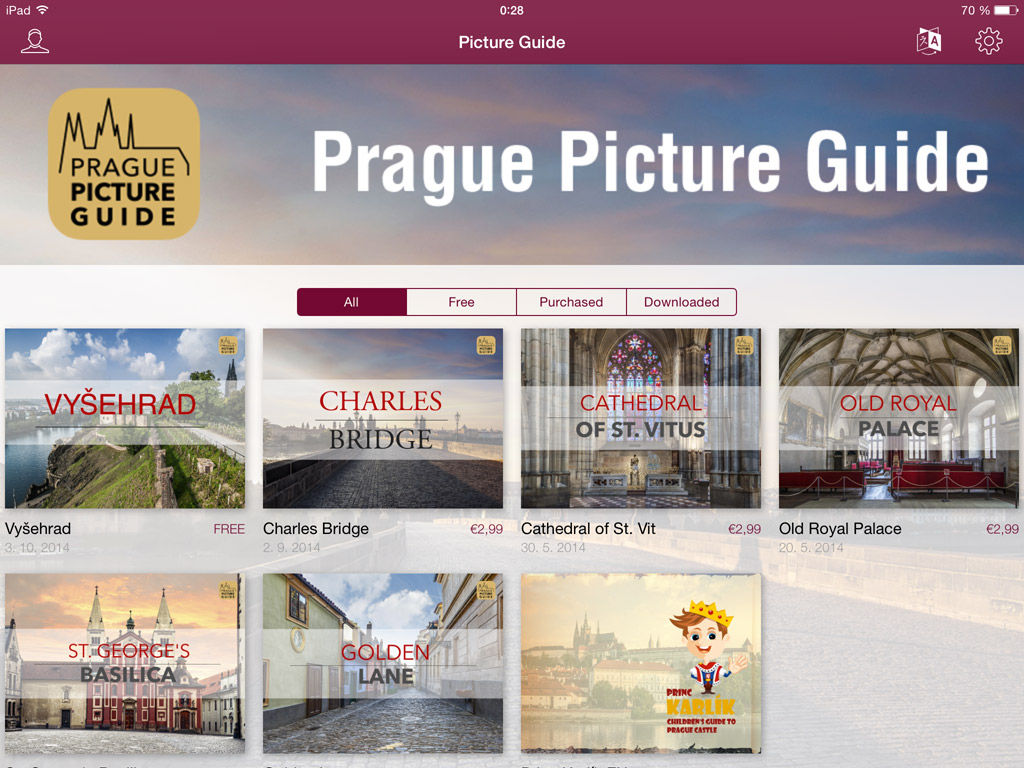
A typical example may be a set of independent tour guides offered in the App Store / Google Play under one icon, for example The Official Prague Portal (individual publication on Prague is free of charge) or The Prague Picture Guide (set of charged tourist guides). Other examples may be sets of company information materials (catalogs and documents for customers) or even digital portfolios of creative agency.

enter image description here The shared framework of a single application is very important from marketing point of view – even if you have separate series of tourist guidebooks, you do not advertise them all individually; just inform interested visitors of the existence of a single application, where they “find it all”. Instead of twenty separate references to twenty different applications you will use just one link.
Publishing portal may include:

  • Any combination of charged and free publications
  • Reader’s Zone – You can distribute coupons that substitute the payment in App Store / Google Play – at cash registers of tourist attractions (Triobo Professional tariff) for example
  • Language versions – the entire publishing portal may have multilingual content, among which readers can switch. Typically, a tourist guide in English, German, Spanish … and yet everything under one application.
  • Publishing portal can be also connected to the external payment gateway – and perhaps allowing you to sell charged tablet publications through your e-shop outside of App Store / Google Play (Triobo Professional tariff)
  • PDF (static) documents
  • Etc.

An important feature of publishing portal is the choice to instantly update on-line content or add additional publications.

Publishing portal is accessible in tariffs Triobo Start and Professional.

There are no special settings required, in fact this is the same model as in case of tablet magazines. The difference is only in slightly shifted meaning of terms: publishing portal is understood in Triobo Editor as a “publication” while individual publications in a publishing portal (eg. individual tourist guides) are then processed in the editor as “issues”.

Categories
3. Content publishing for tablets 5. Succesfull digital publication 6. Marketing & digital publications

Reader’s Zone (vouchers and coupons)

In the context of pricing options, Triobo Professional offers advanced functions to support the marketing of paid digital magazines – Reader’s Zone with vouchers (coupons).

Why Reader’s Zone?

Thanks to the Readers Zone, publishers have the opportunity to use coupons as a marketing tool of digital publications as an alternative payment channel. Coupons represent the unique group of letters and numbers that you may send to your readers or business partners with an e-mail, or printed to any type of media connected to your publication.

Coupon – a tool for digital magazine promotion

Typical use of coupons:

  • time-limited digital magazine subscription that is free to current subscribers of your printed version
  • gift to your business partners (e.g. free annual subscription to the magazine)
  • gift to clients of your advertisers (“when you buy a tablet in your online shop, you will get an annual subscription worth $ 30 from MyMagazine for free”)
  • option to sell digital magazine subscriptions alternatively to the Appstore / Google Play – saving charges

Coupon may also be:

  • unique – can be used only once – suitable for sending target marketing e-mails
  • general – (e.g. suitable for placement in printed advertising – an unlimited number of readers may use it, but only within predefined time period)

Voucher value

Each coupon can be an equivalent to the payment of a particular issue of your digital magazine, or a specific type of subscription.

Example: you may have a coupon for a “single item purchase”, which allows free downloading of the paid edition of MyMagazine, Edition 1/2014. Or you can create a coupon that corresponds to a quarterly subscription you are offering in Appstore.

How coupons work

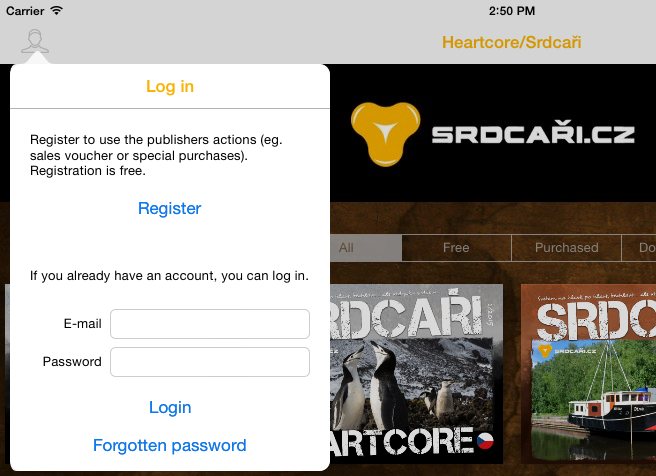
Prepare simple instructions for your readers describing how to use coupons (see example). Your reader must simply start the digital magazine reader on his device and select the Reader’s zone, then fills his/her email and password (if they do not have it, they must register). Here is the point where the appropriate coupon is inserted. Depending on the type of coupon the reader selects a relevant issue of digital magazine as “paid” and then they are free to download it.

Readers who want to use the coupon must register first (using e-mail and password) – so in the future they can renew their subscriptions. Registration will take place inside of Triobo publishing account; only the publisher has access to this information. The advantage is that you know specific emails of your particular readers and are able to work with them.

Categories
3. Content publishing for tablets 5. Succesfull digital publication 6. Marketing & digital publications

Reader’s Zone – user guide for your readers

Reader’s zone is an advanced function of Triobo digital publishing tool that is primarily used for marketing support of paid digital magazines.

Thanks to Reader‘s Zone you may offer coupons to your readers which will replace payments that are made through the Appstore/Google so the reader can recieve free magazines. This is ideal in situations where you want to give a gift to your already subscribed readers of printed magazines by offering them a free digital magazine for limited time.

It is recommended that you inform your readers about how they can use your gift. Instructions for using coupons and Reader’s Zone might look like this:

How to redeem a digital magazine coupon

To get a specific issue of a free digital magazine (or subscription), you need to be registered to Reader‘s Zone. Registration is required for your future identification which allows you to restore your purchases when needed.

Operating procedures for Apple iOS:

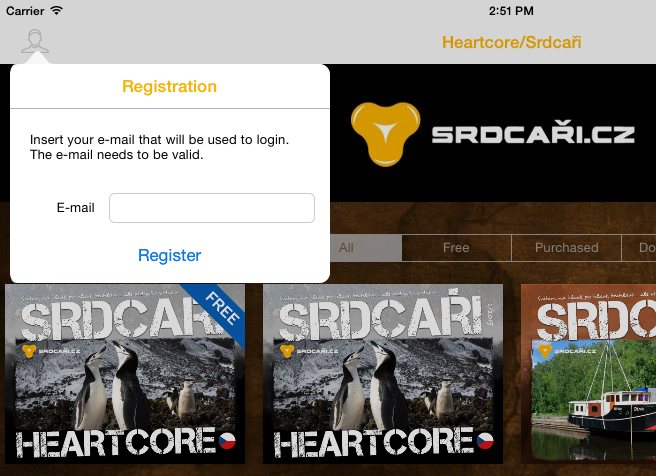
  1. In your magazine reader, in issue overview, select the “Reader’s Zone” at the top left (for Android: “Login” at the top right), press the last button “Register”and fill in your e-mail. The e-mail must be valid, because we will use it for sending you an activation message. If the publisher allows you to log in without e-mail verification, you may immediately log in and insert your coupon. In any case, activate your e-mail and pick the password so you can log in again in the future.
  2. An activation message will be delivered to your mail box with a link – click on it (or copy it to your web browser and press Enter). Choose your password and fill it in. Your account is active.
  3. Now you can log in to your reader with e-mail and password, by clicking the “Subscribe” in menu of the “Reader’s Zone”.
  4. After logging in, select the “Insert coupon” option. Just type in the coupon text that you have received from us, and press Send
  5. Your magazine reader will recognize the specific issue XX/2014 as paid, you can always come back later and read this magazine
  6. Now you can download free issue of required digital magazine

Categories
6. Marketing & digital publications

Facebook, how to approach it

Given the fact that Facebook has exceeded one billion of active users, let’s focus on this particular social network. For starters, just follow these few basic rules.

Facebook Page

Create so called Facebook Page (Facebook Page) for your digital magazine. Avoid conventional personal profile, which can only be used for a real person, not a “magazine”.

Tasting of contents

Publish advertisements for interesting content within the intervals between issue releases, motivate fans who have not already downloaded the current number to do so. Do not forget to provide add banners with page review or image. It works much better than simple text messages. See how Dotyk does it.

Backstage attractions

From time to time publish interesting photo or information from your backstage scenes. A lot of readers are interested in what is behind the final product, make a use of it.

New issue has been just published

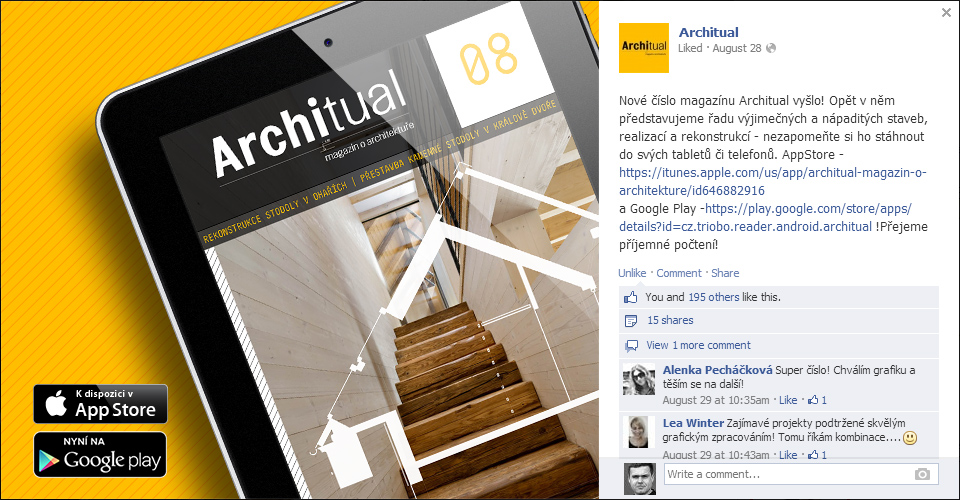
When a new issue comes out, publish only professionally prepared graphical illustration. Remember that the cover page sells – pay attention to the design. An example of such illustration can be seen below. Additionally make a use of it also outside of Facebook.

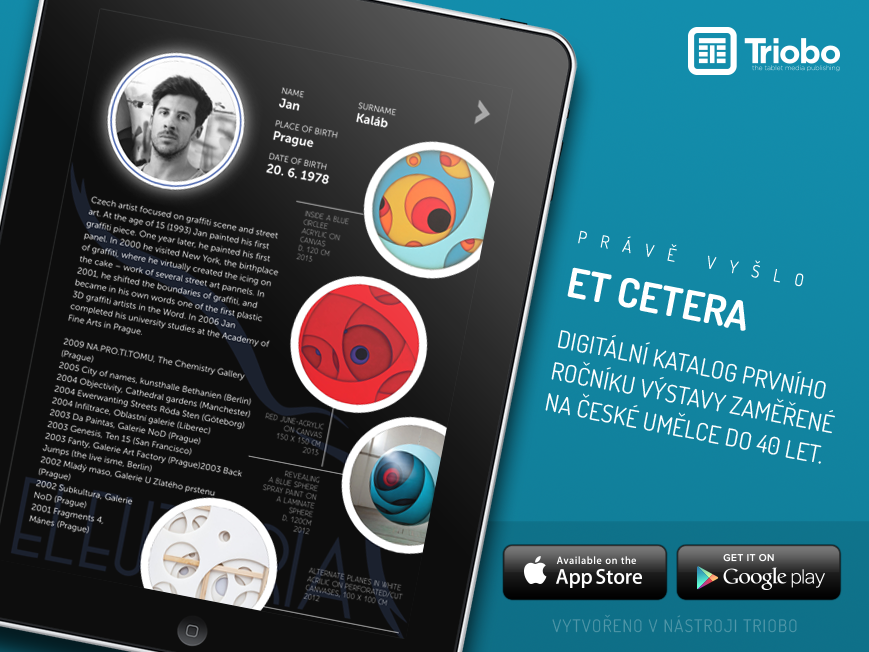
digital catalog generated by Triobo

Attention, important: do not forget to complement the image with text commentary, adding direct links for digital magazine download from Apple Appstore and Google Play. See example of tablet magazine Architual. tablet magazine Architual generated by Triobo

Share your contents

Do you have a personal profile on Facebook? Take advantage of your friends, and share interesting news from Facebook pages to your digital magazine.

Hashtags

You may place so called hashtags to the text of your Facebook contribution – keywords with preceding character “#”. For example, for an architecture magazine, you could use the #digitaljournal #architecture #digitalmagazine. Such labeled keywords become clickable on Facebook and allow you or anyone else to freely move between various contributions from different people and pages with particular topic. Your contribution will thus reach completely new potential readers. See below here. However be careful, not to overdo it with tags so you are not spaming.

Take the points mentioned here as an information minimum to get started with the promotion. Educate yourself on the Internet (there are piles of articles about Facebook marketing), you can also pay for training, or may be inspired by competition.

Inspiration