Categories
1. Starting with digital publishing 2. Triobo editor

Default settings for new issues

As soon as you set up a publication, a dialog box to configure default values for all new issues in the publication will appear. This will save you time during further steps. If you are not sure, leave the default values as they are.
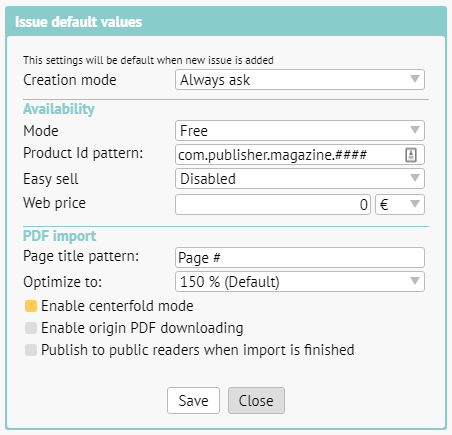
default values

Creation mode: you can set „Import PDF“ (for working with content on PDF basis) or „Create content“ (if you will be creating multimedia content in Triobo editor). If you are not sure, leave the default value. In that case the editor will always give you the option to choose when setting up new issue.

Availability > Mode: here you can choose, if by default new issues will be free of charge, paid, locked or hidden. More in another article.

Availability > Product Id pattern (applies only to paid issues): you can prepare a template for product Ids beforehand. If you set for example com.publisher.magazine.####, the product Ids will automatically be filled in the following form com.publisher.magazine.1, com.publisher.magazine.2 etc. Do not forget, that product Ids need to be approved by Apple and must be set in Google Play. See details.

Availability > Easy sell (applies only to paid issues): suitable for publishers with bigger archive. This enables them to sell content in reader applications even without approving product IDs by Apple and Google.

Availability > Web price (applies only to paid issues): here you can set the price of issue for web purchases.

PDF import > Page title pattern: here you can set, how individual pages shall be named after import. A pattern is used, where instead of the # symbol a page number shall be automatically filled in. On the picture you can see an example “Page #“, which means, that the first page will be named Page 1, second page Page 2 etc. In the editor you can further change the name of every individual page as you wish.

PDF import > Optimize to: we recommend leaving the default value of 150 %, that is the reasonable compromise between quality (required for zooming) and size of data. If you set higher value, it will allow for even greater zoom but at the cost of larger data transfer.

PDF import > Enable centerfold mode: on the display with sufficient aspect ratio the PDF will be displayed in centerfold mode (two pages side by side).

PDF import > Enable origin PDF downloading: suitable for publications free of charge. Readers can also download original PDF on the website, apart from reading.

PDF import > Publish to public readers when import is finished: right after the PDF import is finished an automated process of publishing will begin. If you plan to make further changes to the content before publishing (typically renaming individual pages) leaves this option unchecked.

You can also access default value settings afterwards. In publication overview click on the icon [i] for setting up publication properties. After that click on the button Issue default values.
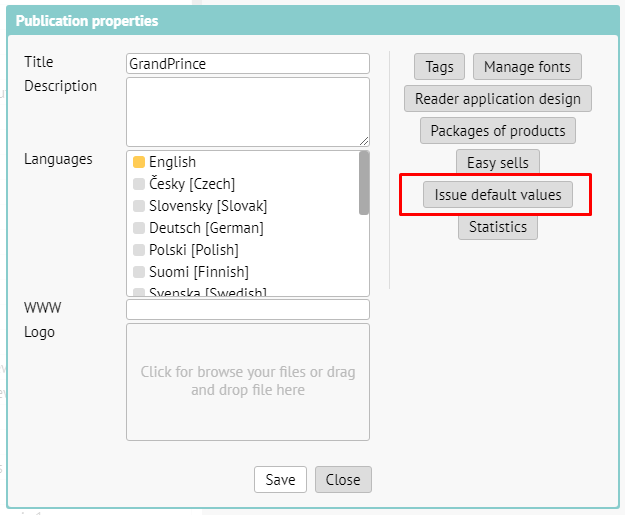
edit of default settings

Categories
1. Starting with digital publishing 3. Content publishing for tablets 6. Marketing & digital publications

Availability and visibility of digital content

Issue Availability

Individual issues can be distributed to the readers in several ways. Every issue must always have one of these modes configured:

  • free – immediately accessible.
  • paid – by this we mean the direct sale through Appstore and Google Play. The issues must have a product ID assigned, that must in addition be approved by Apple. Google does not require approval. In this variant the issue can be made available to the readers using external payment gateway or vouchers. Or in archive.
  • locked – this variant requires assigning product ID as well, however in this case no approval from Apple is needed. Therefore, direct sale using the button Buy in the reader application is not possible, the option to sell (or in any other way make accessible) the issues using external payment gateway or using coupons/vouchers is available. Or using archive.
  • hidden – same properties as locked issue. In addition, the issue is not visible in the issue overview until the reader obtains the option to access it by coupon or external payment gateway. Or by archive.

You can set these modes of availability in the dialog box with issue properties – you can access this dialog box by clicking on the icon [i] in the issue overview.

Access to issue

Issue Visibility

You can also choose between variants of how the issue will be visible to the reader:

  • Visible to all readers.
  • Visible only to logged-in readers (in the Readers zone – see next paragraph). This can be used typically for internal commercial materials or internal corporate magazine protected by password.
  • • Visible only to the readers, that are not logged-in.

You can find all variants of visibility in the issue properties as well.

Issue visibility

Readers sign-up into the Readers zone

In connection to the option to set visibility of digital content only to logged-in readers you can choose, if the readers can sign-up on their own (then the content is available basically to anyone, who registers in the reader application or on website, plus you do know his e-mail) or if the signs-up are solely yours as a publisher to decide and nobody from outside is able to gain access inside without you.

You can alter this option in the settings of Readers zone. The primary screen (see next picture) is accessed by clicking on the house button that you can find under the Triobo logo.

primary screen

After clicking on Readers zone, you can see its options.

Readers zone options

In the dialog box for Settings you can choose, whether the readers can register themselves or not. If the readers can not register themselves, you must register individual users yourself in the menu of Readers zone (see preceding picture, option Members).

Readers zone settings

Typical Scenarios of Use

  1. Digital magazine, small amount of published issues – choose the subscription type (with archive or without). For individual issues approve product IDs by Apple, so that you can also sell individual issues. Issues will have the availability set to “paid”, visibility will be set to “for all”.

  2. Digital magazine with extensive archive – approving product IDs of every single issue is very time consuming (in sum total), that is why you can decide, that issues older than the year 2017 will be configured with availability set to “locked”, and only issues from January 2017 onwards will be set to “paid”. Thus – new issues will be available for purchase separately directly in the reader application, older issues will be available only as a part of archive or for purchase through your website or coupons/vouchers.

  3. Application combining publications for end users with internal corporate documents – you will configure public publications with availability set to “free” and visibility set to “for all”. With internal publications you have several options – ideally you want to configure them with availability set to “free” and visibility set to “visible only to logged-in” (do not forget to disable registration into Readers zone and register your employees in the editor).

All settings can be combined as you please.

Categories
1. Starting with digital publishing 2. Triobo editor 5. Succesfull digital publication

Preview of paid content

Publishers of paid publications can enable free access to selected pages of every issue to the readers.

This can be used as an equivalent of flipping through a magazine in newsstand before buying it, and at the same time it is very useful when sharing on social sites. If you have, for example, a five-page-long interview in your magazine you can unlock the first page and share it on Facebook as enticement.

Reader’s View

A new button titled Preview has been added, that opens the first unlocked article of given issue. After a couple of seconds a dialog box will open offering the choice to buy the full issue, the reader can close this box by clicking and continue reading.

If the reader clicks on page preview, a free preview or (when the article is locked) a general graphical preview of said page with dialog box offering the choice to buy the full issue will open, according to the specific situation. In this case the dialog box with the offer cannot be closed, the reader can only continue to the next page.

Preview button

This is how the dialog box with the offer to buy the full issue looks like. Notice the buttons Previous free article/Next free article.

Buying

Settings according to the Publisher’s Request

As soon as you set any issue as paid, the column preview will show up in its overview. This column can be used for unlocking individual pages as free to read. Do not forget to publish the issue at the end, or more precisely update it, otherwise the changes will not take effect.

enter image description here

Categories
1. Starting with digital publishing 5. Succesfull digital publication

Application user interface – languages

The content of applications and web sites created using Triobo is decided by the publisher, including the language of every publication. In relation to that we have absolutely zero limitations.

As for the user interface of Triobo applications (i.e. menu, buttons for downloading magazines etc.), we currently support these languages:

  • English (EN)
  • German (DE)
  • Spanish (ES)
  • Russian (RU)
  • Finnish (FI)
  • Italian (IT)
  • Polish (PL)
  • Czech (CS)
  • Slovak (SK)

(as of: June 2018)

We are preparing: French, Chinese and Hindi. If you need any other language, just let us know.

Language preference of the application is automatically selected based on the settings of reader’s device.

Categories
1. Starting with digital publishing 2. Triobo editor 3. Content publishing for tablets

Digital replica of print (based on PDF) in three minutes

We are open to publishers who lack the time to create portable optimised design, but still want to profit from all the benefits of Triobo digital publishing, such as detailed statistics, animations, web links etc. You can use so called Replicas, which are based on print quality PDFs.

What are the benefits?

  • Digital publishing in a blink of an eye – can be finished in just three minutes
  • Content created from print PDFs can be combined with interactive features created in Triobo editor – for example, you can comfortably create a 300 page catalog using replica and the cover page with Triobo, where you add animations, hyperlinks (e.g. for e-shop) and even animated advertisement for your client
  • The result can be easily published to web, tablets, smartphones (Android, iOS, Windows 10, Amazon Kindle Fire) and desktop PCs (Windows 10)
  • The support of all Triobo features remains (detailed statistics, animations, readers zone, non-public section, language versions etc.)
  • Very comfortable reading both on web and mobile devices
  • PDF file can be (optional) available for common download

What will you need

Whole publication in one PDF file in the best possible quality (don´t compress the images unnecessarily), without cropmarks, each page individually (meaning not exported as spreadsheets).

How to do it?

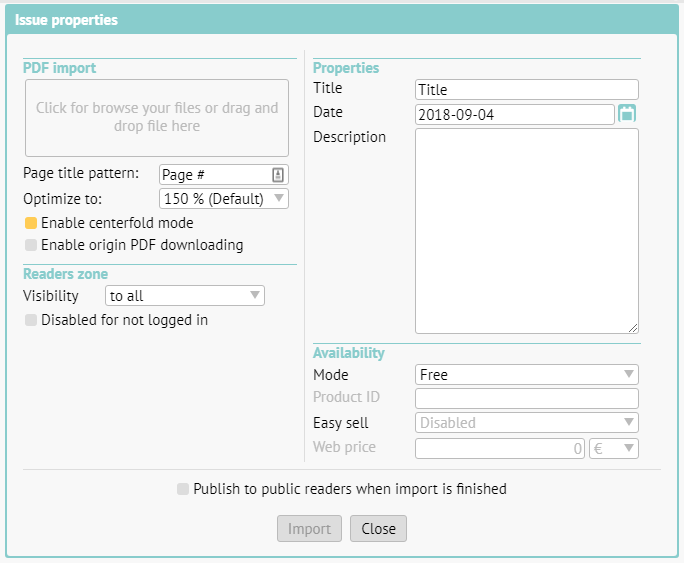
In issues overview (Issues) click on the button “+” to create a new issue. Based on your Default settings the following dialog box will appear.

New issue creation

Drag the PDF file with the mouse cursor to the top left rectangle.

Page title pattern – here you can select how should imported PDF pages be named. A pattern will be used, where # is automatically substituted with a page number. On the picture you see „Page #“ as and example, which means that first page will be named Page 1, second Page 2 and so on. You can name each page individually in the editor.

Optimization – We recommend to leave default value at 150 %, providing a reasonable compromise between quality (necessary for zooming) and file size. If you select higher value, publication could be zoomed-in futher at the cost of higher data transfer.

If you´re working with a portrait oriented content, you can set 2-page (centerfold) layout support – see red rectangle on the screenshot above.

If you want to offer PDF for common download (bonus for readers), set on the option Enable PDF downloading. If you allow this feature, the access to PDF download is the same like main publication: in case of paid content, download is available only after the payment. Keep in mind that your readers can distribute the downloaded PDF freely with no limitations. Note: The Triobo web platform is a prerequisite for using this feature.

Readers zone > Visibility of issue: you can set, who will be able to see the cover of the issue, usually just leave this on the default value (everyone). More in a separate article.

Title: is shown in the reader application under the issue’s cover. It is pointless to repeat the publication title (usually it is identical to the application or web name), rather specify the issue’s number etc.

Date: is decisive, beside other things, for sorting the issue in-between others.

Description: a short description of the issue. It is important particularly for the web version, it is used for search engines (Google etc.).

Availability Mode: if the issue is available for free or if it is necessary to use one of the available methods to pay for it. Details can be found in a special article.

Web price: you can set any price (regardless of Apple’s tier) to sell this digital issue on the web. Triobo web reader application is necessary.

Publish to public readers when import is finished: right after the PDF import is finished an automated process of publishing will begin. If you plan to make further changes to the content before publishing (typically renaming individual pages) leaves this option unchecked.

When everything is set, press Import.

In the issue list you can see the progress of the PDF import.

import progress

When the import is finished and digital replica is created, you can add hyperlinks or animations to any individual page or add new pages created in Triobo and, for example, combine animated title page with other catalog pages, which is automatically created by import as print PDF replica.

Do not forget: in order for any issue to appear on the web site or in your reader application, you must publish the issue (or have an automated process of publishing after the import is finished set as default).

Thumbnails and color – how to

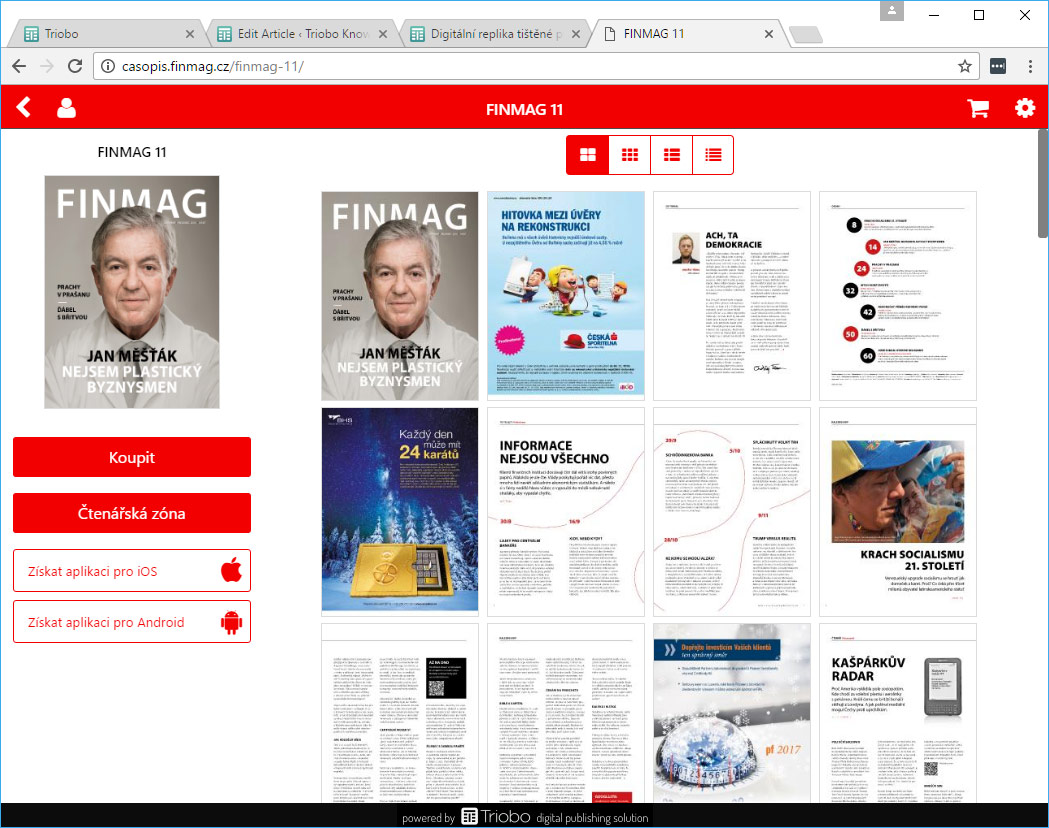
You can set the preview mode of your publication issue detail. Plus, if you have the Triobo Professional subscription, you can set a color scheme. On the image below you can see „full page“ preview mode, that is particularly suitable for previews of print magazines replicas. Read the tutorial about these settings.

Color and thumbnails settings

Categories
1. Starting with digital publishing 3. Content publishing for tablets 5. Succesfull digital publication 6. Marketing & digital publications

Digital replica of paper publication on the Web

For all publishers who want to convert their paper publication without hard work to reader application on tablet, smartphone or to convert print publication and publish it just on the web, we can offer them the digital replica solution. In a separate article information about making replicas was published where we have highlighted all benefits of digital replicas on the Web.

Benefits of digital replica on the Web

In short – everything what was said in Triobo web export article is still valid, but in addition:

  • digital replica can’t be easily stolen from the Web – when reader tries to save a page with replica image, he saves only a little cutout square.
  • support of centerfolds (on tablet rotate to landscape) – depends on publisher’s settings
  • on desktops zoom works by pressing the F button on keyboards or zoom icon from the menu, or using two fingers on touchscreen devices.
  • browser loading works automatically by portions, in a mosaic way, as shown below. Thanks to this readers see the content faster.
  • each page of digital replica has its own unique address (you can share it in email or on social networks as a specific page).
  • Scrolling between pages on touchscreen devices is conveniently done by sliding your finger (swipe), arrows on the sides of each page light up when moving mouse, arrow keys can be also used on classical computers
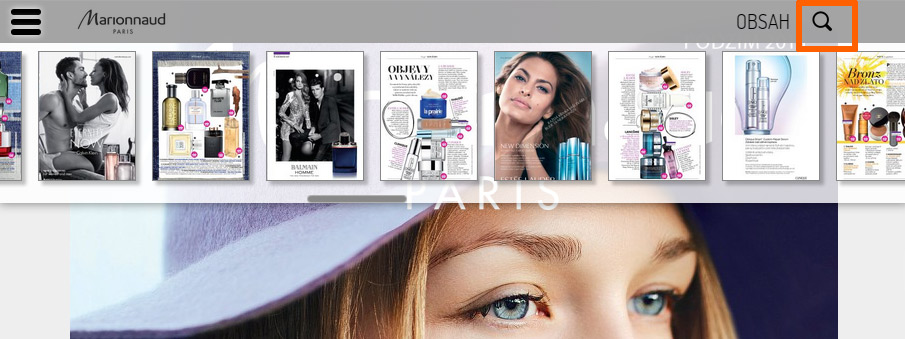
  • thumbnail menu for easy flipping through pages (see next picture)

Triobo webview replica loading

webview menu

Categories
1. Starting with digital publishing 5. Succesfull digital publication 6. Marketing & digital publications 7. Vocabulary

Triobo Portal – free promotion of your publications

Triobo Portal (see http://portal.triobo.com) allows all authors to have a free promotion of their digital publications. Simply publish your content in Triobo.

One of the greatest benefits of Triobo Portal is a possibility to have free samples of your digital publications on the web including advertisement for downloading of tablet applications. This allows you to easily promote applications created in Triobo digital publishing on social networks by sending direct links to specific articles so readers can immediately start reading them without having to install any reader applications.

Triobo Portal in pictures – benefits

A free sample of each publication page
Just top part of each publication page is shown, supplemented by advertisement for app download to phones/smartphones/computer – buttons are intelligently displayed according to used platform. In addition, a button may be displayed to redirect readers to web page for subscription order – including, e.g. order of printed magazine when such product is offered by a publisher.
Sample of Triobo Portal advertising for application download

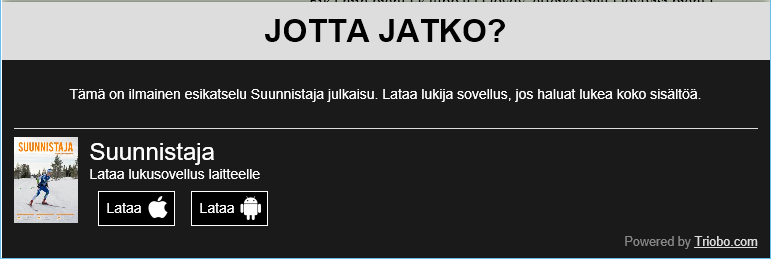
Advertisement for reader application download is displayed in the language in which a particular publication is created (below see the Finnish example in Suunnistaja publication).
Finnish advertisement example

Publishers may also ban the generation of sample displays when publishing particular issue. Sample is not generated in case when the full web export was ordered for particular publication, all portal visitors are immediately redirected to full article without any restrictions.

Free publisher profile
Each publisher gets his own page with “great looking URL” (e.g. portal.triobo.com/ipublishing) where all available publications are displayed.
publisher sample page with digital titles
The publisher may set in Triobo Editor his own logo, company profile and Internet address.

Free publication profile
Each publication has its own web page with nice URL (e.g. portal.triobo.com/tabletmedia/dotyk) with overview of all published issues. See the example of Dotyk (“The Touch”) magazine, the Best European Tablet Magazine 2014, powered by Triobo.
digital publication sample profile
Each publisher may set in Triobo Editor own publication logo, description and URL.

On publication page there are three buttons for application downloads and option for ordering (print, digital or combined) subscription.
download buttons

Publication detail
For each issue of digital publication there is a web page available containing detailed content. If the publisher wants to generate samples during publishing, then resulting individual articles are clickable. The same applies when the publisher has ordered a full web export.
Issue detail on Triobo Portal
Note that when publisher fills sections (categories) and keywords, in Triobo editor then they will also appear in Triobo Portal.

Categories
1. Starting with digital publishing 2. Triobo editor 3. Content publishing for tablets 5. Succesfull digital publication

PREVIEW: preview mode in editor

The preview mode is a very useful tool for making digital publications. It is symbolized by the eye icon.

Preview Mode Icon

When you press the Preview icon, the preview of current article opens in a new window, on its last saved version.

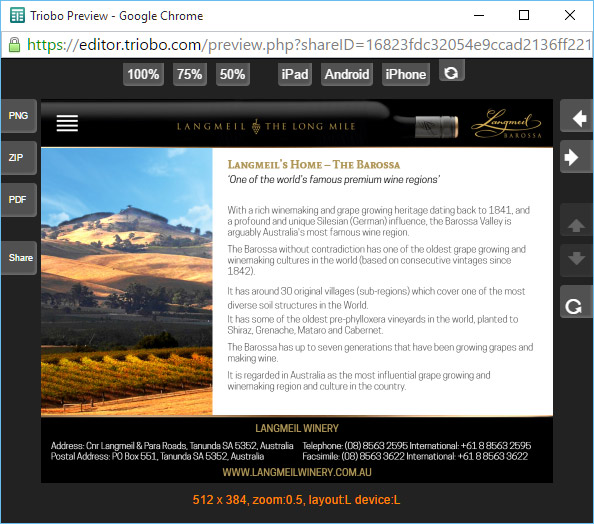
Preview Mode Window

Buttons at the top

Are used for of making the preview window larger or smaller. Besides, you can see how the page will look like on devices with different aspect ratios (iPad, Android and iPhone). The last button lets you change the display orientation on the simulated device.

Buttons on the right

Left and right arrows are used for browsing through previous / next article.

Up and down arrows are used for moving to next or previous page in current article (active only with paged articles).

Button with a circular arrow invokes reloading of the entire article (or for example animation restart, etc.).

Buttons on the left

These buttons are only visible when you look at the Preview window directly in the Editor, not when using the Share button for sharing (more in text below).

PNG button: exports visible part of the article to PNG format (eg. to App store / Google Play / Windows Store, etc.).

ZIP button: exports the visible part of the article as one package of files dimensionally modified (in pixels) for sending applications to all markets: The App Store / Google Play / Windows Store.

PDF button: (at this time only experimental alpha version) exports article to PDF format

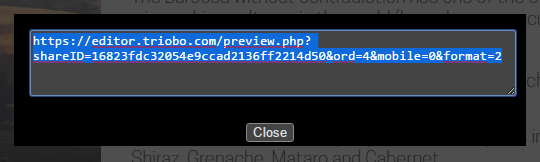
SHARE button: opens a dialogue with the Internet address for preview sharing:

Dialog with address for preview sharing

When you copy this address link to a clipboard and send it by e-mail to another person, you may preview the actual state of currently prepared publication easily on the Internet. Remember that when viewed on the Internet you are dependable on speed of your Internet connection, typically synchronization of animations might not work smoothly during the preview (unlike reading on tablet; we recommend to use Triobo Reader for final inspection).

The validity period of shared link? Up to 24 hours from the creation of sharing link. The preview sharing is not intended for publishing on social networks or for real use of digital publication.

HINT: When you plan to use the Triobo web export for your digital publications, you may use the preview mode or SHARE option for inspection in different browsers. Simply copy the link and open the address, typically in Internet Explorer, so you can check the font compatibility.

Categories
1. Starting with digital publishing 3. Content publishing for tablets

How to prepare entry materials for the Web

To start the Web export of your tablet publication (WebView), we need the following documents from you:

Your own domain

The web publication must run on its own website (own Internet domain). Usually it is the domain of second order (typically www.magazinename.com), but it may also be a third order domain (e.g. http://magazine.publisher.com). You may register this domain at your domain registrar. After this you need to redirect the domain to us – authorize your administrator to set up the so-called CNAME record of domain to webview.triobo.com value. And do not forget to send to support@triobo.com information about what domain you have selected for your web export.

Logo

There is publication logo on the header menu of Web pages made in Triobo (see example below). Send us a monochromatic logo in PNG format (with transparency), 64 pixels high including the protection zone above and below the logo (i.e. including spacers), the width is not limited. Logo in the site header

FAVICON: icon of your webpage

You may also display your own webpage icon called Favicon. Triobo will put the icon to your web, you just need to send us the icon. There is plenty of freely available tools and recommendations on the Internet how to create the icon. Favicon example may be seen on the example below. Example favicon

Publisher info

Send us the required name of the publisher and Internet address – both will appear on the page summary of published issues. See the figure below. Publisher information on the site

Statistics: Google Analytics code

Web sites made by Triobo digital publishing are supporting statistics and detailed traffic analytics using Google Analytics. Send us your code (you can download it free of charge on the link) and we will take care about implementation to your site.

How to publish to the Web

Once you get the message from us that everything is ready on our side, just publish your content in Triobo editor. When a new tab (Webview) appears in the publishing dialog press the Publish button (or Update, depending on the situation). Publishing dialog Triobo

Categories
1. Starting with digital publishing 3. Content publishing for tablets 5. Succesfull digital publication 6. Marketing & digital publications 7. Vocabulary

Triobo digital publications on the Web (web export)

Interactive digital publications made in Triobo are now available also to people who do not have a tablet or smart phone. They may simply use a web export Triobo.

Why to use a Web export

  • The reader does not need to own tablet – make your digital publications accessible to every reader on any computer. Including all interactive elements, animations, etc., everything is identical to tablet version
  • Immediate reading without need to install anything – users do not need to install reader application to their tablet / phone
  • Ideal for sharing on social networks (Facebook, Twitter …) – reader can read immediately from the Facebook
  • Full support of Internet search engines Google, etc. – texts in machine-readable form, Triobo additionally generates sitemap.xml). As a standard feature are provided nice Internet address of each page (URL * cool *).
  • Promotion of your applications on tablets and smartphones – for example, through Triobo Ad Banner
  • Your own Internet domain – Web based publications made in Triobo work on any web address based on choice of publisher
  • Publication Logo in the menu bar and User icon in the title of browser bar (ie. favico)

Superb reading experience

As stated before, the reader does not need to install anything and can immediately start with reading. It does not matter whether he starts on tablet, phone or any computer. The most important thing is reading comfort, where we try to mediate similar experience to iPad reader.

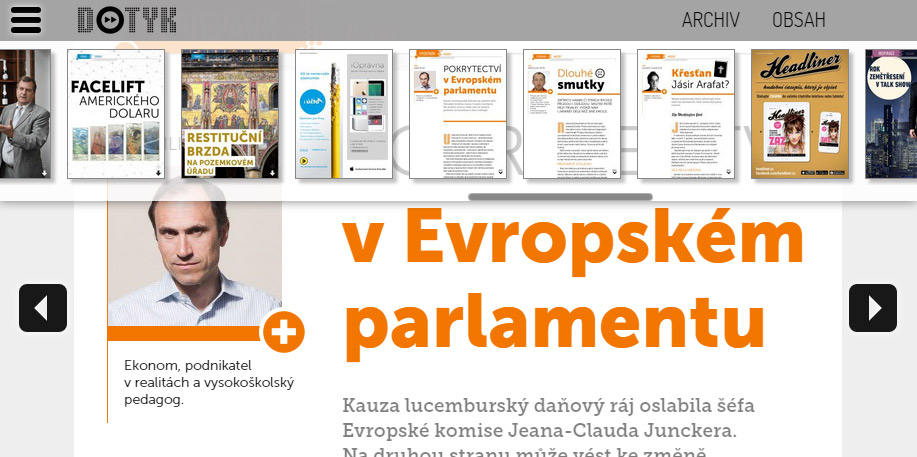
Each web publication has menu with previews of all pages – for a quick overview and browsing. Just click on the appropriate icon located at the top left or right side by publisher’s choice.

Menu interactive publications on the Web

On most devices with touch screen display you may scroll between pages using the classic finger motion (swipe) to the left or right. Where it is not possible for technical reasons (typically the default Web browsers of older Androids) at the touch of a finger or mouse movement the left / right arrows will appear.

Sample of scrolling arrows

Phone vs. Tablet content versions on the Web: The content made specifically for tablets is commonly displayed on the web. However, in case the publisher has also prepared a separate phone version, we can recognize the device on the web from which the reader opens web pages, and display this page correctly either in tablet (on computers and tablets) or phone (smartphones) mode.

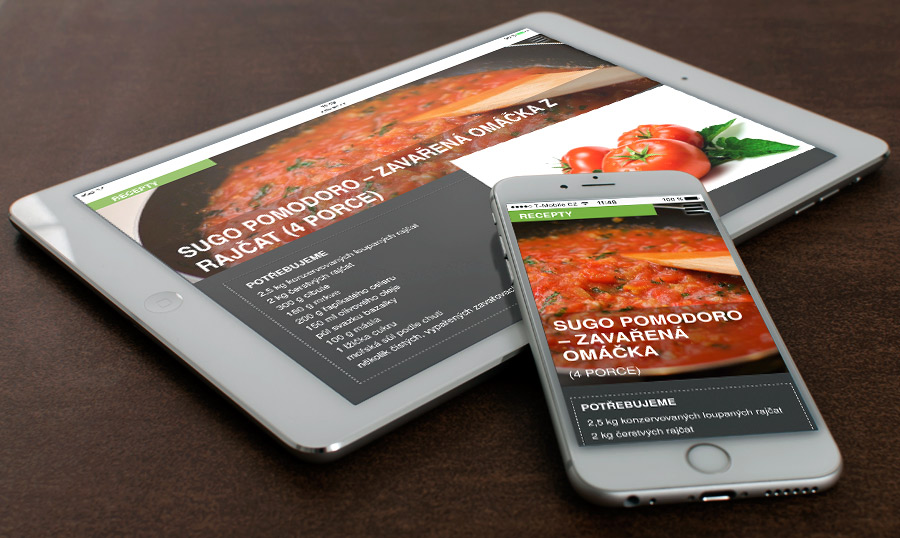
Tablet vs. phone on the Web

Advanced zoom mode is also available, and (on desktop) it works in several steps:

  • 100% display 1:1,
  • fit to width: content expands to the width of browser window,
  • fit to windows: content shrinks so the browser window fits to entire page (format “one iPad display”)
  • and several intermediate steps in between

Triobo zoom on the Web

You may bring up the zoom mode menu on computers (i.e. in desktop browser) by clicking the magnifying glass icon or by repeated pressing the “F” key. Publisher may also change the default zoom settings for given website, as described in a separate article. When browsing the Web on mobile devices zoom works using two fingers.

Look at how the Web export of Triobo digital publication may look like – visit read.skylink.cz.

Example of Triobo export - www.dotyk.cz