Categories
5. Succesfull digital publication 6. Marketing & digital publications

Change of the web address (URL) of a specific article

Notably when dealing with digital publications, that were created by simple import from press PDF, the option to change the internet address of key articles is very useful – for the sake of readers and browsers, as well as sharing on social sites. Standardly, after the automatic import, the pages that are created are labeled as Page 1, Page 2, … with unattractive web addresses such as www.yourmagazine.com/january/page-1, www.yourmagazine.com/january/page-2, etc. That is because web addresses of individual pages are automatically created based on the title of individual articles in Triobo editor. You can however change them.

We recommend, that at least key articles, that you want to for example share on social sites, should have “attractive” web addresses (URL) such as www.yourmagazine.com/january/topic-of-the-week.

How to do it

If you have not yet published your publication, all you need to do is to rename the selected pages in the articles overview. Afterwards you can publish it.

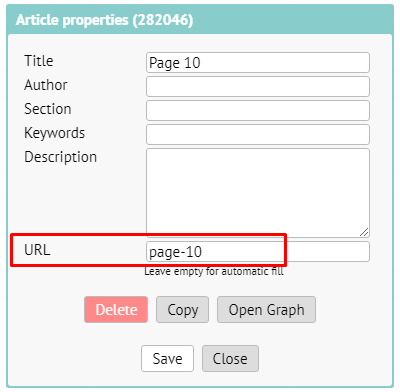
If the publication is publicly available and you are doing the change in addition, go inside the articles overview and click on the icon [i] next to the desired page. A dialog box with parameters of the selected article will appear:

If you do not yet have an attractively titled article, do it in this dialog box, in the first line.

In the line titled URL change the part of the web address of the article. In the example mentioned, the current web address of the page is www.yourmagazine.com/january/page-10. If you wish to change it for example to www.yourmagazine.com/january/topic-of-the-week, fill in the line URL in corresponding way.

ATTENTION: only use letters, dash (usually substitutes space) and numbers, nothing more!

Save the changes. To make everything have an effect on the web, it is necessary to update the publication (that is: publish it again).

For selected articles you can set your own images and text for sharing on social networks (Facebook typically).

Categories
5. Succesfull digital publication 6. Marketing & digital publications

How to set up a good-looking way to share on Facebook (OpenGraph)

When someone shares a hyperlink to some page of your publication on Facebook, the web address, title of the article and automatically generated image will appear. It looks similar to this:

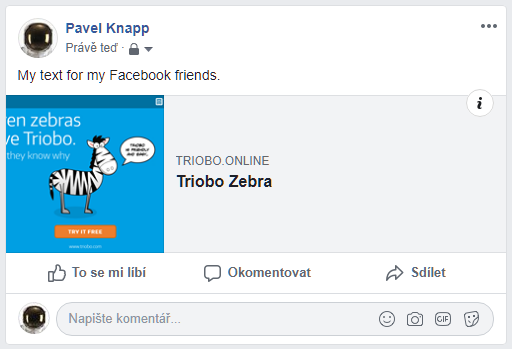
As you can see, it does not look very good. That is why we allow the option to set your own image and texts, that shall be used when sharing, for individual articles. The final result is much more appealing:

How to do it

The following procedure requires, that you first publish the specific issue into the web reader application.

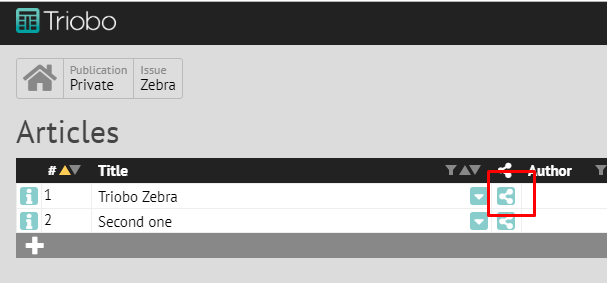
In the articles overview click on the share icon next to the article, whose individual parameters you want to configure. Note: the icon for sharing will appear only after you publish the specific issue into the web reader application.

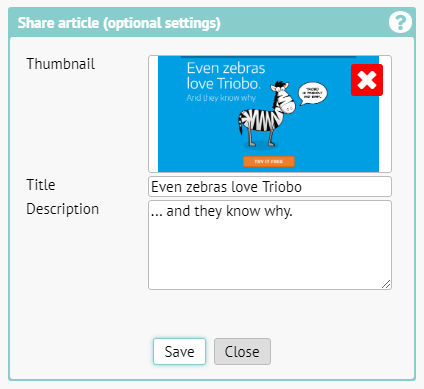
A dialog box with helpful features for sharing on social sites will appear.

Here you have the option to insert any image, that will appear when sharing on Facebook, as well as headline with explanatory text. We recommend, that the image has the dimensions of 1200 x 630 pixels, which are ideal for Facebook.

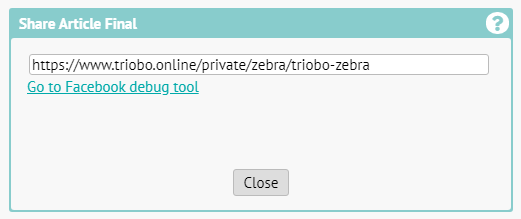
As soon as you save the changes, it is recommended that you force an update even on the side of Facebook. To do that, use the hyperlink Go to Facebook debug tool.

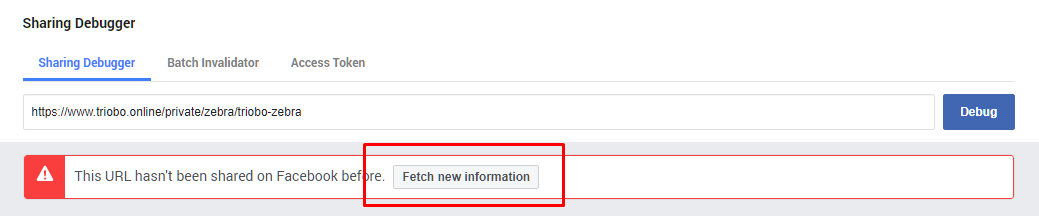
The forced update of Facebook is necessary, because Facebook stores information for sharing in its cache. If you want to be sure, that Facebook notices all your changes immediately, be sure to use the abovementioned hyperlink for Facebook Debugger (do not skip it). If the page, so far, never had any parameters for sharing set, and if it has not been shared by anyone before, click the button Fetch new information.

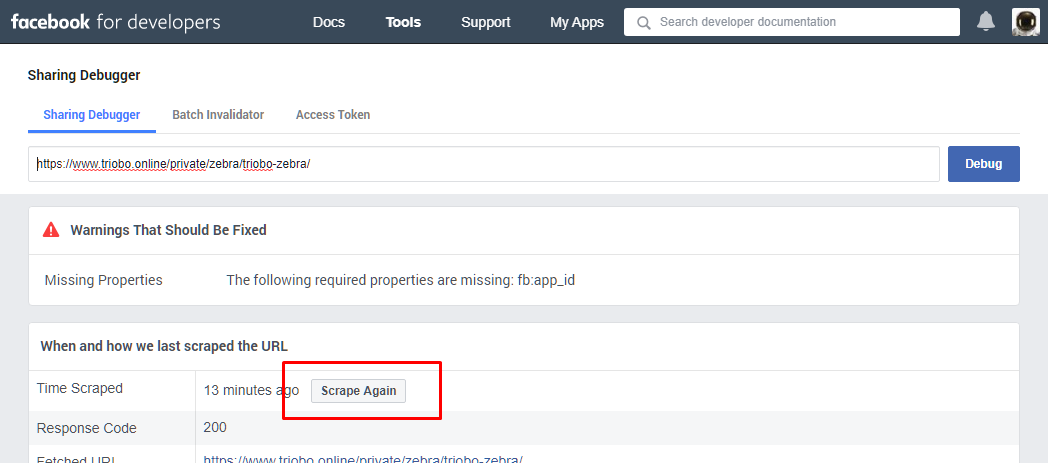
When a page has been shared before in the past, or when you already set its parameters in the past, you can use the button Scrape Again to force the changes for sharing to load. It is possible, that you will have to use it twice, depending on how fast Facebook can process the changes. You can check, if the changes have loaded, in the preview.


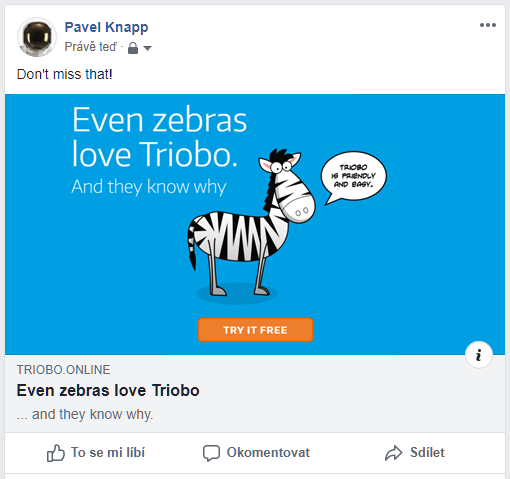
The result of sharing the abovementioned example will look like this:


Categories
3. Content publishing for tablets 5. Succesfull digital publication

E-shop administration: products

Publishers who use e-shop to sell subscription and at the same time have the Triobo Professional tariff can sell, together with the subscription, also related products – for example books. You can administer all content yourself in product administration.

Entry into the Administration

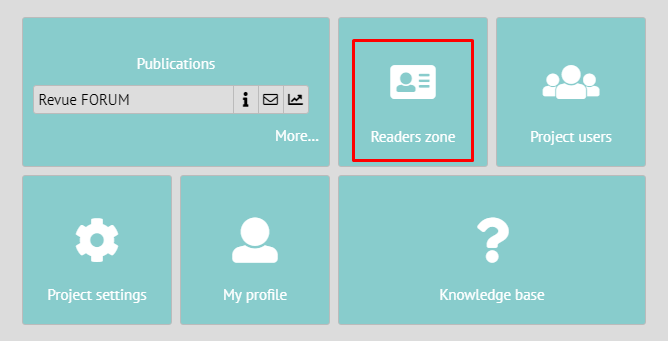
Click on the house icon and continue according to the pictures:

Then into the Readers zone:

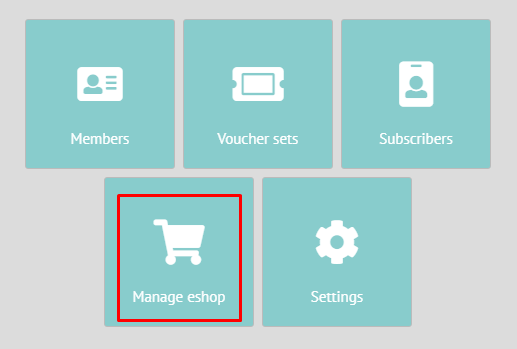
In Readers zone choose the E-shop section:

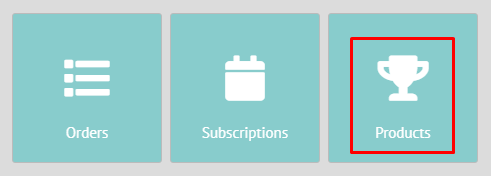
And continue to the Products section:

New product

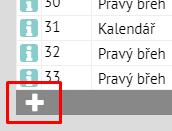
In the product overview click on the icon + in the bottom left corner.

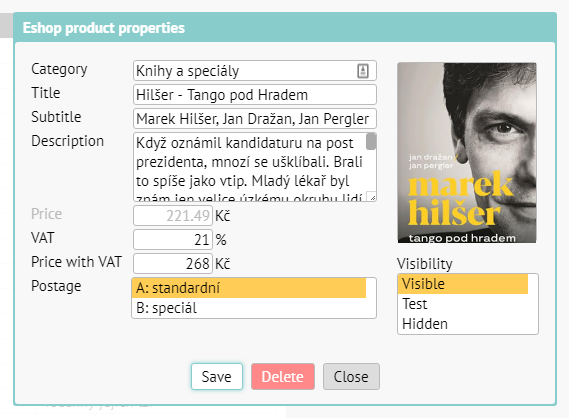
A dialog box for inserting a new product will appear:

The meaning of individual parameters:

Category – you will fill in the category into which the product shall belong. If you use a category title, that has not yet been used, a new category shall be established.

Title – the title of the product (typically a book title).

Subtitle – typically the author of the book.

Description – a longer description, it shall be shortened on the main page of the e-shop, on the product detail it shall appear entirely.

VAT – default is at 21 %, you can however change it accordingly to the legislation and the respective product.

Price with VAT – you shall input the final price, price without VAT shall be calculated automatically.

Postage – based on how you defined your categories of postage when setting up e-shop (this cannot be done yourself, it needs to be set up by us), you will choose the type of the postage. For example category „A“ shall be books and category „B“ shall be discounted postage for sending smaller special issue.

Image – you will drag an image of the product into the rectangle box. Watch out though, the image will not be optimized in any way, you need to do this yourself, based on your own consideration regarding the quality of the image vs. data size.

Visibility – you can use this while preparing your materials. The possible variants are Visible, Test (=trial, is only visible on non-public address), Hidden (is not shown to customers in the offers section).

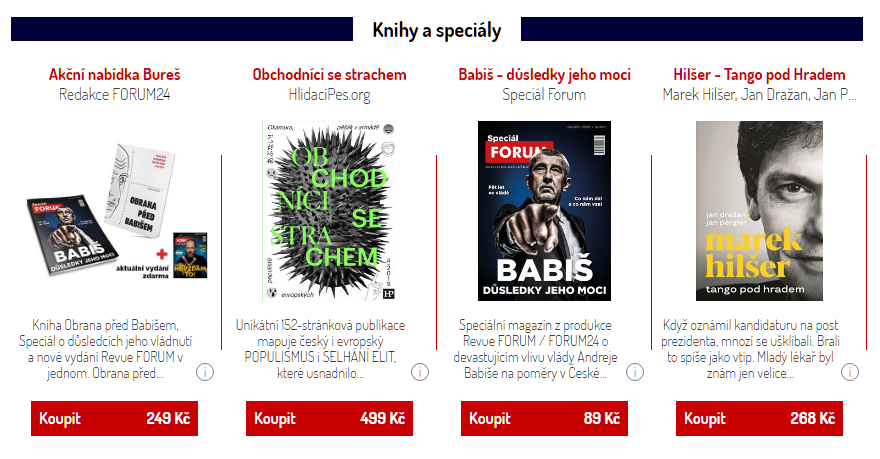
For better idea, this is how the product from the previous image looks like in real e-shop. The first image is the cutout of the main page of the e-shop.

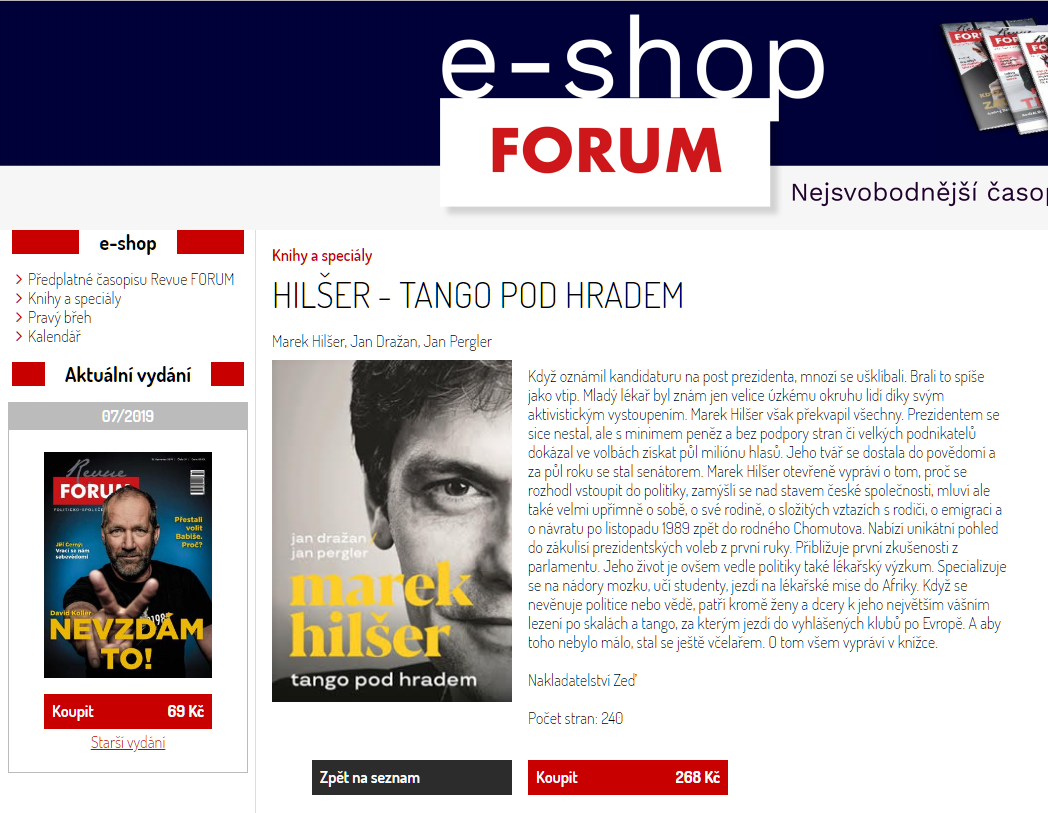
And this is how the product detail looks like:

How to edit the product

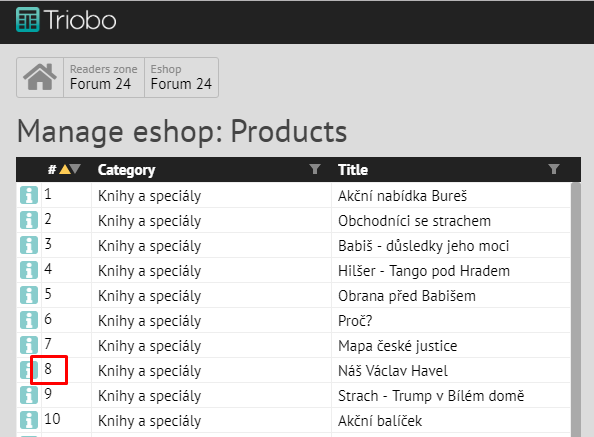
Click on the icon [i] on the beginning of the respective product row. You will then make the required change in the product. As soon as you save everything, it will be updated immediately in the e/shop.

How to change the order of the products

By dragging the mouse (drag and drop) – grab the respective product by the number on the begging of the respective row and drag it into the required position.

Categories
3. Content publishing for tablets 5. Succesfull digital publication 6. Marketing & digital publications

Easy sell

If you want to upload an older issue (archive issues) into Triobo and sell it directly in the mobile application, you have basically these options:

a) for every archive issue you can send a product ID for Apple approval. This is however a lengthy operation, especially when you have more older issues of a magazine.

or

b) Triobo offers a special mode suitable for direct sale (for example of just one issue) of archive issues – so called easy sell. You define price of one (archive) issue and we will let Apple/Google approve a special mode necessary for easy sell. You will then be able to turn on the easy sell mode for any archive magazine issue in the Triobo, no more Apple approval process for magazine issue is required. When the reader decides he wants to buy such issue, a message will pop up, that he must first log in in the application. Afterwards, the sale comes through.


Note: the above mentioned applies only to sales within the scope of the mobile application. In your web based e-shop the reader can purchase any issue directly, without the need to care about approval of product IDs or the use of easy sell. The only thing that is necessary is to have the price of the issues for web purchases and the product ID (even if not approved by Apple) filled in by the respective issue. Such issue will then be marked as locked without the option to purchase inside the mobile application. However: if the reader buys said issue on webpage and then logs in through the mobile application using his user name and password he can read this archive issue even in the mobile application.

Categories
5. Succesfull digital publication 6. Marketing & digital publications

Trivial reader application on another webpage (IFRAME)

Let us presume, that thanks to Triobo you have a web reader application of your digital publication and you want to promote it on another webpage.

You can use IFRAME to display a full-fledged reader application on a different web address as part of another webpage, as we have written in detail in another article. This variation of IFRAME reader application is more usable for unpaid publications, since it covers the paid pages by crosshatches.

The other variant is represented by a more trivial IFRAME reader application, that offers you a simple flip through a specific issue/publication on another web. The pages are smaller and are not covered by crosshatches. At the same time this variant works with a lower quality (unreadable) preview, so that paid mediums cannot be exploited.

The result may look for example like this:


The respective full-fledged reader application is at the same time running on a separate web address.

How to do it

Again, we will use IFRAME (that is a short HTML code, that you will insert to a different webpage) and a new set of parameters, that is usable for publication based on PDF. The example preview shown before is using the following code:

<iframe src="info.eduard.com/en?action=newestissue&embed=1&arrows=1&bg=ddd&color=d00&title=i&applinks=1&weblink=1&barbg=d00&barcolor=fff&bottomweblink=Open%20in%20new%20window%0A" scrolling="no" style="width:650px;height:480px;"></iframe>

Let us go through the individual parameters. Based on your need you may reduce the number of parameters (respectively you do not have to use all of them) and you can thus set the design of your “flip presentation” based on your own will.

info.eduard.com/en – the address of your full-fledged Triobo web reader application. If you use the parameter „action“ (see the following point), state only the home web address. If you do not use the parameter „action“, insert the URL for the specific issue or directly for a specific page.

action=newestissue – thanks to this parameter the most relevant (latest) issue shall be displayed.

embed=1 – a key parameter, that tells the reader application, that the publication shall be displayed in the trivial flip through style, with only small preview etc.

arrows=1 – if this parameter is used, it will display arrows on the sides of the magazine for flipping through. Note: you can also flip through without arrow just by clicking on the respective side.

bg=xxx – thanks to this parameter you can change the background colour. The colour is entered in hexa input, that is common for HTML, for example ddd nebo ff8800, always without # on the beginning.

color=xxx – colour of the arrows, again in hexa input common on web, without # on the beginning.

title=x – instead of „x“ use one of the mentioned variants: „i“ for issue title, „p“ for publication title, „pi“ for publication and issue title. You can also input any text you wish, beware however, that it is not enough to just write it, it is necessary to input it as code, for example by using the service of https://www.urlencoder.org. This gives you for example instead of „Latest issue“ the code „Latest%20issue“, which can be used in this parameter.

applinks=1 – this parameter sets if the icons for downloading the mobile application (that is the bitten apple, android) are shown.

weblink=1 – this parameter sets if the icon for opening the full fledged reader application in a new browser window is shown.

bottomweblink= – you can also set your own text hyperlink under the publication. The text needs to be encoded first, again for example by using the service of https://www.urlencoder.org. Example: instead of „Open in new window“ you will get „Open%20in%20new%20window“, which can be used in the parameter.

If the parameter title or applinks or weblink (that is at least one of those) is set, then a lane of heading will show above, which can be coloured:

barbg=xxx – colour of the background of the heading lane, again in hexa in the web standard without # on the beginning.

barcolor=xxx – colour of the text in the heading lane.
 

The size of the window (in pixels) is modified here: style=”width:650px;height:480px;”.

Tip: do not forget to put hyperlinks to the e-shop with the option to purchase subscription or specific digital (and/or printer) publications under the window with IFRAME flip presentation.

Quality of previews

The publisher can decide to use previews of individual pages in a higher quality – this, however, comes with the risk, that such pages are on the border of normal readability and therefore there is a higher chance, in case of paid publications, that they will be exploited. This change is subject to authorization from the side of Triobo, for safety reasons, and therefore it is necessary to directly request it.

Note: This option is available only for those titles, that were imported from PDF files.


Statistics

Even such a simplified version of the reader application for marketing purposes is compatible with your Google Analytics statistics, which gives you overview of its usage.


Hyperlink sample to a specific page of a magazine

The example, that is missing the parameter „action“ and therefore no arrows for flipping through are shown.

<iframe src="https://kiosek.epublishing.cz/tajemstvi-vesmiru/7-8-2019/strana-12?embed=1&bg=000&title=pi&applinks=1&weblink=1&barbg=404&barcolor=ddd" style="width:650px;height:480px;" scrolling="no"></iframe>

Can also be used even for the original digital layout

You do not have to work only with publications based on PDF, the flip presentation can also handle (in previews) publications created with original layout for digital environment, that contain animations, interactivity etc.

Bonus for advanced – „fully responsive IFRAME“

For ideal customisation of the IFRAME flip presentation to the actual size of the browser window (a typical problem between a big monitor and display of a cell phone), it is suitable to ensure such responsiveness, so that the IFRAME reduces its size while keeping the height-to-width ratio constant. The procedure to do so is the following:

First, it is necessary to define the style for „box“ and use the trick through „padding-bottom“ that renders rectangle 100 % wide and tall in the requested ratio. Next, IFRAME will be inserted inside with the absolute position of 0, 0 and dimensions of 100 % x 100 %..

The corresponding part of the code:

<style>
.box {
position: relative;
width: 100%;
padding-bottom: 75%; /* tato hodnota určuje poměr, 4:3 = 75%, 3:2 = 66%, 16:9 = 56.25% */
}
.box iframe {
position: absolute;
left: 0;
top: 0;
width: 100%;
height: 100%;
}
</style>

Use this construction in the HTML code of the webpage:

<div class='box'><iframe src='xxxxxx'></iframe></div>
Categories
5. Succesfull digital publication 6. Marketing & digital publications

Tags in reader application of digital publications

To make the reader’s orientation easier, issues and publications can be sorted using tags with Triobo Professional tariff. If the tags are active their icon is situated in application or on website in top-left corner.

Clarity above all

A simple example of using tags is sorting magazines by year.

sorting magazines by year

Other typical situation is represented by sorting content into (even mutually overlapping) groups. Notice that the reader can turn on even several groups at once. For you as a publisher it is important, that each issue (or publication) can have more tags, i.e. content can be integrated into more groups.

Tags - groups

If the publisher uses Triobo Kiosk tariff (i.e. more magazines in one application) he can use tags even for sorting whole publications (e.g. “social”, “scientific”, “tabloid” publications etc.).

Creating Tags

In the first place it is necessary to configure tags for specific publication. In the publication overview press the icon [i] at the specific publication to make the dialog box with publication properties appear.

Publication properties

Next, press the button for tags. A dialog box will open, allowing you to add a new tag using the button “+”. You can change the order of current tags by dragging the mouse.

Tags dialog

After pressing the “+” button a new window with tags definition will open. If you have the option to publish the publication in multiple languages (multilingual) turned on for the publication (more at Multilingual content with language switch), the dialog box looks as follows:

Tags definition - multilingual

In the Tag field fill in your internal tag title. The title must be only one word, without diacritic, de facto an abbreviation. You will see this abbreviation in the publication overview in the column Tags, which allows you to quickly figure out publications that already have tags configured and what tags those are. (note: if you delete the tag definition in this dialog box, that has already been configured for some publication, the tag will not be seen in the reader application, but will remain configured for this specific publication. This is configured in this way so that you can fill in the tag definition again later if needed without losing all publication settings.)

The field Title are the names of the tags that the reader will see in the menu. Notice, that one tag can have more language versions, that will appear according to the language version of the reader application chosen by the reader.

The checkbox Exclusive means (from the point of view of the reader) that the selection of the exclusive tag discards all previously configured tags. Typical use? If you use tags for individual years of magazines, configure them as exclusive. If you want the reader to choose a combination of tags (for example “company materials” and “marketing”), do not configure exclusivity. The settings if always valid for the specific tag.

If you only have the publication as monolingual (typically a magazine) the dialog box if simplified:

monolingual publication

Tags settings for Issues

In the issues overview notice the column with configured tags. Click on the icon [i] for the issue properties.

issues overview

In the issue properties window, you can notice the special field for configuring tags. Simply tick one or more tags that will be used. Then save.

Issue properties, tags definition

All you need to do now is update the issue (in the window for publishing) and it is done.

Categories
5. Succesfull digital publication 6. Marketing & digital publications

Transfer of purchases between platforms

In connection to paid content you can offer your readers the option to transfer their purchases between individual platforms (Apple iOS, Android, Windows 10 and website). Example? If the reader buys a magazine on cell phone in Android application through Google Play he can also read it on website using computer or in application on iPad (tablet).

The transfer of purchases applies to transactions through external payment gateway, publisher’s e-shop or using vouchers, and also to direct purchases through Appstore and Google Play. The publisher also gets to know the reader’s e-mail address.

Scenarios

  • The purchase is made on website (through payment gateway) – during the purchase the reader chooses his login username (e-mail) and password. The reader must be logged-in to access his paid content (publications), be it through website or application on tablet/smartphone/computer. The publisher knows the reader’s e-mail and can ask the reader during the purchase about any other information.

  • Vouchers are used as a substitute for payment – reading and purchase is based on the same principal as in the point above. The publisher knows the reader’s e-mail address.

  • The purchase is made directly in the application through Appstore or Google Play – the reader does not have to be logged-in to purchase or to read. The drawback is that neither Apple, nor Google, will disclose the identity of the reader, his e-mail or his name. Here comes the key advantage of Triobo: if the publisher enabled the transfer of purchases (default settings), then after the reader logs in into the application, all information regarding purchases through Appstore or Google Play are transferred, together with the reader’s e-mail address, to the server. The reader can, from this point onward (after logging in), read his publications on more of his devices and the publisher knows his e-mail.

The feature to transfer purchases is part of Reader’s zone, external payment gateway and publisher’s e-shop.

Categories
1. Starting with digital publishing 2. Triobo editor 5. Succesfull digital publication

Preview of paid content

Publishers of paid publications can enable free access to selected pages of every issue to the readers.

This can be used as an equivalent of flipping through a magazine in newsstand before buying it, and at the same time it is very useful when sharing on social sites. If you have, for example, a five-page-long interview in your magazine you can unlock the first page and share it on Facebook as enticement.

Reader’s View

A new button titled Preview has been added, that opens the first unlocked article of given issue. After a couple of seconds a dialog box will open offering the choice to buy the full issue, the reader can close this box by clicking and continue reading.

If the reader clicks on page preview, a free preview or (when the article is locked) a general graphical preview of said page with dialog box offering the choice to buy the full issue will open, according to the specific situation. In this case the dialog box with the offer cannot be closed, the reader can only continue to the next page.

Preview button

This is how the dialog box with the offer to buy the full issue looks like. Notice the buttons Previous free article/Next free article.

Buying

Settings according to the Publisher’s Request

As soon as you set any issue as paid, the column preview will show up in its overview. This column can be used for unlocking individual pages as free to read. Do not forget to publish the issue at the end, or more precisely update it, otherwise the changes will not take effect.

enter image description here

Categories
5. Succesfull digital publication 6. Marketing & digital publications

Folders and groups

In digital publishing Triobo (tariff Professional) you can arrange individual publications and releases into logical arrangements (i.e. folders and groups).

Folder

The term “folder” is used in connection with Triobo Kiosk, when there are more magazines in one application (or on one web site) sorted into folders. Each magazine is independent, has its own subscription, magazine detail design, push notifications etc. Every folder corresponds to a specific publication in Triobo editor.

Group

You can have any number of groups within given publication. A group is more releases of one publication (see publication in the meaning of Triobo editor) arranged together. You can typically set groups for individual years of magazine issues (and leave the current year outside of groups where it is directly visible), or in the case of specialized publishing portal for related entries such as “materials for sales representatives”, “catalogues” etc. The fact that every release can be in more groups is a tremendous advantage. Another advantage is optimization of the amount of downloaded data for the reader.

Group is viewed by Triobo editor as a specific type of tag.

Triobo Groups

Categories
1. Starting with digital publishing 5. Succesfull digital publication

Application user interface – languages

The content of applications and web sites created using Triobo is decided by the publisher, including the language of every publication. In relation to that we have absolutely zero limitations.

As for the user interface of Triobo applications (i.e. menu, buttons for downloading magazines etc.), we currently support these languages:

  • English (EN)
  • German (DE)
  • Spanish (ES)
  • Russian (RU)
  • Finnish (FI)
  • Italian (IT)
  • Polish (PL)
  • Czech (CS)
  • Slovak (SK)

(as of: June 2018)

We are preparing: French, Chinese and Hindi. If you need any other language, just let us know.

Language preference of the application is automatically selected based on the settings of reader’s device.