Categories
5. Succesfull digital publication 6. Marketing & digital publications

Subscription types

The publisher has the option of setting any duration for the subscription (or more subscriptions) of digital magazine. Usually half a year and one year. Details can be found in special article.

Furthermore, the content of the subscription can be set as follows:

  • the subscription unlocks current release of the magazine plus all new issues published during the configured duration (default variant)
  • the subscription unlocks all new issues published during the configured duration and in addition complete archive of all previous issues

Your selected variant is set by us in Triobo when creating / updating the application.

Categories
1. Starting with digital publishing 3. Content publishing for tablets 5. Succesfull digital publication 6. Marketing & digital publications

Digital replica of paper publication on the Web

For all publishers who want to convert their paper publication without hard work to reader application on tablet, smartphone or to convert print publication and publish it just on the web, we can offer them the digital replica solution. In a separate article information about making replicas was published where we have highlighted all benefits of digital replicas on the Web.

Benefits of digital replica on the Web

In short – everything what was said in Triobo web export article is still valid, but in addition:

  • digital replica can’t be easily stolen from the Web – when reader tries to save a page with replica image, he saves only a little cutout square.
  • support of centerfolds (on tablet rotate to landscape) – depends on publisher’s settings
  • on desktops zoom works by pressing the F button on keyboards or zoom icon from the menu, or using two fingers on touchscreen devices.
  • browser loading works automatically by portions, in a mosaic way, as shown below. Thanks to this readers see the content faster.
  • each page of digital replica has its own unique address (you can share it in email or on social networks as a specific page).
  • Scrolling between pages on touchscreen devices is conveniently done by sliding your finger (swipe), arrows on the sides of each page light up when moving mouse, arrow keys can be also used on classical computers
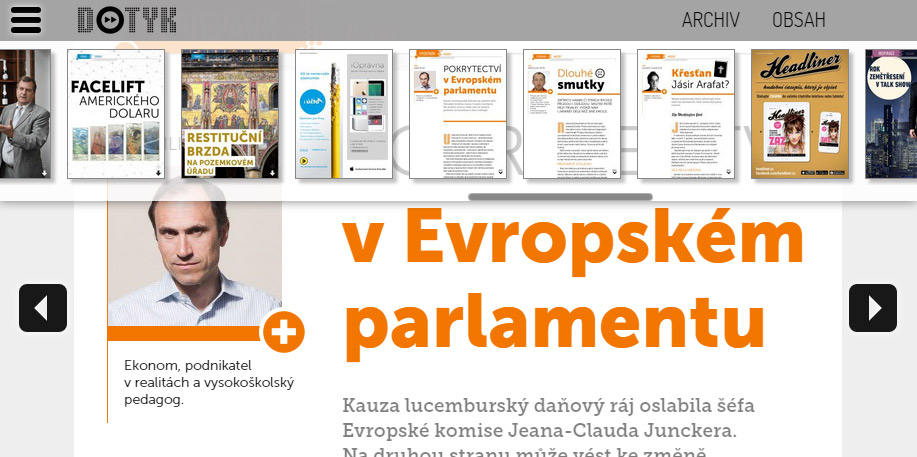
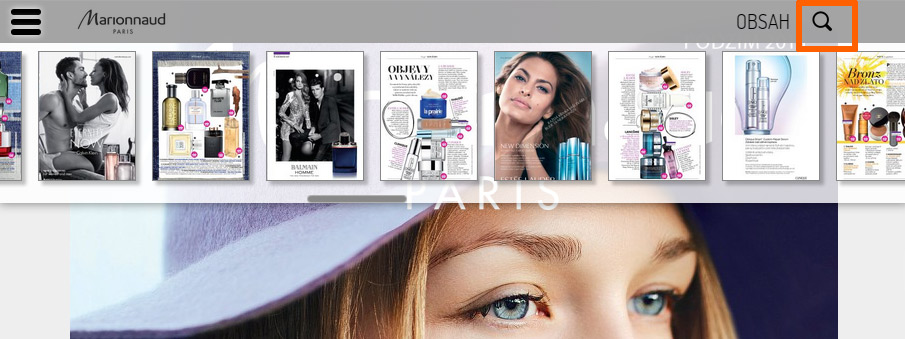
  • thumbnail menu for easy flipping through pages (see next picture)

Triobo webview replica loading

webview menu

Categories
1. Starting with digital publishing 5. Succesfull digital publication 6. Marketing & digital publications 7. Vocabulary

Triobo Portal – free promotion of your publications

Triobo Portal (see http://portal.triobo.com) allows all authors to have a free promotion of their digital publications. Simply publish your content in Triobo.

One of the greatest benefits of Triobo Portal is a possibility to have free samples of your digital publications on the web including advertisement for downloading of tablet applications. This allows you to easily promote applications created in Triobo digital publishing on social networks by sending direct links to specific articles so readers can immediately start reading them without having to install any reader applications.

Triobo Portal in pictures – benefits

A free sample of each publication page
Just top part of each publication page is shown, supplemented by advertisement for app download to phones/smartphones/computer – buttons are intelligently displayed according to used platform. In addition, a button may be displayed to redirect readers to web page for subscription order – including, e.g. order of printed magazine when such product is offered by a publisher.
Sample of Triobo Portal advertising for application download

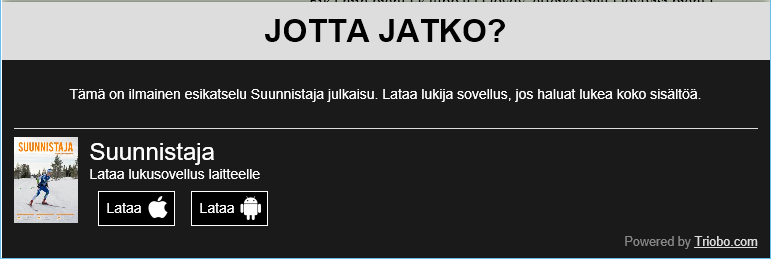
Advertisement for reader application download is displayed in the language in which a particular publication is created (below see the Finnish example in Suunnistaja publication).
Finnish advertisement example

Publishers may also ban the generation of sample displays when publishing particular issue. Sample is not generated in case when the full web export was ordered for particular publication, all portal visitors are immediately redirected to full article without any restrictions.

Free publisher profile
Each publisher gets his own page with “great looking URL” (e.g. portal.triobo.com/ipublishing) where all available publications are displayed.
publisher sample page with digital titles
The publisher may set in Triobo Editor his own logo, company profile and Internet address.

Free publication profile
Each publication has its own web page with nice URL (e.g. portal.triobo.com/tabletmedia/dotyk) with overview of all published issues. See the example of Dotyk (“The Touch”) magazine, the Best European Tablet Magazine 2014, powered by Triobo.
digital publication sample profile
Each publisher may set in Triobo Editor own publication logo, description and URL.

On publication page there are three buttons for application downloads and option for ordering (print, digital or combined) subscription.
download buttons

Publication detail
For each issue of digital publication there is a web page available containing detailed content. If the publisher wants to generate samples during publishing, then resulting individual articles are clickable. The same applies when the publisher has ordered a full web export.
Issue detail on Triobo Portal
Note that when publisher fills sections (categories) and keywords, in Triobo editor then they will also appear in Triobo Portal.

Categories
3. Content publishing for tablets 5. Succesfull digital publication 6. Marketing & digital publications

How to publish on Triobo Portal

When you publish to any of the public reader applications (iOS, Android, Windows 10, Kindle Fire or the web), you may also publish your digital content on the web **Triobo Portal*(http://portal.triobo.com) with a list of publications, page samples and advertisement for application download. Do you want to know how to do it?

Triobo Portal title page

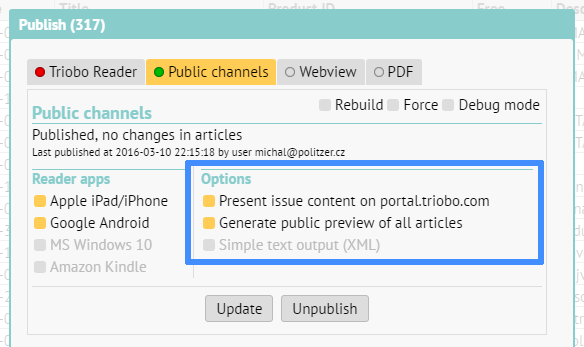
In a typical publishing box (see below) there are two options for content publishing in Triobo Portal.

Publishing dialog

When you check Present issue content on portal.triobo.com: then your publication also appears on Triobo Portal including complete list of all pages.

Generate public previews of all articles only complements the previous selection. When checked during the publishing a public sample (only page top) is generated for each page in publication, including advertisement for downloading of your application (example). The intention is to attract readers to download or purchase your application. WARNING: When you use the fully-fledged Triobo web export (i.e. WebView), the page samples are not generated and portal visitors are redirected to read unrestricted article.

More about Triobo Portal, see in separate article.

Categories
2. Triobo editor 5. Succesfull digital publication

Web export and Internet Explorer: watch your fonts

When publishing to tablets, smartphones, or ordinary computers, you do not have to deal with fonts – you are working with common fonts in standard TTF or OTF format. In case you want to have a web export (webview) of your tablet publication, there are some specifics arising from fragmentation of Internet browsers.

For internet browsers Google Chrome, Apple Safari, Microsoft Edge (standard part of Windows 10), Mozilla Firefox or Opera you do not have to solve anything, all listed programs use the standard fonts without any exceptions.

Unfortunately, the situation with the Internet Explorer browser is different (see this page dedicated to fonts on the Internet). Internet Explorer has unfortunately only limited TTF and OTF support for websites. When your selected font is not displayed properly in the Internet Explorer, you need to have the duplicate format of TTF/OTF equivalent to Microsoft’s proprietary format – the EOT format. Or you may select a different TTF/OTF font, which does not have problem with Internet Explorer…

Do you still insist on the full support of Internet Explorer? Maybe you need a font in EOT format.

How to get the EOT font

One possibility is to use freely available online converters on the Internet. Unfortunately, it is necessary to experiment, each of them has certain limitations.

How to set up the EOT support in Triobo

When you need a specific TTF or OTF equivalent of EOT font, go to Triobo editor font dialog and upload the EOT equivalent to selected TTF/OTF fonts. * WARNING: alternative font in EOT format must be named identically to its “parent” font TTF or OTF. Names may differ only in its extension*

Once you have the EOT font named correctly and uploaded among the standard fonts, you need to republish the Web export (WebView) of your digital publication. If you named your EOT font correctly and the EOT font is valid, your Internet Explorer selects the correct variant of font by itself and everything will be fine. Make sure of that this is true in the preview mode (Preview) of Triobo Editor.

Categories
1. Starting with digital publishing 2. Triobo editor 3. Content publishing for tablets 5. Succesfull digital publication

PREVIEW: preview mode in editor

The preview mode is a very useful tool for making digital publications. It is symbolized by the eye icon.

Preview Mode Icon

When you press the Preview icon, the preview of current article opens in a new window, on its last saved version.
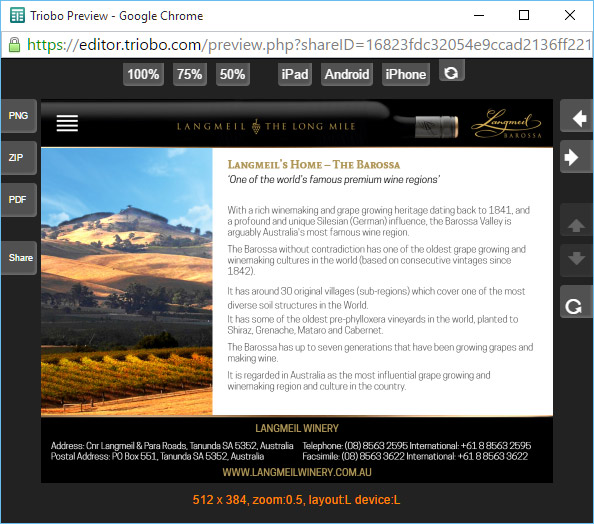
Preview Mode Window

Buttons at the top

Are used for of making the preview window larger or smaller. Besides, you can see how the page will look like on devices with different aspect ratios (iPad, Android and iPhone). The last button lets you change the display orientation on the simulated device.

Buttons on the right

Left and right arrows are used for browsing through previous / next article.

Up and down arrows are used for moving to next or previous page in current article (active only with paged articles).

Button with a circular arrow invokes reloading of the entire article (or for example animation restart, etc.).

Buttons on the left

These buttons are only visible when you look at the Preview window directly in the Editor, not when using the Share button for sharing (more in text below).

PNG button: exports visible part of the article to PNG format (eg. to App store / Google Play / Windows Store, etc.).

ZIP button: exports the visible part of the article as one package of files dimensionally modified (in pixels) for sending applications to all markets: The App Store / Google Play / Windows Store.

PDF button: (at this time only experimental alpha version) exports article to PDF format

SHARE button: opens a dialogue with the Internet address for preview sharing:
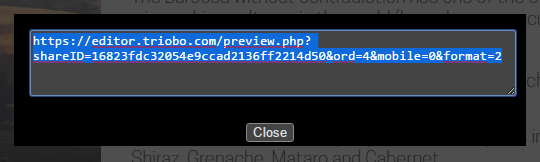
Dialog with address for preview sharing

When you copy this address link to a clipboard and send it by e-mail to another person, you may preview the actual state of currently prepared publication easily on the Internet. Remember that when viewed on the Internet you are dependable on speed of your Internet connection, typically synchronization of animations might not work smoothly during the preview (unlike reading on tablet; we recommend to use Triobo Reader for final inspection).

The validity period of shared link? Up to 24 hours from the creation of sharing link. The preview sharing is not intended for publishing on social networks or for real use of digital publication.

HINT: When you plan to use the Triobo web export for your digital publications, you may use the preview mode or SHARE option for inspection in different browsers. Simply copy the link and open the address, typically in Internet Explorer, so you can check the font compatibility.

Categories
1. Starting with digital publishing 3. Content publishing for tablets 5. Succesfull digital publication 6. Marketing & digital publications 7. Vocabulary

Triobo digital publications on the Web (web export)

Interactive digital publications made in Triobo are now available also to people who do not have a tablet or smart phone. They may simply use a web export Triobo.

Why to use a Web export

  • The reader does not need to own tablet – make your digital publications accessible to every reader on any computer. Including all interactive elements, animations, etc., everything is identical to tablet version
  • Immediate reading without need to install anything – users do not need to install reader application to their tablet / phone
  • Ideal for sharing on social networks (Facebook, Twitter …) – reader can read immediately from the Facebook
  • Full support of Internet search engines Google, etc. – texts in machine-readable form, Triobo additionally generates sitemap.xml). As a standard feature are provided nice Internet address of each page (URL * cool *).
  • Promotion of your applications on tablets and smartphones – for example, through Triobo Ad Banner
  • Your own Internet domain – Web based publications made in Triobo work on any web address based on choice of publisher
  • Publication Logo in the menu bar and User icon in the title of browser bar (ie. favico)

Superb reading experience

As stated before, the reader does not need to install anything and can immediately start with reading. It does not matter whether he starts on tablet, phone or any computer. The most important thing is reading comfort, where we try to mediate similar experience to iPad reader.

Each web publication has menu with previews of all pages – for a quick overview and browsing. Just click on the appropriate icon located at the top left or right side by publisher’s choice.

Menu interactive publications on the Web

On most devices with touch screen display you may scroll between pages using the classic finger motion (swipe) to the left or right. Where it is not possible for technical reasons (typically the default Web browsers of older Androids) at the touch of a finger or mouse movement the left / right arrows will appear.

Sample of scrolling arrows

Phone vs. Tablet content versions on the Web: The content made specifically for tablets is commonly displayed on the web. However, in case the publisher has also prepared a separate phone version, we can recognize the device on the web from which the reader opens web pages, and display this page correctly either in tablet (on computers and tablets) or phone (smartphones) mode.

Tablet vs. phone on the Web

Advanced zoom mode is also available, and (on desktop) it works in several steps:

  • 100% display 1:1,
  • fit to width: content expands to the width of browser window,
  • fit to windows: content shrinks so the browser window fits to entire page (format “one iPad display”)
  • and several intermediate steps in between

Triobo zoom on the Web

You may bring up the zoom mode menu on computers (i.e. in desktop browser) by clicking the magnifying glass icon or by repeated pressing the “F” key. Publisher may also change the default zoom settings for given website, as described in a separate article. When browsing the Web on mobile devices zoom works using two fingers.

Look at how the Web export of Triobo digital publication may look like – visit read.skylink.cz.

Example of Triobo export - www.dotyk.cz

Categories
5. Succesfull digital publication 6. Marketing & digital publications 7. Vocabulary

Promote your application using the Triobo Ad Banner

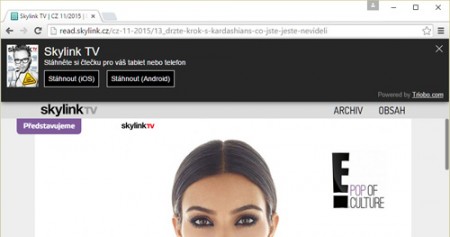
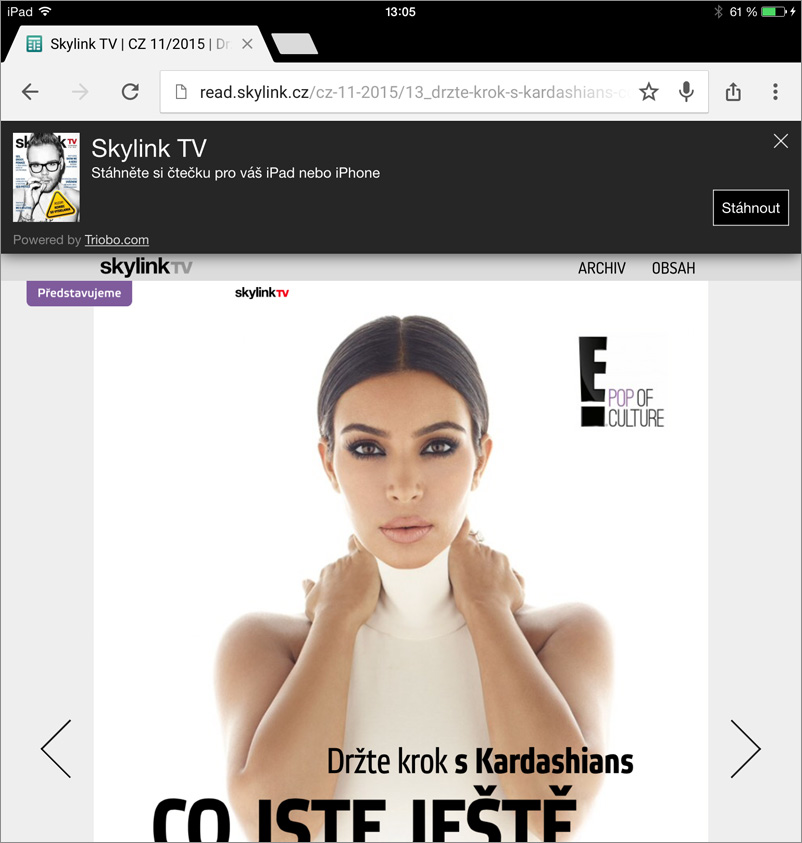
Triobo Ad BannerTriobo Ad Banner is a useful marketing tool that is offered totally free to all Triobo digital publishing clients. This may be used as an extension of any website where a banner on the top of the page notifies visitors that there is a possibility to download suitable mobile application.
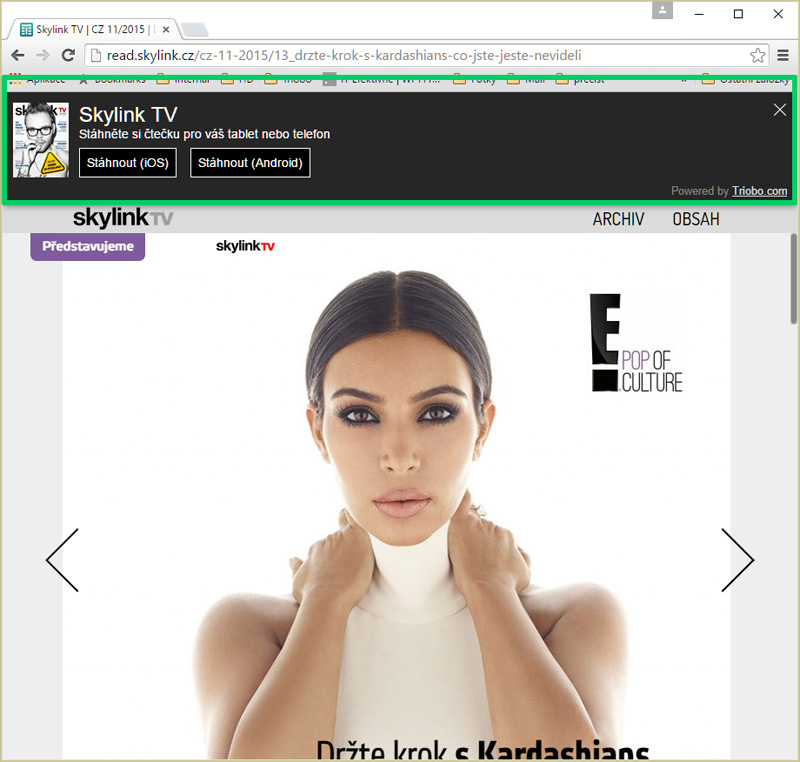
The main advantage? Triobo Ad Banner detects the platform from which the reader looks at the web (Apple, Android, Windows 10 …), and offers him appropriate version of digital application for download.

Triobo Ad Banner may be used with all Triobo price tariffs including Triobo Single.

What can be set

  • When you want the Ad Banner to display the application icon or – in the case of digital magazines – the cover of current issue
  • The delay between the first and second display of Triobo Ad Banner. The default value is 0, ie. banner is displayed continuously until the reader closes it. You may also specify, for example, that after the page reload the banner will be displayed for additional 10 minutes (with next page load).
  • After how many days from banner closure the Triobo Ad Banner reappears to the reader (the default value is 14 days).
  • Short descriptive text under the application heading

How to launch Triobo Ad Banner

  • Each publisher receives a simple HTML code that can be easily inserted to any web page or into any CMS. This is similar process like Google Analytics tracking code implementation.
  • Publishers with Triobo web export already have their Ad Banner launched automatically on their web site – of course only in case they also have Triobo tablet application.

Practical example

This is how it looks in real world: when reader visits the web site from ordinary PC with Windows 7. The application download is offered only for Apple iOS and Android because there are no applications for Windows 7 available. Triobo Ad Banner - desktop

Here you can see the same situation, but this time on the Apple iPad tablet. Readers are offered direct app download of Apple iOS. It also works similarly with Android. Triobo Ad Banner - Apple iPad

Categories
3. Content publishing for tablets 5. Succesfull digital publication 6. Marketing & digital publications 7. Vocabulary

Optimizing advertising campaigns on Facebook

Marketing of digital publications is integral part of a successful publishing on tablets and smartphones. It is simply not enough to be in Appstore / Google Play and it is necessary to actively approach potential readers. Facebook campaigns represent a very interesting option, mainly because you can target only those users who actually use tablets or smart phones.

Thanks to Triobo you can optimize your Facebook and save financial resources in your marketing budget. Let us link the Reader of your magazine (or any digital publications) to Facebook and we will allow you to specifically target your Facebook advertising:

  • display the advertising only to user who is accessing Facebook from a mobile phone or tablet (= your target group) and who at the same time still has not installed the Reader of your digital magazine

and/or

  • display the advertising only to such user who has installed your digital magazine, but did not open it for some time in his tablet or phone

The key is that your ad is actually displayed only to those Facebook users who are attractive as potential consumers.

How to do it

It is necessary to use the Triobo Professional price tariff. Then you can simply register your digital magazine on the Facebook and send us your assigned Facebook App ID. We will then prepare your digital publication Reader app for you with this identifier and send it for approval to the Appstore/Google Play. Then you can optimize your Facebook advertising campaigns and target the right audience.

Categories
3. Content publishing for tablets 5. Succesfull digital publication

Automatic download of issues to readers’ tablets

Once the publisher publishes new issue in Triobo editor, at the same time a command for automatic download is sent to readers tablets and smartphones. If certain conditions are met, the issue will be downloaded in the background. Because of this the reader has for example downloaded and ready to read digital magazine for comfortable reading on his way to work.

Some conditions for successful automatic download:

  • enough memory space in reading device
  • active Internet connection via wi-fi
  • sufficient battery charge according to manufacturer’s rules
  • application must run in the background (i.e. Apple iOS may not be directly terminated by the user)

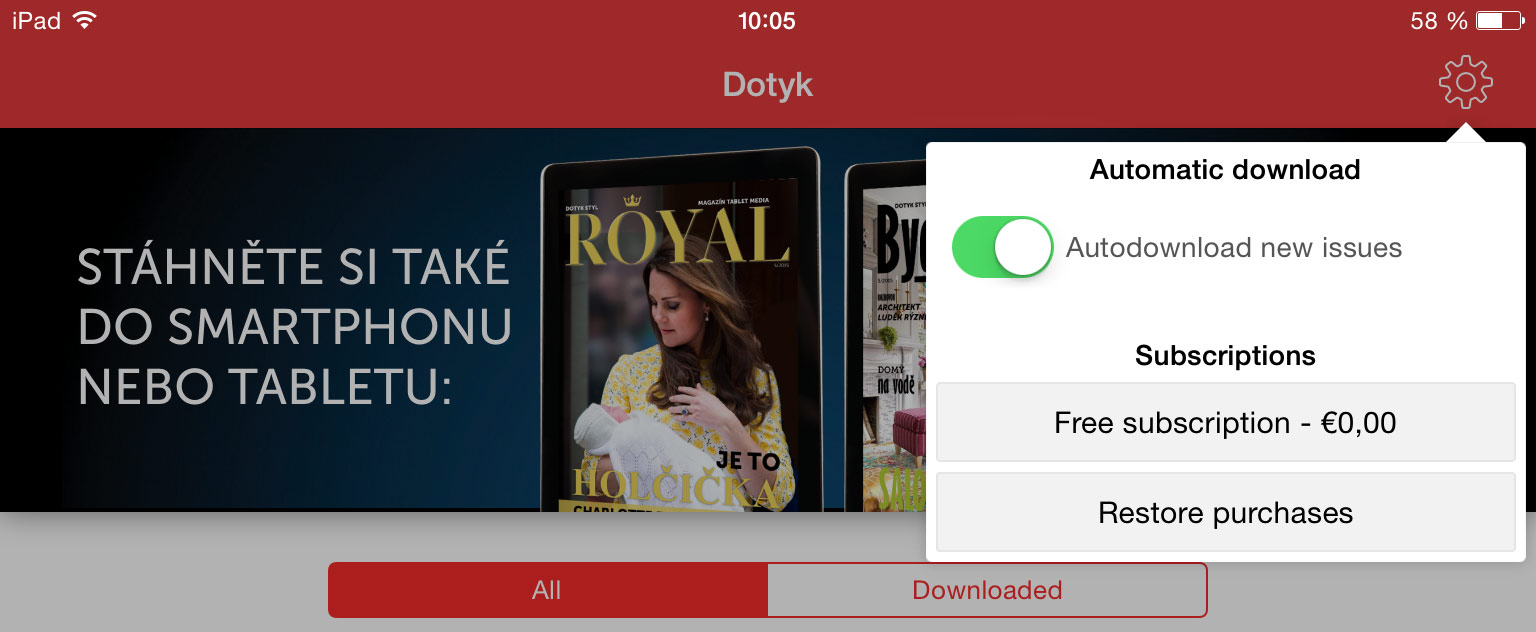
Only those issues that reader is authorized to read are automatically downloaded – i.e. they are either free or reader has paid for subscription of digital magazine. The reader may disable automatic downloads in his reading device – see example shown in this picture (Apple iOS reader).

dialog for authorization of automatic downloads