Categories
2. Triobo editor 3. Content publishing for tablets 5. Succesfull digital publication

How to register events in statistics

Thanks to Triobo digital publishing (Professional version) you can also monitor behavior of readers to the level of individual objects, respectively you can monitor so called events. For reporting purposes we are using Google Analytics (Mobile App Analytics) as independent reporting tool. Thanks Triobo can monitor and record…

  • click on any object that has assigned OnTap action (ie. typically text, image, or group) – info about OnTap action is sent out
  • change in state of variable object – sends info about event VariableObjectToState where value is the number of variable object state
  • video play – sends events measured by time AudioVideoPlayed, so you can evaluate how many seconds your readers were watching the video
  • audio playback (same as video)

Information on reporting of monitored events in Google Analytics is available in separate article.

Why to monitor events

Examples:

  • you can tell advertiser how many readers were watching your video and for how long
  • find out how many readers clicked on a link within article or advertisement
  • see how many readers explored in detail interactive infographics, you may also see what specific information was attractive to reader and conversely what was ignored by readers

How to set recording of events

In order to set event monitoring in statistics, you must first correctly name the object that you want to monitor. The list of supported objects is listed above. Setting dialog of event recording

Make sure to correctly name objects – so you can later easily orient yourself in statistics. (e.g. AdCocaColaGoToWeb or AdMercedesVideo).

ATTENTION: when starting video play by clicking on a drawn button, which is selected for monitoring, and at the same time the video itself is selected for monitoring, than the system will sent out two events: click on a button (OnTap) and playing the video (AudioVideoPlayed). It is therefore appropriate to decide whether you want to monitor a button or the video itself.

Categories
3. Content publishing for tablets 5. Succesfull digital publication 6. Marketing & digital publications

The Reader design according to publisher’s configuration

Triobo allows publishers to define customized reader appearance on tablets and smartphones. This new feature allows to attract readers and advertisers effectively.

Let me first recall that all reader devices created in any price tariff of Triobo digital publishing are published strictly under the brand and name of the client, with his icon and initial screen.

Exclusive look and new business opportunities

What can be arranged by publisher who is using the Triobo Professional or higher tariff?

  • Wallpaper background – static and dynamic(!). The publisher creates the entire wallpaper directly in Triobo editor, thanks to that the wallpaper can be animated, with interactive features, may even include video, as you will see at the end of this article. The background of the reader is created as any regular page of interactive digital publication. Besides that the publisher determines at what place the overview with issues of digital publications will be displayed (in transparent layer placed over a wallpaper).
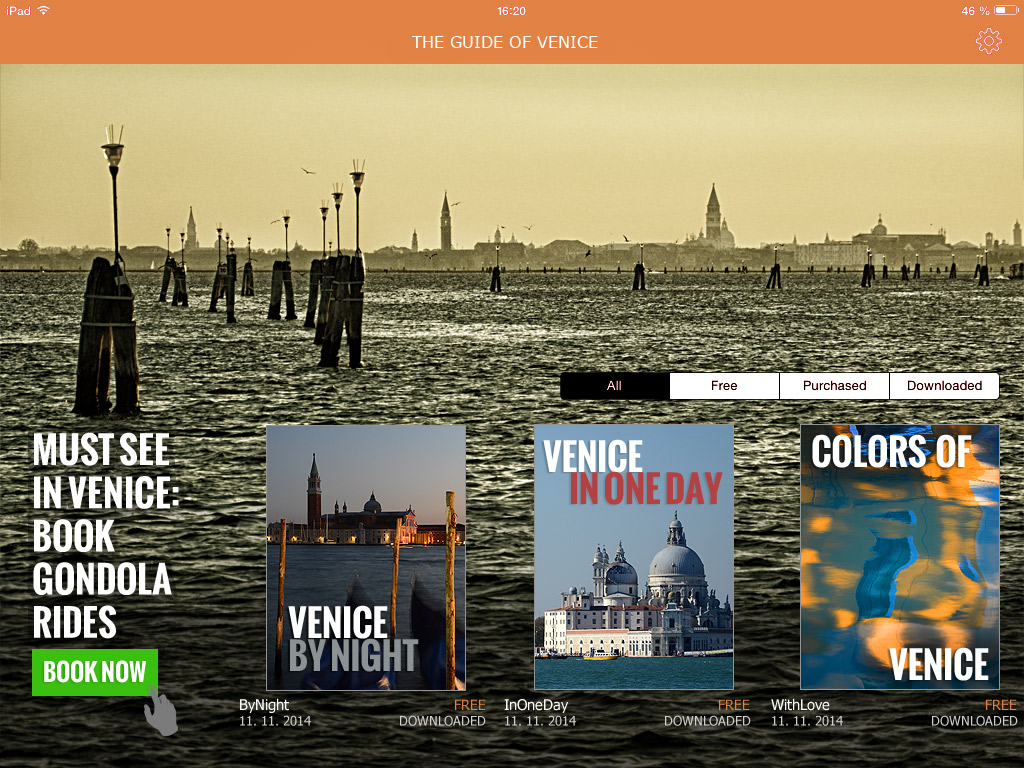
  • Internal or commercial advertising. The previous paragraph implies that the reader background may include any advertisement, again with animations, interactive elements, videos and so on. In the example of Venice Guide (see below), note that the ad may include the click through button to the advertiser’s website.
  • Colors used in the reader. All standard reader features, such as. the upper bar, bookmarks with issue selector, dialog with issue detail that appears when you click on the envelope – all that may be colored according to the publisher’s desire.

And that’s not all:

  • The publisher may create different wallpaper versions for tablet landscape orientation and another one for portrait version (different layout and graphic content may be created).
  • You may have reader with separate wallpapers for tablets and mobiles.
  • The publisher may display a different reader wallpaper for Apple iOS platform layout and another one for Android platform.
  • The reader design can be remotely updated.

How this can look like?

At the Venice Guide example you see the reader with own wallpaper (photo), where a commercial advertising was placed (order for gondola ride). The overview of issues – in our example three separate Guide issues – was positioned so that it aesthetically complements the picture. The entire reader was additionally colored in harmony with photos.

Ukázka vydavatelem definovaného vzhledu čtečky Triobo

How to attract readers? With video-wallpaper!

Categories
3. Content publishing for tablets 5. Succesfull digital publication 6. Marketing & digital publications

Reader’s Zone (vouchers and coupons)

In the context of pricing options, Triobo Professional offers advanced functions to support the marketing of paid digital magazines – Reader’s Zone with vouchers (coupons).

Why Reader’s Zone?

Thanks to the Readers Zone, publishers have the opportunity to use coupons as a marketing tool of digital publications as an alternative payment channel. Coupons represent the unique group of letters and numbers that you may send to your readers or business partners with an e-mail, or printed to any type of media connected to your publication.

Coupon – a tool for digital magazine promotion

Typical use of coupons:

  • time-limited digital magazine subscription that is free to current subscribers of your printed version
  • gift to your business partners (e.g. free annual subscription to the magazine)
  • gift to clients of your advertisers (“when you buy a tablet in your online shop, you will get an annual subscription worth $ 30 from MyMagazine for free”)
  • option to sell digital magazine subscriptions alternatively to the Appstore / Google Play – saving charges

Coupon may also be:

  • unique – can be used only once – suitable for sending target marketing e-mails
  • general – (e.g. suitable for placement in printed advertising – an unlimited number of readers may use it, but only within predefined time period)

Voucher value

Each coupon can be an equivalent to the payment of a particular issue of your digital magazine, or a specific type of subscription.

Example: you may have a coupon for a “single item purchase”, which allows free downloading of the paid edition of MyMagazine, Edition 1/2014. Or you can create a coupon that corresponds to a quarterly subscription you are offering in Appstore.

How coupons work

Prepare simple instructions for your readers describing how to use coupons (see example). Your reader must simply start the digital magazine reader on his device and select the Reader’s zone, then fills his/her email and password (if they do not have it, they must register). Here is the point where the appropriate coupon is inserted. Depending on the type of coupon the reader selects a relevant issue of digital magazine as “paid” and then they are free to download it.

Readers who want to use the coupon must register first (using e-mail and password) – so in the future they can renew their subscriptions. Registration will take place inside of Triobo publishing account; only the publisher has access to this information. The advantage is that you know specific emails of your particular readers and are able to work with them.

Categories
3. Content publishing for tablets 5. Succesfull digital publication 6. Marketing & digital publications

Reader’s Zone – user guide for your readers

Reader’s zone is an advanced function of Triobo digital publishing tool that is primarily used for marketing support of paid digital magazines.

Thanks to Reader‘s Zone you may offer coupons to your readers which will replace payments that are made through the Appstore/Google so the reader can recieve free magazines. This is ideal in situations where you want to give a gift to your already subscribed readers of printed magazines by offering them a free digital magazine for limited time.

It is recommended that you inform your readers about how they can use your gift. Instructions for using coupons and Reader’s Zone might look like this:

How to redeem a digital magazine coupon

To get a specific issue of a free digital magazine (or subscription), you need to be registered to Reader‘s Zone. Registration is required for your future identification which allows you to restore your purchases when needed.

Operating procedures for Apple iOS:

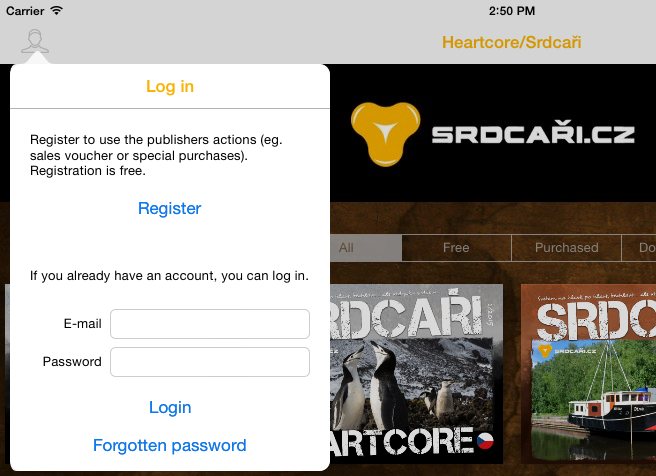
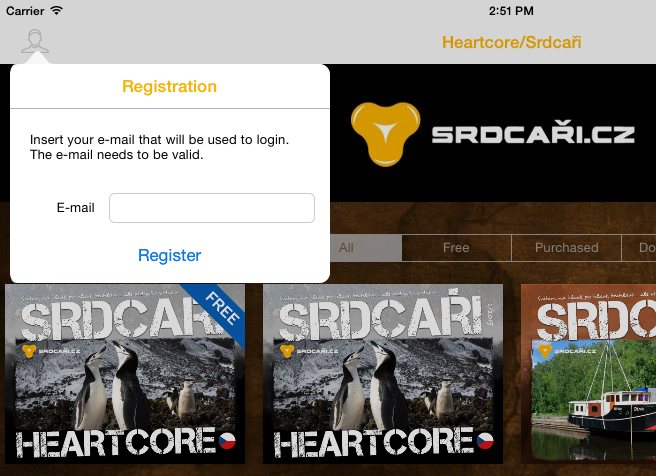
  1. In your magazine reader, in issue overview, select the “Reader’s Zone” at the top left (for Android: “Login” at the top right), press the last button “Register”and fill in your e-mail. The e-mail must be valid, because we will use it for sending you an activation message. If the publisher allows you to log in without e-mail verification, you may immediately log in and insert your coupon. In any case, activate your e-mail and pick the password so you can log in again in the future.
  2. An activation message will be delivered to your mail box with a link – click on it (or copy it to your web browser and press Enter). Choose your password and fill it in. Your account is active.
  3. Now you can log in to your reader with e-mail and password, by clicking the “Subscribe” in menu of the “Reader’s Zone”.
  4. After logging in, select the “Insert coupon” option. Just type in the coupon text that you have received from us, and press Send
  5. Your magazine reader will recognize the specific issue XX/2014 as paid, you can always come back later and read this magazine
  6. Now you can download free issue of required digital magazine

Categories
2. Triobo editor 3. Content publishing for tablets 5. Succesfull digital publication

Readers statistics

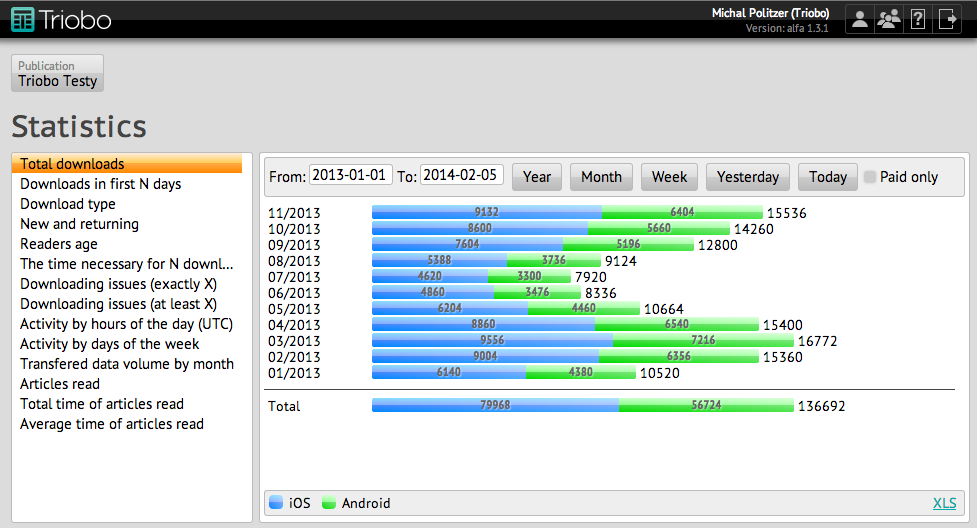
Each download or issue purchase is monitored so you can have an instant overview of how many readers have downloaded your publication. Detailed information can be found by clicking the icon Statistics in corresponding publication.

Statistics

Every view of data has different filtering options. In the upper part can be then entered:

  • Time period FromTo – the time period for which the data is collected. You can use shorcut buttons, which set the year, month, week, yesterday and today.
  • Only purchased – when you publish the charged issue, by this option you differentiate the display of all and only those issues that were purchased
  • Days from the publication date – use to view the data, when the number of days from publication are important
  • Number of downloads – use to view the data, when a given number of readers is important

Some views are concluded with a summary line Total. When you place your mouse cursor over each part of the chart, a supplementary information appears. The data can be stored in XLS format by clicking on the link at the bottom right.

Definition of terms:

  • downloads – this is the number of unique reading devices that have downloaded a certain issues within the specified period. Each device is counted only once, even in a situation where reader had deleted and re-downloaded such publication.
  • activity – this is the number of activities related to a given issue, and it also counts repetitions. Activities include downloading, buying or reading. If the reader reads or downloads the issue multiple times within a specified period, each of this activity will be counted.
  • reader and deading device – are equivalent terms from statistical point of view.

Issue statistics

Issue statistics are related to number of downloads, alternatively to other activities (purchasing, reading) and are available for all issue editions.

Total issue downloads

Displays the total number of downloads within the specified period. Data are sorted into individual channels (iOS, Android).

Issue downloads (first N days)

Displays the number of downloads within the first N days from publication. Downloads that have occurred after a specified number of days from each publication are ignored. This can instantly compare the efficiency of each issue, regardless of when they were issued (although all of them start at the same time).

Download type

Displays the number of downloads of each issue, depending on whether it was downloaded automatically, or manually, or whether it was a separate purchase.

New and returning
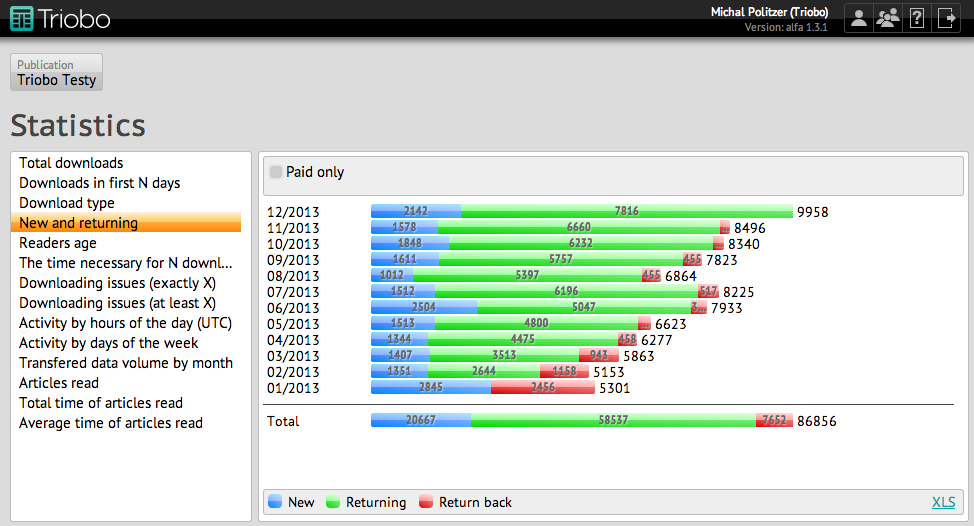
Statistics Individual downloads are divided according to whether it is newly downloaded issue (new reader) from given device, or whether older issue was previously downloaded from this device (returning reader), or whether newer issue was previously downloaded from this device (reader returning back to Old numbers).

Readers age
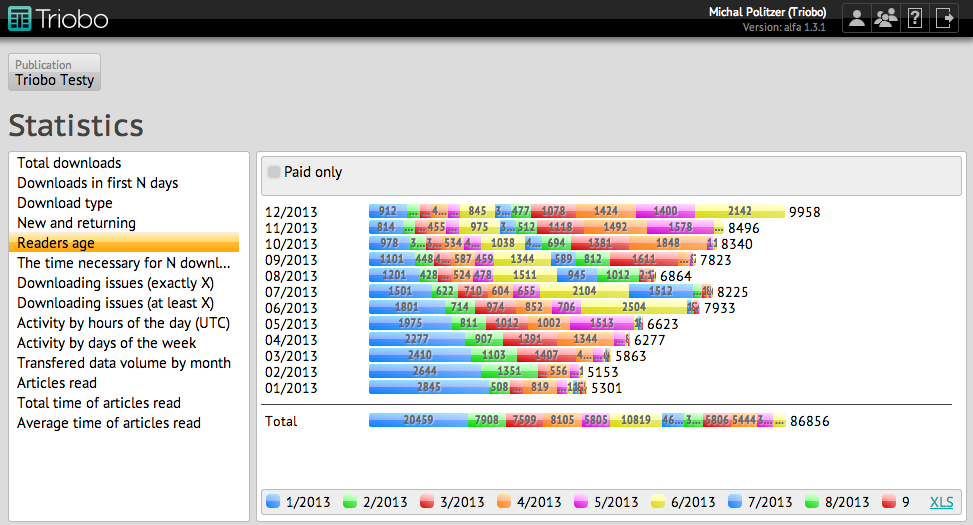
Statistics Each reading device is paired with a month when particular issue was uploaded to it for the first time. According to this classification number of downloads are essentially displayed for all issues. For example, if a user first downloaded an issue in July 2013, a blue color was assigned to it, so all issues that were downloaded will be displayed in blue.

The time necessary for N downloads
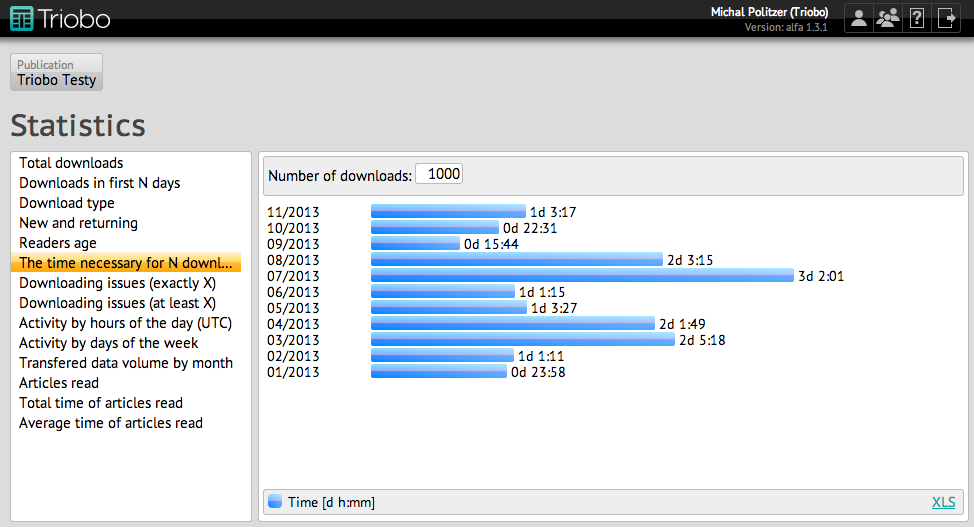
Statistics For each issue the time that had elapsed between the first and specified download is displayed. The smaller this value is, the more successful the issue is. Data is displayed in days, followed by hours and minutes.

Downloading issues (exactly X)
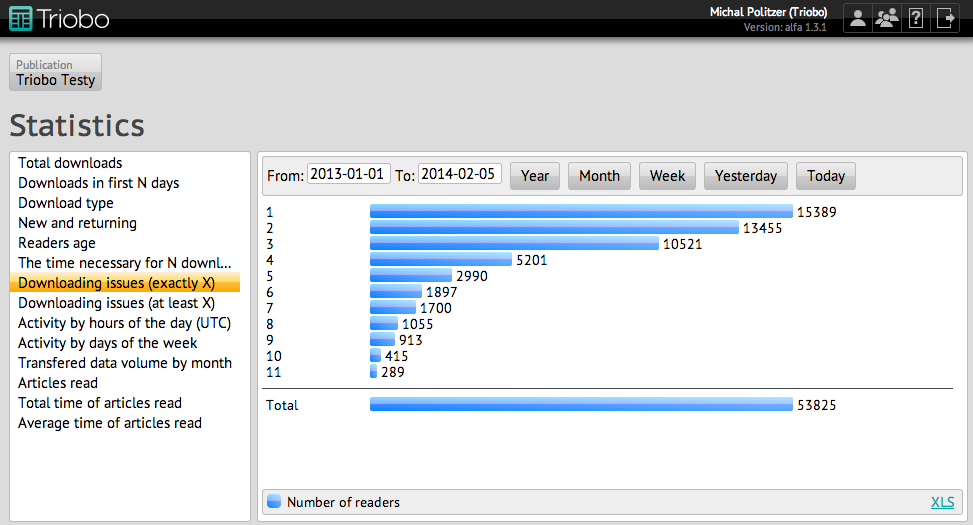
Statistics Sorts the devices from which just one, two or three issues, etc were downloaded within the specified period. For each issue the number shows the number of such devices. Each device may be found in one group. The total number shows the total number of devices that had downloaded some (or at least one) issue.

Downloading issues (at least X)
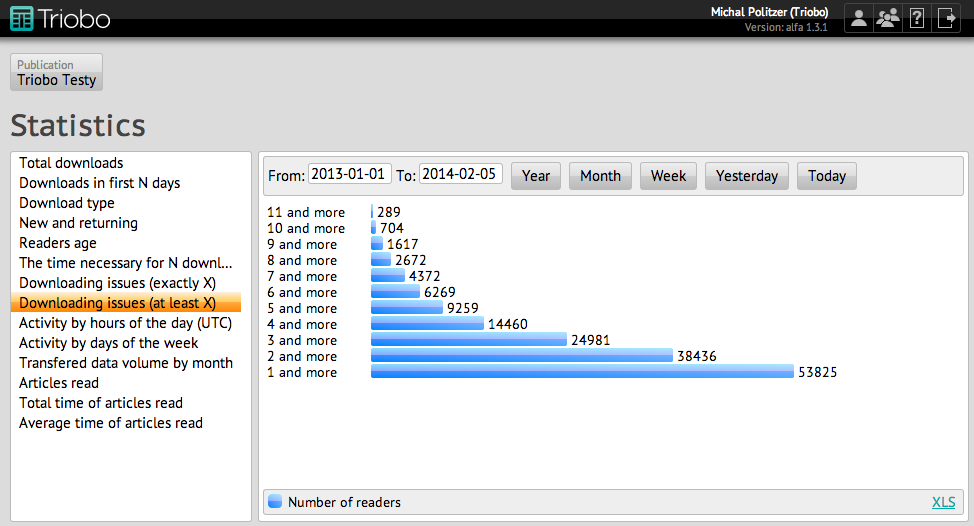
Statistics Same methods as in the previous graph, but the number of readers who have downloaded at least X (or more) issues are shown in each row. Last line thus contains the number of (different, unique) readers who have downloaded at least one (or any) issue within a specified period.

Activity by the hours of the day (UTC)

Shows for a specified period, when readers were reading or downloading, sorterd by hours. You will find out whether your readers are more active in the morning or evening.

Activity by days of the week

For a specified period it shows activity distributed by days of the week.

Transfered data volume by month

Quantity of downloads for each reporting month in GB. Accounting month is the calendar month shifted by as many days, as how much the beginning of the contract was shifted compared to calendar month. Example: if the customer has signed a contract on 20th May, the shift of the accounting month is 19 days, i.e. as his accounting month “September 2013” starts on the 20th September 2013 and ends on the 19th October 2013.

Article statistics

Customers with Professional tariff have available also article statistics. Statistics are generated and sent out during the reading of magazine by a reader. If the reader is without an internet connection (offline reading), statistics will be sent at the earliest possible opportunity.

Articles read
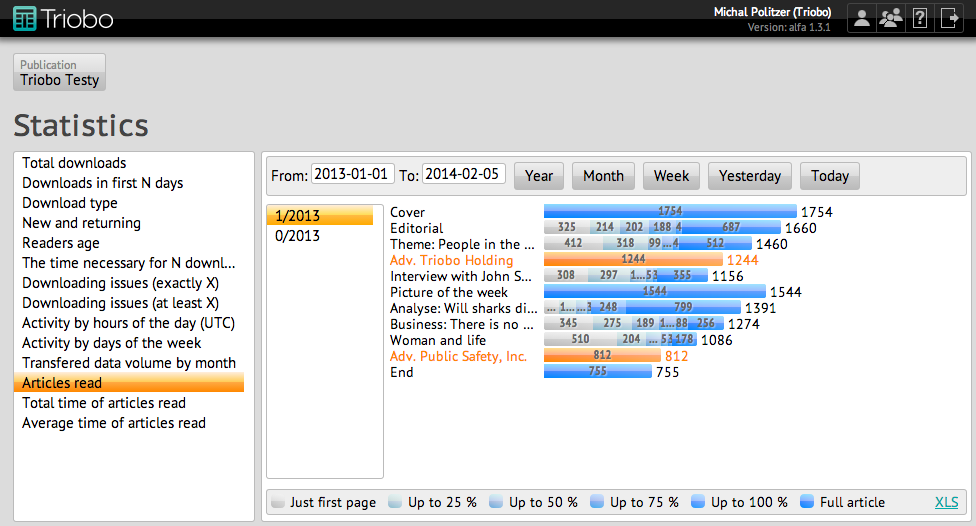
Statistics Number of readers who have viewed particular article. With rolling and multipage articles readers are divided into groups according to whether they had read only the first page, up to 25% article length, to 50% article length, to 75% article length, to 100% of the article length or entire article (i.e. rolled up to the end). Color-highlighted lines show articles marked as advertising.

Total time of articles read

The sum of time that readers had spend on each article. If the length exceeds 30 minutes it is always counted only as 30 minutes. The total time shows the total time that readers had spent on the entire issue. Time is given in hours: minutes: seconds.

Average time of articles read

The average time that readers had spent over individual articles. The total average time expresses how much time on average a reader had spent reading the issue. Time is given in hours: minutes: seconds.

Categories
5. Succesfull digital publication

On-line objects can be sometimes also off-line

We can also make a use of so called on-line objects in digital magazines, thus inserting certain parts of publication that are available on the Internet – for example Youtube video, column news from Twitter and so on.

But do not forget that in Triobo a creation of digital publication must work even without the Internet connection. Such situations must be adressed properly without confusing reader. How does it work then?

Essentially it is very simple (YouTube example):

  1. create an immage of the same size as your on-line object. This image should be graphically simple, but noticable. Your logo with message “for display of additional content, connect to the Internet.” can be displayed on the image.
  2. insert this image to place where you want to have your own on-line object.
  3. place the online objekt above the image (meaning on the layer that is closer to the reader), exactly at the same coordinates.
  4. So that’s if the reader will be connected to the Internet, he will see the on-line object, such as a video from YouTube. If, however, the reading will be off-line, a graphic warning object appears instead, informing the reader to connect to the Internet.

Inspiration

The example of a digital magazine The Hollywood Reporter shows how it might look like. On the left is a situation when reader was without the internet conection, on the right when he was on-line. The Hollywood Reporter

Categories
5. Succesfull digital publication

Operation hints for digital publications

Every tablet or smart phone magazine has thanks to Triobo and your graphic abilities its own unique design and method of operation. It is therefore appropriate to introduce to readers how to work with publication, including the meaning of used icons, etc. Prepare hints for readers that will be inserted for example on the front page of digital magazine.

Remember that working with digital publication on tablets, Apple iOS and Android tablet may be slightly different.

How it may finally look can be seen on the following examples. All shown images were created thanks to Triobo, tool for digital publishing.

Inspiration

The digital magazine 100+1 zahraniční zajímavost inserts hints under the editorial. 100+1 ZZ, generated by Triobo

Dotyk weekly bets on detailed description of all operating elements. Dotyk, generated by Triobo

Digital publication Quanties comes down to it by a completely different way. Quanties, generated by Triobo

Specialized digital magazine Architual was (not only) inspired with style of technical drawings when using hints. Architual, generated by Triobo

Categories
5. Succesfull digital publication

Navigation with interactive elements

When you spend some time working with interactive elements of your digital publication, make sure that readers do not overlook them. In most cases it concerns photo galleries or various scrolling components.

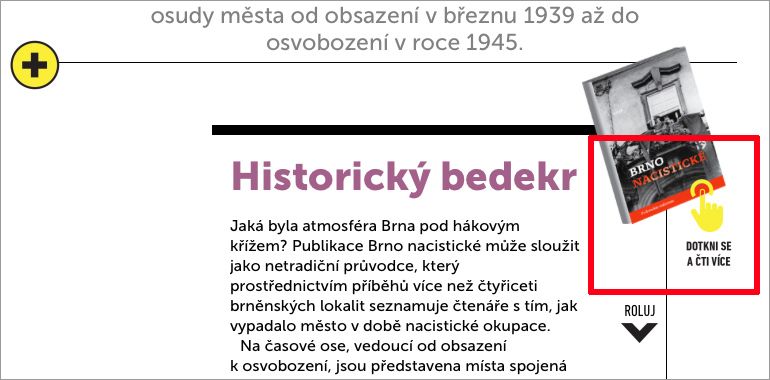
The solution is simple: prepare a set of icons in your publication that you insert to interactive elements. Typical is a small finger icon with arrows indicating a shift etc.

You can see some examples on pictures below (source: weekly tablet publication Dotyk published by Triobo) technology.

Dotyk published by Triobo Touch published by Triobo