Categories
2. Triobo editor 3. Content publishing for tablets

Package of products

The publisher can sell, apart from subscriptions and individual issues, also packages of products through the apps, which is combination of individual issues for one collective price. At the same time he can use the packages together with vouchers.

How to set up the package of products

In the list of publications press the icon [i] before the publication name. The following dialog box will appear:

product package

Click on Packages of products to proceed forward.

product packages

Use the button “+” to create a new package:

creation of product package

Title of the package is obligatory, it will help you to better orient yourself, as well as the readers (if you publish the package for sale in the app).

Product ID can be created (named) at your own convention, similar to the way you created product ID for individual issue or for example subscription. The Product ID must be unique. (more about Product IDs).

In the main portion of the dialog box select the issues of your publication that you wish to include inside the package of products you are creating.

Very important is the checkbox Package Can Be Purchased.

If you select this, the package will be offered in the app under the icon of shopping cart for sale. Attention: in that case it is necessary to have the Product ID approved by Apple for sale, same process as approving product IDs for individual issues.

If you leave the checkbox unselected, the package, although not visible in the app, can be distributed to the readers through voucher (with the above mentioned Product ID filled in). The advantage of this is, that you do not have to undergo Apple’s approval process.

BE CAREFUL: as soon as you create a new package, you must update some issue or publish a new one, to transfer the package information to the reader applications.

Categories
2. Triobo editor 3. Content publishing for tablets

How to generate vouchers (coupons)

Coupons (vouchers) can be used for the purpose of marketing as replacement of payments. More from the business and marketing point of view can be found in separate article about Reader’s zone, here you can find the process how to create them.

You can get into the section of Reader’s zone from the main page of the editor:

homepage Triobo editor

In the next menu choose the icon Voucher sets:

set of vouchers

Use the button “+” to add a new set of vouchers:

new set of vouchers

A dialog box for creating a new set of vouchers will appear, which we will now analyze in detail.

voucher dialog

Title: obligatory field, you can later find the voucher set in the voucher overview according to the title.

Next you will choose if you want to create a series of one-off (unique) vouchers (typically: for individual readers, distribution through e-mail), or one permanent voucher (typically for use in a print advertisement). More about the options of use can be found in the abovementioned article about Reader’s zone.

If you chose a series of one-off voucher:

The field Code is in this option obligatory set as “Auto”, that means that vouchers are automatically generated as a sequence of twelve letter codes. It is necessary to set the number of vouchers (1-1000) and Product ID (more to this later). You can also choose a time period, for how long will the vouchers be valid (that is the time period during which the reader can use the voucher). If you do not set the time period, the vouchers can be used anytime. After use every coupon becomes consumed and therefore cannot be used again.

If you need a permanent voucher, that can be used by unlimited amount of readers: in comparison to the previous option you can change “Auto” on “Own” and have the voucher in a nice form, for example SUMMER2019.

The most important thing: Product ID. Vouchers substitute the need to pay with money. Based on that, every voucher needs to have one or more product codes that are assigned to it, and that identify typically yearly subscription of the magazine, or also a specific issue or set of issues (so called package of products). Product IDs of individual issues are reserved in editor in Publication overview, Product ID for temporal subscription can be found in iTunes Connect or in Google Play. It depends on the fact, if you choose subscription and what type (yearly, half yearly, quarterly…).

Once you have set all that was needed, press Create. In the next dialog box, you will see all created vouchers, that can be simply copied for further use. Do not forget to save the vouchers!

generated vouchers

Categories
2. Triobo editor

On tap action

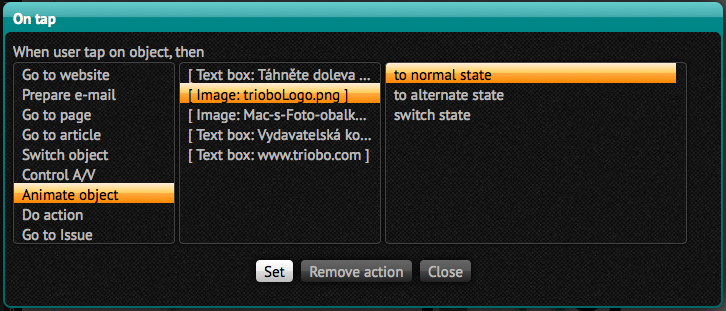
Text objects, images and groups of objects may have configured the action On tap. Click on the item and select one of the following actions:

Triobo on tap action setup

  • Go to website – enter web address that will appear in the browser of tablet reader
  • Prepare e-mail – enter e-mail address, click on the object to open the e-mail application on your tablet with such previously prepared email address
  • Go to page – select the page of given article or next/previous page. Selecting the first page can be used for “go to the beginning of the article,” which may be useful with the multipage articles. For non-paged articles, that are long (and scrollable), you can enter value in pixels, to which it will scroll after the button pressing. Zero Value can be used to return to the top.
  • Go to article – select which article the reader it to be transferred to. You can choose from all articles from given edition. You can also go to the next/previous article. The “to last article” command switches the reader to the article from which the current article originated. It is not possible to switch between different editions.
  • Switch object – switches the variable object. At first on the left side of pertinent object select the action that applies to it (in caase there are more of them on page). Then select one of the following actions:
    • to next – switches to the next stage. If this is the last stage of a variable object, this action switches you to the first state
    • to previous – returns to the previous state. If it is the first stage, this action switches you to the last state
    • to first – switches to the first object
    • to last – switches to the last object
    • to state – offers a list of states so you can choose to which action it should switch
  • Control A/V – controls the video or audio. On the left, select which video/audio you want to select, and then select an action:
    • Play – starts playback
    • Stop – stops playback
    • Toggle Play/Stop – switches playback (if not running then it starts, if running, it pauses)
    • Play full screen – starts playing over the full tablet screen (only for video)
  • Animate object – animates object (see chapter 26. animation). Select the object that has animations set, and then select one of the following actions:
    • to normal state – animates object, which is in alternative state into normal state. If the object is already in the normal state, nothing happens
    • to alternate state – animates object, which is in normal state to alternative state. If the object is already in alternative state, nothing happens
    • switch state – switches between object states
  • Do action – executes selected action: opens dialogue sharing for Twitter / Facebook / E-mail (on Android always induces the system dialog Share) or will go to the issue library
  • Go to issue – moves to selected issue. This issue, of course, must be published openly, otherwise the reader will go to the issue library. If the check box Open if ready to read, issue will be open directly (cover page), otherwise the issue detail page will be shown.
  • Set language – if you have reader application with multilanguage support, thanks to this option you can switch language version directly from your publication.
Categories
1. Starting with digital publishing 2. Triobo editor

Default settings for new issues

As soon as you set up a publication, a dialog box to configure default values for all new issues in the publication will appear. This will save you time during further steps. If you are not sure, leave the default values as they are.

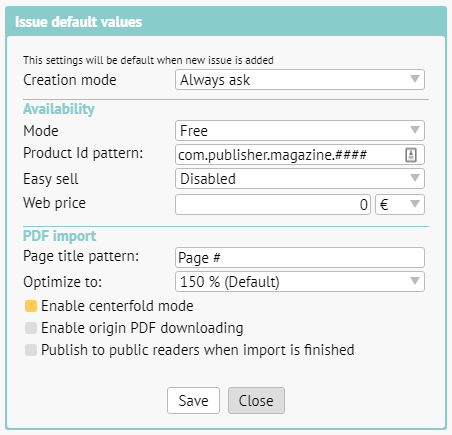
default values

Creation mode: you can set „Import PDF“ (for working with content on PDF basis) or „Create content“ (if you will be creating multimedia content in Triobo editor). If you are not sure, leave the default value. In that case the editor will always give you the option to choose when setting up new issue.

Availability > Mode: here you can choose, if by default new issues will be free of charge, paid, locked or hidden. More in another article.

Availability > Product Id pattern (applies only to paid issues): you can prepare a template for product Ids beforehand. If you set for example com.publisher.magazine.####, the product Ids will automatically be filled in the following form com.publisher.magazine.1, com.publisher.magazine.2 etc. Do not forget, that product Ids need to be approved by Apple and must be set in Google Play. See details.

Availability > Easy sell (applies only to paid issues): suitable for publishers with bigger archive. This enables them to sell content in reader applications even without approving product IDs by Apple and Google.

Availability > Web price (applies only to paid issues): here you can set the price of issue for web purchases.

PDF import > Page title pattern: here you can set, how individual pages shall be named after import. A pattern is used, where instead of the # symbol a page number shall be automatically filled in. On the picture you can see an example “Page #“, which means, that the first page will be named Page 1, second page Page 2 etc. In the editor you can further change the name of every individual page as you wish.

PDF import > Optimize to: we recommend leaving the default value of 150 %, that is the reasonable compromise between quality (required for zooming) and size of data. If you set higher value, it will allow for even greater zoom but at the cost of larger data transfer.

PDF import > Enable centerfold mode: on the display with sufficient aspect ratio the PDF will be displayed in centerfold mode (two pages side by side).

PDF import > Enable origin PDF downloading: suitable for publications free of charge. Readers can also download original PDF on the website, apart from reading.

PDF import > Publish to public readers when import is finished: right after the PDF import is finished an automated process of publishing will begin. If you plan to make further changes to the content before publishing (typically renaming individual pages) leaves this option unchecked.

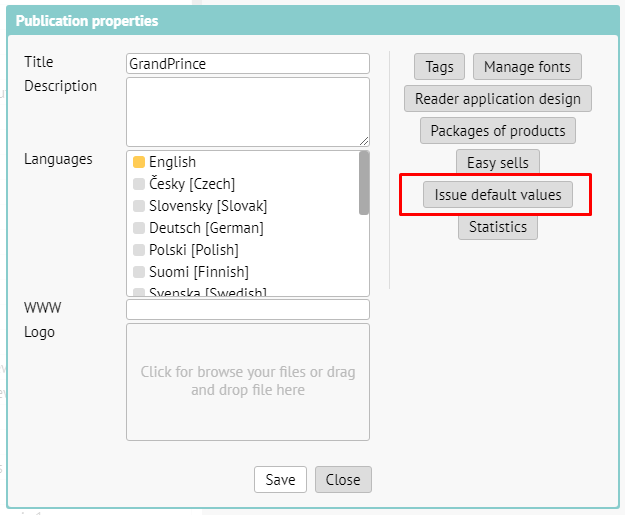
You can also access default value settings afterwards. In publication overview click on the icon [i] for setting up publication properties. After that click on the button Issue default values.

edit of default settings

Categories
1. Starting with digital publishing 2. Triobo editor 5. Succesfull digital publication

Preview of paid content

Publishers of paid publications can enable free access to selected pages of every issue to the readers.

This can be used as an equivalent of flipping through a magazine in newsstand before buying it, and at the same time it is very useful when sharing on social sites. If you have, for example, a five-page-long interview in your magazine you can unlock the first page and share it on Facebook as enticement.

Reader’s View

A new button titled Preview has been added, that opens the first unlocked article of given issue. After a couple of seconds a dialog box will open offering the choice to buy the full issue, the reader can close this box by clicking and continue reading.

If the reader clicks on page preview, a free preview or (when the article is locked) a general graphical preview of said page with dialog box offering the choice to buy the full issue will open, according to the specific situation. In this case the dialog box with the offer cannot be closed, the reader can only continue to the next page.

Preview button

This is how the dialog box with the offer to buy the full issue looks like. Notice the buttons Previous free article/Next free article.

Buying

Settings according to the Publisher’s Request

As soon as you set any issue as paid, the column preview will show up in its overview. This column can be used for unlocking individual pages as free to read. Do not forget to publish the issue at the end, or more precisely update it, otherwise the changes will not take effect.

enter image description here

Categories
1. Starting with digital publishing 2. Triobo editor 3. Content publishing for tablets

Digital replica of print (based on PDF) in three minutes

We are open to publishers who lack the time to create portable optimised design, but still want to profit from all the benefits of Triobo digital publishing, such as detailed statistics, animations, web links etc. You can use so called Replicas, which are based on print quality PDFs.

What are the benefits?

  • Digital publishing in a blink of an eye – can be finished in just three minutes
  • Content created from print PDFs can be combined with interactive features created in Triobo editor – for example, you can comfortably create a 300 page catalog using replica and the cover page with Triobo, where you add animations, hyperlinks (e.g. for e-shop) and even animated advertisement for your client
  • The result can be easily published to web, tablets, smartphones (Android, iOS, Windows 10, Amazon Kindle Fire) and desktop PCs (Windows 10)
  • The support of all Triobo features remains (detailed statistics, animations, readers zone, non-public section, language versions etc.)
  • Very comfortable reading both on web and mobile devices
  • PDF file can be (optional) available for common download

What will you need

Whole publication in one PDF file in the best possible quality (don´t compress the images unnecessarily), without cropmarks, each page individually (meaning not exported as spreadsheets).

How to do it?

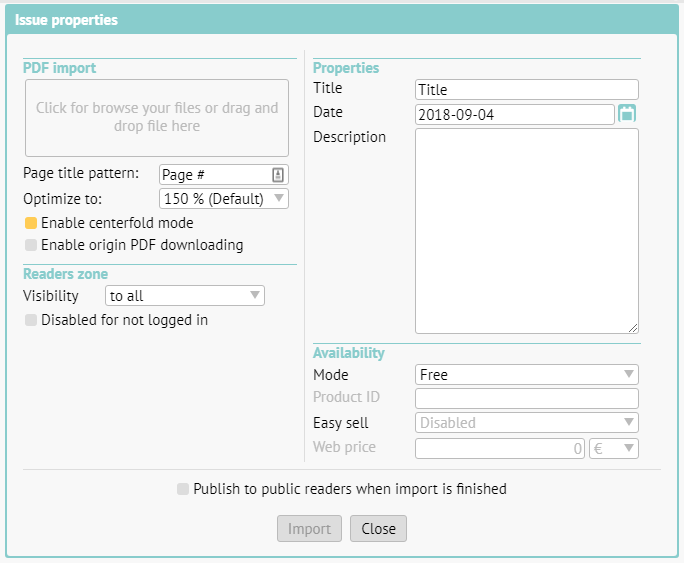
In issues overview (Issues) click on the button “+” to create a new issue. Based on your Default settings the following dialog box will appear.
New issue creation

Drag the PDF file with the mouse cursor to the top left rectangle.

Page title pattern – here you can select how should imported PDF pages be named. A pattern will be used, where # is automatically substituted with a page number. On the picture you see „Page #“ as and example, which means that first page will be named Page 1, second Page 2 and so on. You can name each page individually in the editor.

Optimization – We recommend to leave default value at 150 %, providing a reasonable compromise between quality (necessary for zooming) and file size. If you select higher value, publication could be zoomed-in futher at the cost of higher data transfer.

If you´re working with a portrait oriented content, you can set 2-page (centerfold) layout support – see red rectangle on the screenshot above.

If you want to offer PDF for common download (bonus for readers), set on the option Enable PDF downloading. If you allow this feature, the access to PDF download is the same like main publication: in case of paid content, download is available only after the payment. Keep in mind that your readers can distribute the downloaded PDF freely with no limitations. Note: The Triobo web platform is a prerequisite for using this feature.

Readers zone > Visibility of issue: you can set, who will be able to see the cover of the issue, usually just leave this on the default value (everyone). More in a separate article.

Title: is shown in the reader application under the issue’s cover. It is pointless to repeat the publication title (usually it is identical to the application or web name), rather specify the issue’s number etc.

Date: is decisive, beside other things, for sorting the issue in-between others.

Description: a short description of the issue. It is important particularly for the web version, it is used for search engines (Google etc.).

Availability Mode: if the issue is available for free or if it is necessary to use one of the available methods to pay for it. Details can be found in a special article.

Web price: you can set any price (regardless of Apple’s tier) to sell this digital issue on the web. Triobo web reader application is necessary.

Publish to public readers when import is finished: right after the PDF import is finished an automated process of publishing will begin. If you plan to make further changes to the content before publishing (typically renaming individual pages) leaves this option unchecked.

When everything is set, press Import.

In the issue list you can see the progress of the PDF import.

import progress

When the import is finished and digital replica is created, you can add hyperlinks or animations to any individual page or add new pages created in Triobo and, for example, combine animated title page with other catalog pages, which is automatically created by import as print PDF replica.

Do not forget: in order for any issue to appear on the web site or in your reader application, you must publish the issue (or have an automated process of publishing after the import is finished set as default).

Thumbnails and color – how to

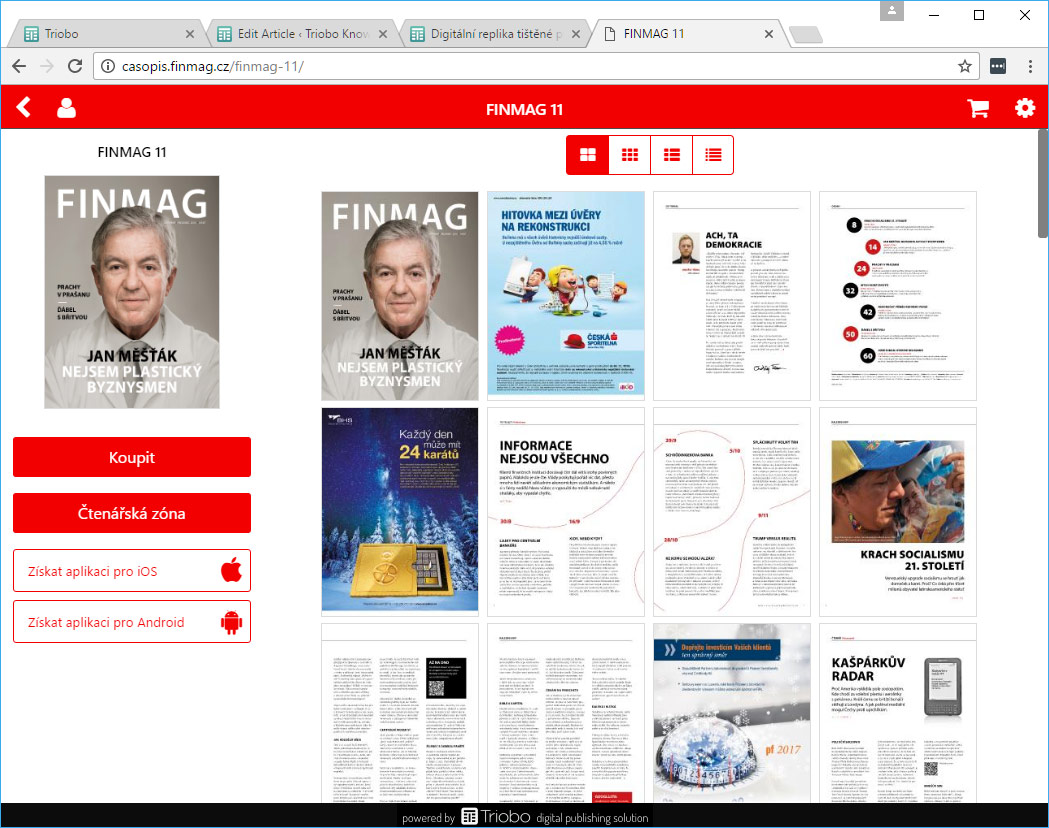
You can set the preview mode of your publication issue detail. Plus, if you have the Triobo Professional subscription, you can set a color scheme. On the image below you can see „full page“ preview mode, that is particularly suitable for previews of print magazines replicas. Read the tutorial about these settings.
Color and thumbnails settings

Categories
2. Triobo editor

Select and move multiple objects

If you need to select multiple objects, you have several options. Either hold down the Shift key and click on the desired objects. In case you click on already selected object, it will be removed from the selection. Or click to blank area (even outside the page) and drag – all the objects that will fit into the frame so created will be selected.

You can also combine these two approaches. If you already have multiple objects selected by dragging the mouse, you can add or remove object via clicking on them while keeping Shift key down. And vice versa: if you already have some objects selected, you can start dragging while Shift key is down and objects in created frame will be added to the selection.

You can also press Ctrl + A (on macOS: Cmd + A) to select all objects – either all on the page, or all in the open group.

Selected objects can be moved by mouse by dragging on any of them, eventually shifted via keys arrow up/down/left/right. There are coordinates of the upper left corner of the area that surrounds the selected objects shown in left sidebar. Changing these values you are able to move objects to exact place. As in case of all numeral inputs you can use keys arrow up/down for changing values, eventually enter a calculation (f.e. 100+50 is calculated as 150 automatically).

Selected object can be also grouped, see Objects groups.

Categories
2. Triobo editor

Animation

Each object can have also an alternative state in addition to its normal state. By navigation between these two states object animations are created. The object may move, resize, rotate or change the density or orientation in space. Animations can be automatic when an object appears or it is controlled with push buttons.

If the object is set to automatic start, then the animation starts when displayed:

  • if the object is part of paged article it starts by going to this page
  • if the object is part of continuously scrolling article it starts at the moment when it is at least partially visible
  • if the object is part of a variable object it starts by going to its state

Animations can also be automatically played back at the moment when the object disappears (the reader goes to another page, moves and switches the variable object.

Select the object (or group of objects) and press Animation button Triobo button

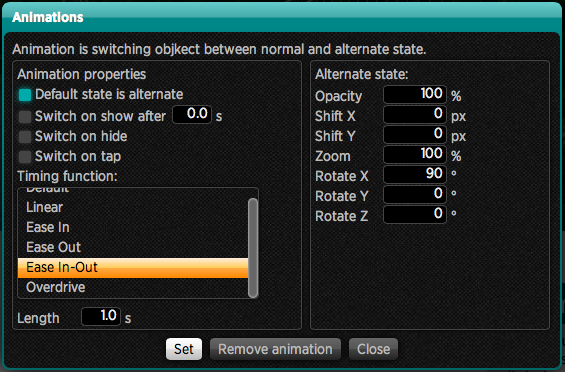
Animation setting window

Set the animation properties on the left side of the window:

  • Default state is alternate – means that at the beginning the object will be displayed in an alternative position (shifted, magnified, rotated, etc.) and later through the animation it will return to its normal state (thus as is illustrated in the editor). If this option is turned off, it will be just the opposite: the object will be illustrated in its normal position, as it was displayed in the editor, and later assumes the alternative state with animation
  • Switch on show after 0.0 s – if checked, then object animation plays automatically after it is displayed, you can also specify the delay in seconds. This is suitable for example with flying headlines etc. At this time it will switch the object from an alternate to normal, or from normal to alternate state according to the above option
  • Switch on hide – if checked, it will animate the object back when the object disappears from the display
  • Switch on tap – the object itself will respond to touch. Beware of a collision with action setting on tap.

You can also set the object timing i.e. how it will move with time:

  • Default – the default timing method, the object starts up quickly and before the end position slightly slows down
  • Linear – object will move quite evenly from the beginning to end
  • Ease In – object starts to move slowly and reaches the target position quickly
  • Ease Out – object will move quickly but before the end position it slows down a lot
  • Ease In-Out – object will slowly starts then speeds up the motion, before the end position it slows down a lot
  • Overdrive – object starts very quickly, passes the end position and slowly returns back to the target position

The last option is to set the animation length in seconds. If you enter 0, then the object will not animate at all, but goes immediately from one state to another.

In the right part of the window you may then set what will be the alternative state of the object:

  • Opacity – the saturation. If the object is set to its 100% saturation, and you make settings 0%, then the transition from an alternative to the normal state causes that the object appears.
  • Shift X, Y – if the object has to come from the left, enter e.g.-300
  • Zoom – normal magnification is 100% if you want to turn a small object into large one, enter 1%, if on the contrary, it should “drop” into the page, enter e.g. 500%. It is advisable to combine this state with saturation seeting.
  • Rotate X, Y, Z – object rotation in space around selected axis:
    • X – object rotates around an axis that is leading from left to right on the screen, i.e. if you enter 180 for example, it will appear “upside down“
    • Y – object rotates around an axis that is leading from the top down, i.e. if you enter 180 for example, it will appear right-left inverted
    • Z – object rotates about an axis perpendicularly to the face of your monitor, i.e. this turns inside of monitor plane. Remember that the target rotation may not always be 0 if you set the different editor rotation.

Press the button Remove animation to remove the animation.

Hint: You may control animated object by using the On tap command which acts as a button.

Categories
2. Triobo editor 3. Content publishing for tablets 6. Marketing & digital publications

How to create custom reader design

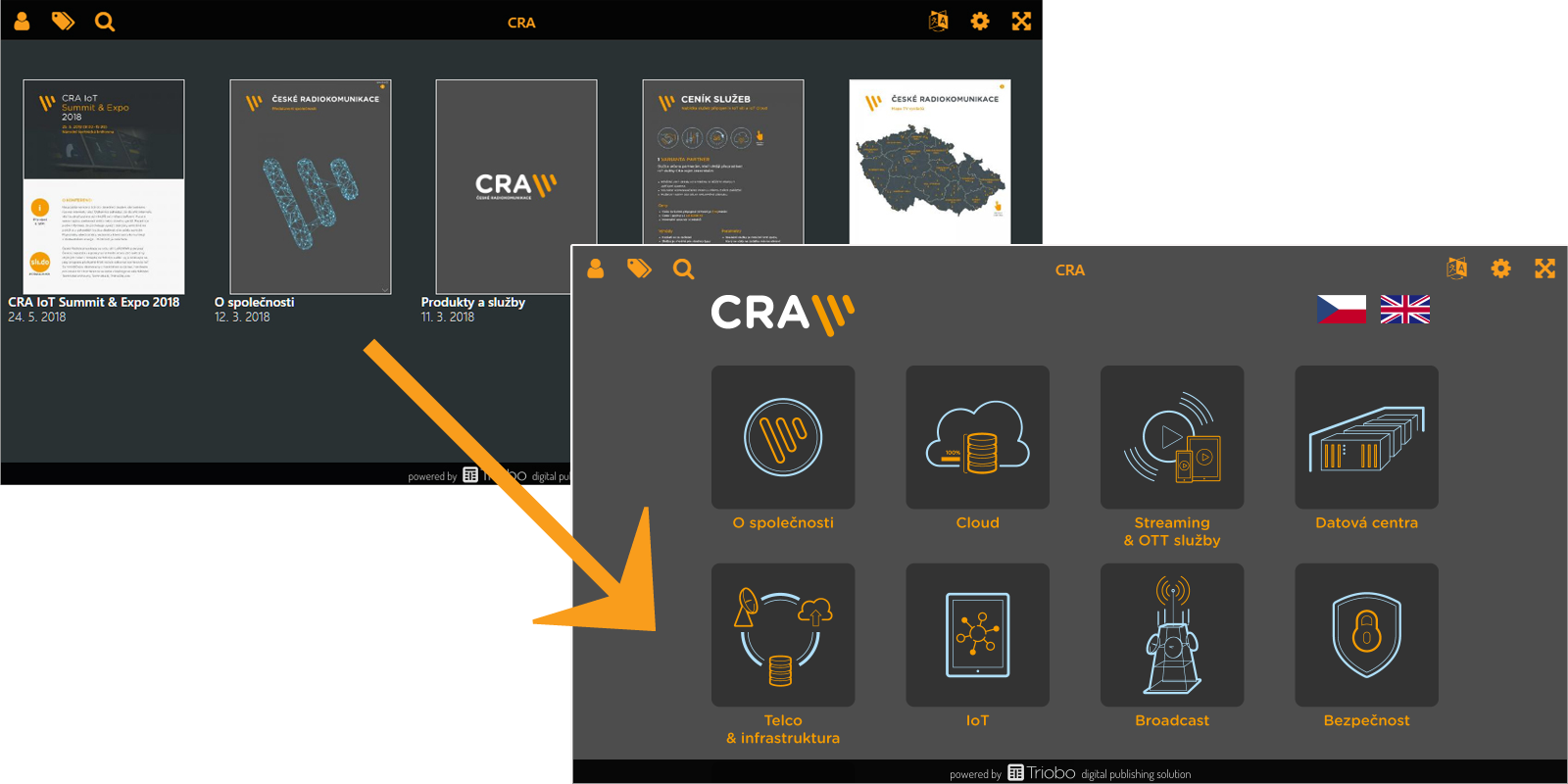
You can study how to set colours and preview modes for an application in separate article. In this article we´ll cover the designing of issues overview. See image below for an example.

Example of custom design

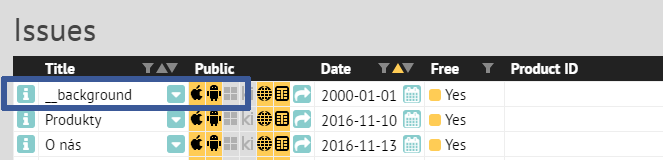
Everyone with the Triobo Professional subscription can customize their design. Those with the subscription see in the issues list of the publication a specially named issue with a single article.

special issue for custom design

Everyone with the Triobo Professional subscription can customize their design. Those with the subscription see in the issues list of the publication a specially named issue with a single article.

Tip: if no object is selected, use W key to see borders of all objects on the page.

The page contains (void) object named __coversP. This object is important, as it renders each individual issues. You shouldn’t delete this object (exception is described below). To see the object, you can use W key. We recommend to place it in the front layer.

Object settings - custom app design

On the screenshot, notice the second blue order at the bottom. It shows the distinction of the editor for design customization. Because the issues overview may be displayed on devices of various dimensions (web, Android and Apple tablets, Windows 10 app etc.), the typesetting in not expressed in absolute coordinates, but everything is aligned to the screen corners or to the middle.

For each object (or group of objects) you can set:

  • Horizontally: align left (default), align to middle, align right or stretch width according to position of right and left edge of the object.
  • Vertically: align to top, align to middle, align to bottom or stretch height according to top and bottom edge of the object.
  • Object: Set if object should be always visible, or only in landscape or portrait tablet orientation. With this, you can easily create designs for specific display orientations.
  • Language: if you design for multilanguage reader application, you can set target language destination for selected object.

TIP: for better arranged work use tags, to show or hide specific objects as needed.

How to replace the cover pages with custom graphics?

In most cases, you’ll want to have visible covers of your issues (typically magazines). Sometimes, however, you want to replace this presentation with your own graphics, such as active icons:

active icons

In this situation, you can delete __coversP object (read above), which renders the cover pages. Or, even better, don’t delete the object and only move it out of the visible area, for example, above the page. Create icons on the page, clickable maps etc. (as you wish), and use On Tap feature of Triobo, Open issue option.

More complex construction

And what if you want to add for example a frame filled with some colour, containing text on the left side aligned to the left, image on the right aligned to the right, and was stretched according to actual width of the screen? That´s simple. First draw the (text) frame, fill it with colour and place the object above it. Frame will be set to spread horizontally. Left object will be aligned to the left same as the right object to the right.

How can you make life easier?

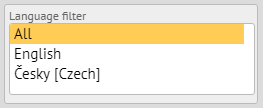
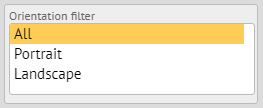
To make your design work better, you can use automatically prepared filters to switch the editor to a specific language and / or orientation. The filters appear in the left column when you have no object selected.

language filter orientation filter

How to test the design

You can publish in Triobo Content Reader as usual. To speed up the design change after publishing, close the Triobo Reader and start it again.

Categories
2. Triobo editor 3. Content publishing for tablets 6. Marketing & digital publications

Custom reader application design – colours and settings

You can set preview mode of pages of your publication in the issue detail. And, if you have Triobo Professional subscription, even colour scheme. On the image below you can see “one page“ preview mode, particularly useful for replicas of print magazines.

Big thumbnails

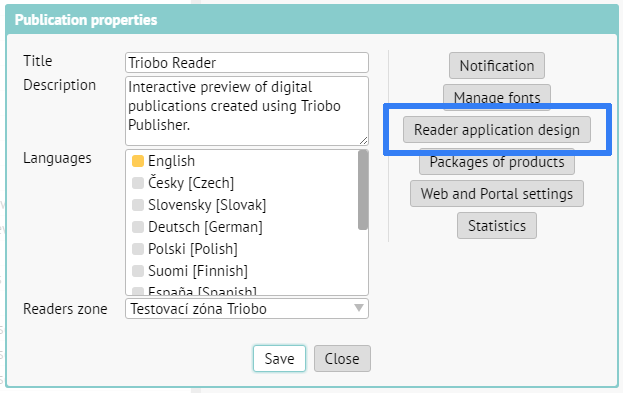
In editor, go to the list of publications (note that this doesn´t mean publication issues) and by clicking on the [i] icon expand the publication detail. Following dialog will appear

Publication detail

Click on the button highlighted on the screenshot. Settings for the publication will appear:

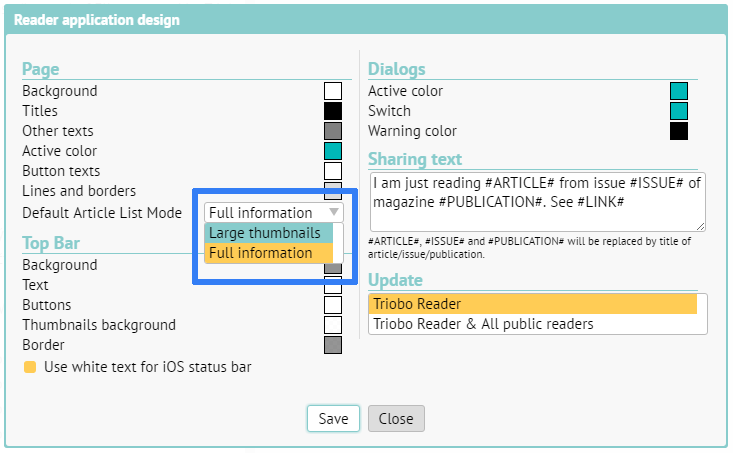
Publication settings

Preview mode settings are highlighted with blue border on the screenshot. You can also test the change of colour scheme here. When you´re finished, click Save.

Attention: If you wish to apply your settings to your public application (or web), don´t forget to set it for “Triobo Reader and to public readers” at the bottom left.

A slight issue – to actually see the changes, you must also refresh any issue of your publication. We are currently working on removing this step.

If you wish to speed up your design customization in Triobo Content Reader, close the application on your device and start it again.