Categories
2. Triobo editor

Images

You can insert the image by using Obrazový rámec tool, you can also drag or click on the page (viz Object insertion). Click the Source to display the list of available sources and click the image to select it. Additional images can be added by mouse dragging from Explorer (Windows) or Finder (OS X). More images can be inserted simultaneously.
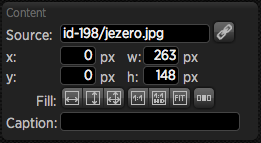
Nastavení zdroje

You may mark the check box in the upper right corner. You may also use the Select All button to mark all or Unselect all to cancel the selection. Selected images can be all deleted with the Delete selected button. If the deleted image is used in your publication, do not forget to replace it with another one or delete the respective objects from the page.

On left side of the screen you can switch between articles – i.e. you may also use images from other articles. Please pay close attention to the information on using sources from other articles.
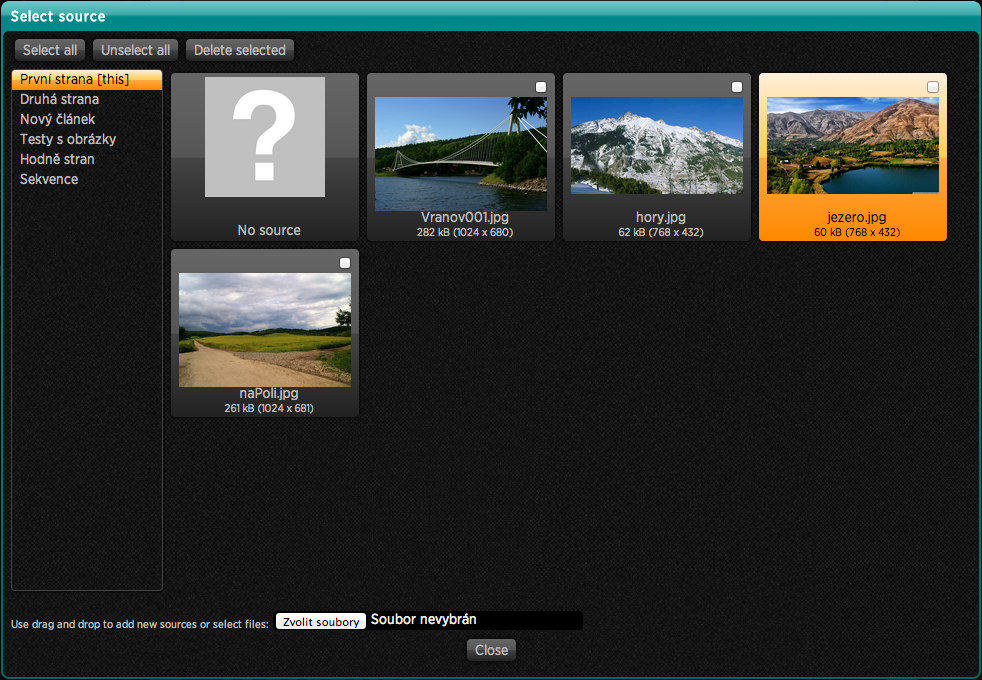
Přehled zdrojů

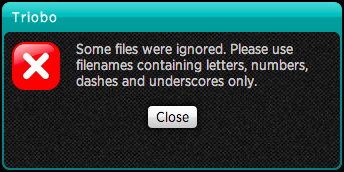
For technical reasons it is not possible to use file names that contain other characters then letters, numbers and hyphen and underscore. These restrictions aply to all sources you upload to Triobo editor (fonts, images, videos…) – system will notify you that file contains forbidden characters.

Please pay attention to the size of image: for your information the file size and image dimensions are displayed under the file name. Dimensions should not exceed the iPad3 resolution , i.e. max 2048 x 2048 pixels. The image size should be as small as possible, especially if there is a lot of them. We recommend the size of about 300 kB in JPEG format, when the quality is still excellent.
Once you have your image on picture screen, you can double click to open it – you can also make changes of image size, regardless of its frame. Use handles to resize or move the image within the cutout section. In this way you can easily crop images to desired dimensions. If the image frame is open, you can double click it again to go to the source selection dialog.

Orange handles are displayed while image is being edited and same keyboard shortcuts are functional as in setting of ordinary frame: arrow keys cam move the image by 1 pixel (press Alt to move by 8 pixels). By holding down the Shift key the image moves only in one direction, the aspect ratio is maintained with the change.

On the left column you can use buttons to select other image settings:

  • Fill group – determines how the image streches out within its frame.

    • The width () – streching to the width, the height will be adjusted automatically – image may have blank at the bottom edge or can be cut off if the frame does not have the corresponding size. As long as this option is active the image dimensions are changed according to its frame. You can also move the image against the frame and the size will be adjusted accordingly. Once you use one of the image handles the option Fill in width is deactivated.

    • The height () – streching to the height, the width will be adjusted automatically – image may have blank at the right edge or can be cut off if the frame does not have corresponding size. The same rules apply as above: as long as you will not use handless the image size adjusts to its frame size.

    • Both directions () – the image spreads out to the width and height but may be deformed when image frame has different aspects ratio from image. Even in this case the seting will last until you chose other size.

  • The following three buttons serve for setting of other commonly used values:

    • source size 1:1 () – image size within the frame will be set according tho the image source i.e. will be displayed exactly at 100% of size

    • source size 1:1 for mode HD () – some tablets (eg, iPad3 and iPad4) display twice the resolution, for example the area of 300 x 300 pixels in fact displays at 600 x 600 pixels. Pressing this button, adjusts the image size to the source size so the image works well on tablets with high resolution

    • source size according to the image () – image frame will be adjusted according to the size of actual image

If no object is selected, the button Position is available at the panel , which can be used for article setup.
Categories
2. Editor Triobo

Obrázky

Obrázek vložíte pomocí nástroje Obrazový rámec, můžete použít tažení ve stránce nebo klepnutí (viz Vkládání objektů). Klepnutím na Source zobrazíte seznam dostupných zdrojů, klepnutím na zdroj jej vyberete. Další zdroje lze přidat přetažením myši z Průzkumníka (Windows) nebo Finderu (OS X). Můžete najednou nahrávat i větší množství obrázků.

Nastavení zdroje

Zdroje můžete označovat zatržítkem v pravém horním rohu. Můžete také využít tlačítko Select All pro označení všech a Unselect all pro zrušení výběru. Označené obrázky lze pak najednou smazat tlačítkem Delete selected. Pokud je smazaný obrázek ve vaší publikaci použit, nezapomeňte jej nahradit za jiný, nebo příslušné objekty na stránce smazat.

V levé části okna můžete přepínat mezi články – tzn. můžete využívat obrázky z jiných článků. Věnujte ovšem prosím pozornost informacím na téma Používání zdrojů z jiných článků.

Přehled zdrojů

Z technických důvodů není možné používat názvy souborů obsahující jiné znaky, než písmena, číslice a znaky pomlčka a podtržítko. Toto omezení se týká jakýchkoli zdrojů, které budete do editoru Triobo nahrávat (písma, obrázky, videa…) – systém vás upozorní, že soubor obsahuje nepovolená písma.

Věnujte prosím pozornost velikosti obrázků: pod názvem souboru jsou pro vaši informaci uvedeny jak velikost souboru, tak rozměry obrázku. Rozměry by neměly překračovat rozlišení iPadu3, tj. max 2048 x 2048 bodů. Velikost souboru by měla být co nejmenší, zejména pokud se na stránce vyskytuje množství obrázků. Doporučujeme velikost okolo 300 kB ve formátu JPEG, kdy je kvalita stále výborná.

Jakmile máte v obrazovém rámci umístěný obrázek, můžete jej poklepáním otevřít – tak můžete provádět změny velikosti samotného obrázku, nezávisle na jeho rámci. Pomocí táhel upravte velikost, případně posuňte obrázek v oblasti výřezu. Takto můžete snadno provést ořez fotografie na požadované rozměry. Pokud je obrázkový rámec otevřen, můžete dalším poklepáním přejít do dialogu výběru zdroje.

Během úprav obrázku jsou zobrazena oranžová táhla a fungují stejné klávesové zkratky, jako u nastavení běžného rámce: šipkami můžete obrázkem posouvat po 1 pixelu (se stisknutou klávesou Alt po 8 pixelech). Při stisknuté klávese Shift se při přesunu posouvá obrázek pouze v jednom směru, při změně se zachovává poměr stran.

V levém sloupci je možné pomocí tlačítek dosáhnout dalších nastavení obrázku:

  • skupina Fill – určuje, jak se obrázek roztáhne do svého rámce.

    • na šířku () – roztažení podle šířky, výška se pak přizpůsobí automaticky – obrázek může mít u spodního okraje mezeru, nebo může být dole oříznout, pokud nemá rámec odpovídající velikost. Dokud je tato volba aktivní, mění se rozměry obrázku podle jeho rámce. Můžete také posunout obrázek vůči rámci a jeho velikost bude nadále přizpůsobena. Jakmile využijete některé z táhel samotného obrázku, volba Vyplnit na šířku se deaktivuje
    • na výšku () – roztažení podle výšky, šířka se pak přizpůsobí automaticky – obrázek může mít u pravého okraje mezeru, nebo může být vpravo oříznut, pokud nemá rámec odpovídající velikost. Platí stejná pravidla, jako u volby výše: dokud nevyužijete táhel samotného obrázku, bude velikost obrázku přizpůsobována rozměrům jeho rámce.
    • v obou směrech () – obrázek bude roztažen na šířku i výšku, ale může být deformován, pokud nemá rámec stejný poměr stran, jako obrázek. I v tomto případě je nastavení trvalé do té doby, než vynutíte jinou velikost.
  • další trojice tlačítek slouží k nastavení běžně používaných hodnot:

    • nastavit velikost podle zdroje na 1:1 () – velikost obrázku uvnitř rámce bude nastavena podle zdroje obrázku, tzn. bude zobrazen přesně ve 100% velikosti
    • nastavit velikost podle zdroje na 1:1 pro režim HD () – některé tablety (např. iPad3 a iPad4) umožňují zobrazit dvojnásobné rozlišení, například na ploše 300 x 300 bodů ve skutečnosti vykreslí 600 x 600 bodů. Stisknutím tohoto tlačítka bude velikost obrázku přizpůsobena podle velikosti zdroje tak, aby by obraz dokonalý na tabletech s vysokým rozlišením
    • nastavit rámec podle obrázku () – rámec obrázku bude upraven podle aktuální velikosti obrázku samotného

Pokud není vybrán žádný objekt, je v panelu Position k dispozici tlačítko , kterým můžete vyvolat nastavení článku.

Categories
7. Vocabulary

Push notifications

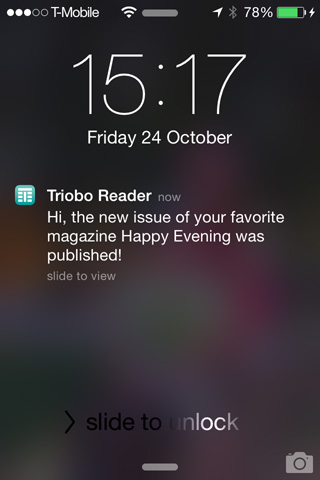
Push notification is a special type of message that you can send to your readers on tablets and smartphones – if reader enables this way of communication during the installation of reader device. Short text message is accompanied by a name of your tablet magazine (or tablet application) and by your icon.

  • Triobo Start allows you to send one message to all readers each month (“New edition of the XYZ magazine has been published”), the text can not be changed by the user.
  • Triobo Professional allows to send 999 messages to all readers each month, the text can be freely modified.

Push notification sample

Thanks to Triobo you can send push notification to all readers, or – thanks to advanced Triobo Push Notification Assistant – for example only to readers who have not yet downloaded the current issue of the digital magazine. You can change and adjust the text of message according to your needs (Triobo Professional pricing program).

ATTENTION: push notification must not contain advertising of third parties, you can expose youself to the risk of sanctions from Apple / Google (Android). For more information, read the rules of content providers Apple and Google.

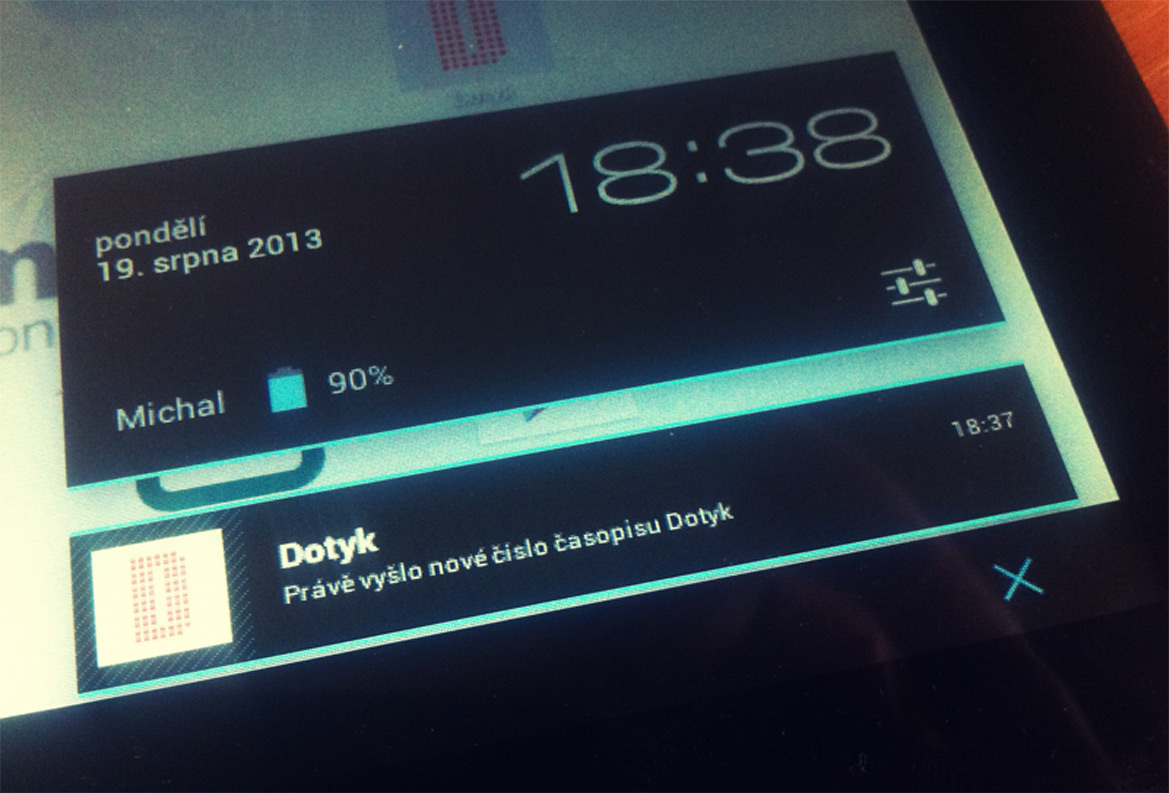
This is the look of incoming push notofication on Android tablet: Push notifikace na tabletu Android

Categories
7. Slovníček

Push notifikace

Push notifikace je speciální typ zprávy, který můžete zaslat svým čtenářům na tablety a chytré telefony – pokud čtenáři tento způsob komunikace povolili při instalaci čtečky. Krátká textová zpráva je doprovázena jménem vašeho časopisu a vaší ikonou.

  • Triobo Start umožňuje odeslat všem čtenářům jednu zprávu měsíčně (“Vyšlo nové vydání časopisu XYZ”), její text není možné uživatelsky měnit.
  • Triobo Professional umožňuje odeslat všem čtenářům 999 zpráv měsíčně, jejich text lze libovolně upravovat.

Ukázka push notifikace

Díky Triobo můžete poslat push notifikaci všem, nebo – díky pokročilé funkci Triobo Push Notification Assistant – například jen čtenářům, kteří si dosud nestáhli aktuální vydání vašeho digitálního magazínu. Text zprávy přitom můžete libovolně měnit a nastavovat podle své potřeby (platí pro Triobo Professional).

POZOR: push notifikace nesmí obsahovat reklamu třetích stran, vystavili byste se tak riziku sankcí ze strany Apple / Google (Android). Pro více informací si prostudujte pravidla Apple a Google pro poskytovatele obsahu.

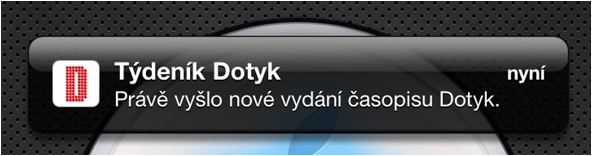
Takto vypadá příchozí push notifikace na tabletech Apple: Push notifikace na tabletu Apple

Takto vypadá příchozí push notifikace na tabletu s Androidem: Push notifikace na tabletu Android

Categories
2. Triobo editor

Variable object – pictures with captions

Variable object may be an interesting element to the reader, because you may choose what information is visible by yourself.

  1. First, using tool Image draw the image frame and select its source.
  2. Draw the text frame using Text tool, write the image caption and format it properly.
  3. Once you are happy with the look, group image with text using Group button (or Ctrl + Shift + G)
  4. Only then click the button Group for setting of variable objects
  5. Now click the button for the situation duplication of variable objects. A new state “State 2” is immediately created and labeled.
  6. Double-click the variable object and then once again to open a group with objects.
  7. Highlight the image and select another source.
  8. Double-click the text label and change it. You can also choose a different location.
  9. Do not forget to see variable object setting
Categories
2. Editor Triobo

Variabilní objekt – obrázky s popisky

Variabilní objekt představuje zajímavý prvek pro čtenáře, neboť si může sám vybírat, které informace uvidí.

  1. Nejdříve pomocí nástroje Obrázek nakreslete rámec obrázku, zvolte jeho zdroj
  2. Nakreslete pomocí nástroje Text textový rámec, napište popisek obrázku a patřičně naformátujte.
  3. Až jste se vzhledem spokojeni, seskupte obrázek s textem tlačítkem Seskupit (nebo Ctrl + Shift + G)
  4. Teprve pak klepněte na tlačítko pro založení variabilního objektu Seskupit
  5. Nyní klepněte na tlačítko pro zduplikování stavu variabilního objektu. Vznikne nový stav „State 2“ a je ihned označen.
  6. Poklepejte na variabilní objekt a pak ještě jednou, abyste otevřeli skupinu s objekty.
  7. Označte obrázek a vyberte jiný zdroj.
  8. Poklepejte na textový popisek a změňte jej. Můžete jej také umístit na jiné místo.
  9. Nezapomeňte na nastavení variabilního objektu