Categories
2. Triobo editor 3. Content publishing for tablets 6. Marketing & digital publications

How to create custom reader design

You can study how to set colours and preview modes for an application in separate article. In this article we´ll cover the designing of issues overview. See image below for an example.

Example of custom design

Everyone with the Triobo Professional subscription can customize their design. Those with the subscription see in the issues list of the publication a specially named issue with a single article.
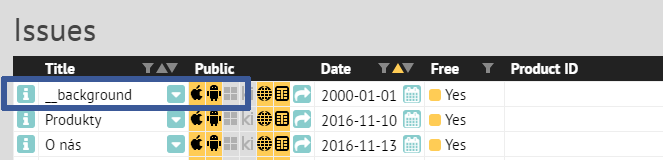
special issue for custom design

Everyone with the Triobo Professional subscription can customize their design. Those with the subscription see in the issues list of the publication a specially named issue with a single article.

Tip: if no object is selected, use W key to see borders of all objects on the page.

The page contains (void) object named __coversP. This object is important, as it renders each individual issues. You shouldn’t delete this object (exception is described below). To see the object, you can use W key. We recommend to place it in the front layer.

Object settings - custom app design

On the screenshot, notice the second blue order at the bottom. It shows the distinction of the editor for design customization. Because the issues overview may be displayed on devices of various dimensions (web, Android and Apple tablets, Windows 10 app etc.), the typesetting in not expressed in absolute coordinates, but everything is aligned to the screen corners or to the middle.

For each object (or group of objects) you can set:

  • Horizontally: align left (default), align to middle, align right or stretch width according to position of right and left edge of the object.
  • Vertically: align to top, align to middle, align to bottom or stretch height according to top and bottom edge of the object.
  • Object: Set if object should be always visible, or only in landscape or portrait tablet orientation. With this, you can easily create designs for specific display orientations.
  • Language: if you design for multilanguage reader application, you can set target language destination for selected object.

TIP: for better arranged work use tags, to show or hide specific objects as needed.

How to replace the cover pages with custom graphics?

In most cases, you’ll want to have visible covers of your issues (typically magazines). Sometimes, however, you want to replace this presentation with your own graphics, such as active icons:
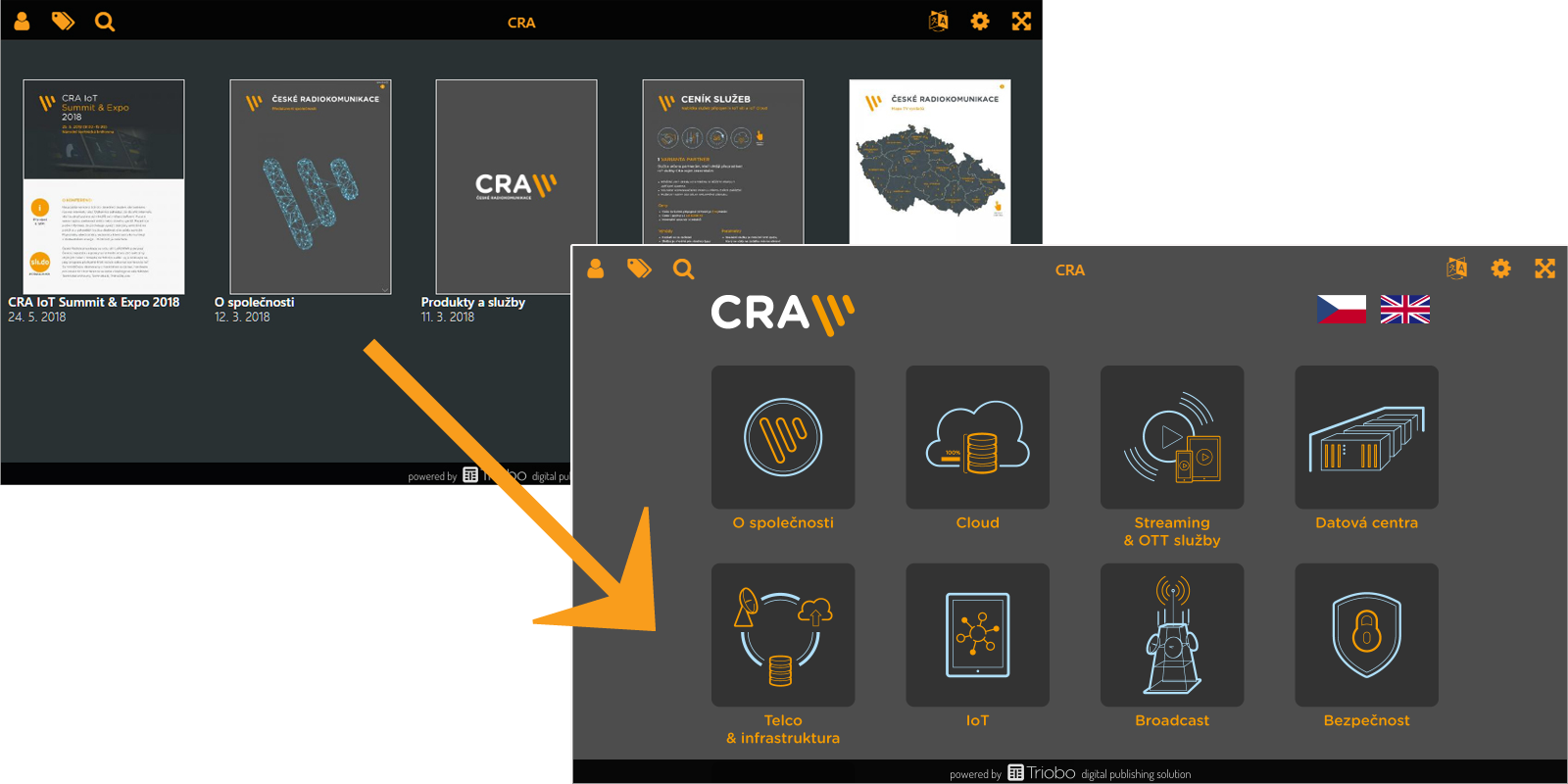
active icons

In this situation, you can delete __coversP object (read above), which renders the cover pages. Or, even better, don’t delete the object and only move it out of the visible area, for example, above the page. Create icons on the page, clickable maps etc. (as you wish), and use On Tap feature of Triobo, Open issue option.

More complex construction

And what if you want to add for example a frame filled with some colour, containing text on the left side aligned to the left, image on the right aligned to the right, and was stretched according to actual width of the screen? That´s simple. First draw the (text) frame, fill it with colour and place the object above it. Frame will be set to spread horizontally. Left object will be aligned to the left same as the right object to the right.

How can you make life easier?

To make your design work better, you can use automatically prepared filters to switch the editor to a specific language and / or orientation. The filters appear in the left column when you have no object selected.
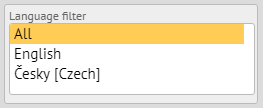
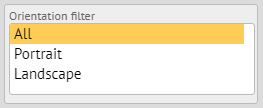
language filter orientation filter

How to test the design

You can publish in Triobo Content Reader as usual. To speed up the design change after publishing, close the Triobo Reader and start it again.
Categories
2. Triobo editor 3. Content publishing for tablets 6. Marketing & digital publications

Custom reader application design – colours and settings

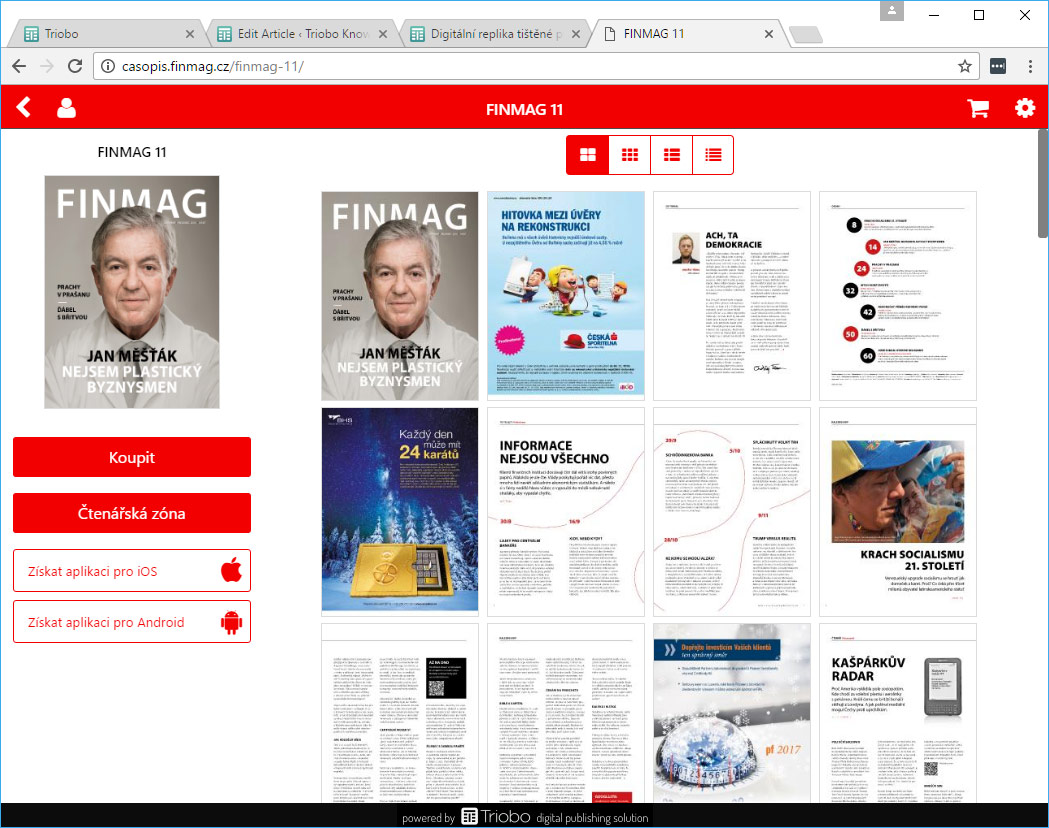
You can set preview mode of pages of your publication in the issue detail. And, if you have Triobo Professional subscription, even colour scheme. On the image below you can see “one page“ preview mode, particularly useful for replicas of print magazines.

Big thumbnails

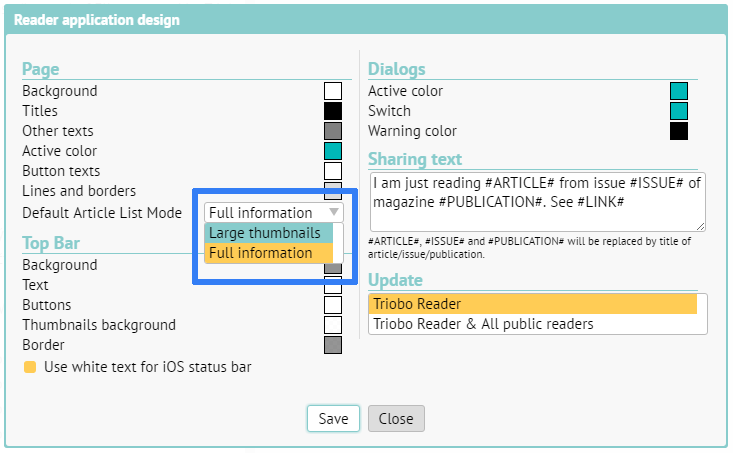
In editor, go to the list of publications (note that this doesn´t mean publication issues) and by clicking on the [i] icon expand the publication detail. Following dialog will appear

Publication detail

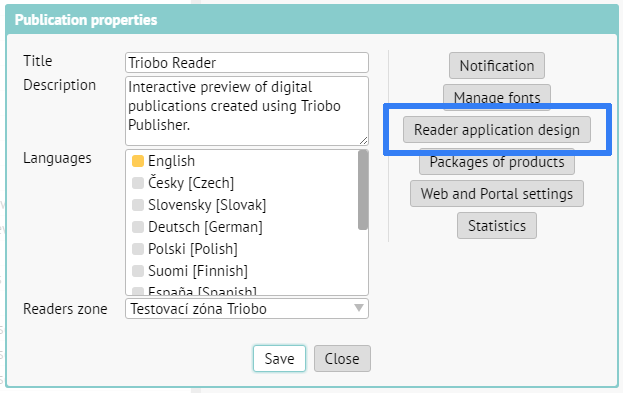
Click on the button highlighted on the screenshot. Settings for the publication will appear:

Publication settings

Preview mode settings are highlighted with blue border on the screenshot. You can also test the change of colour scheme here. When you´re finished, click Save.

Attention: If you wish to apply your settings to your public application (or web), don´t forget to set it for “Triobo Reader and to public readers” at the bottom left.

A slight issue – to actually see the changes, you must also refresh any issue of your publication. We are currently working on removing this step.

If you wish to speed up your design customization in Triobo Content Reader, close the application on your device and start it again.

Categories
1. Starting with digital publishing 3. Content publishing for tablets

How to get your application to the Apple Appstore / Google Play / Windows Store or on the web

Your own application in the official Apple Appstore, Google Play, Amazon Store, the Windows Store or on the web

So, this is it. You have already tried Triobo digital publishing and you know that this is the right solution for you. Now you want your interactive publication or digital magazine to be officially distributed to the public – through the Apple AppStore, Google Play, Windows Store or the Amazon Store. Or, on your Internet domain in the case of Web export.

Please contact us at support@triobo.com with a request to prepare your application. We will take care of all technical requirements for you.

The final application is always created under your brand name, with your graphics and is published under your Developer account in AppStore / Google Play / Amazon Store / Windows Store. In case of Web export the publication is always running on your internet domain.

Please remember

To include in your email your log-in username under which you log into the Triobo Editor (do not send us your password!), the desired product tariff (Triobo Start, Professional or Single, see Triobo price-list), the name of your publication you have made in Triobo Editor and, ideally, your telephone contact. We will contact you accordingly to arrange for details.

In case of any questions we are ready to serve you.

Categories
3. Content publishing for tablets

Before sending your application to AppStore / Google Play / Windows Store

Should you decide to buy a price package Triobo Professional, we will do all substantial things for you. Nevertheless, we still need some information and graphic materials from you. Here is a list of some of them. In following examples we will assume that your publishing company is called OurCompany and operates in the Czech Republic, owns the domain ourcompany.cz and will publish a magazine called MyMagazine.

Internal setting of application

The following information is generally hidden to readers, but we still need to enter it and therefore it is good to think of them ahead of time because they cannot be changed afterwards:

  • App ID – internal name of application, only English characters, no spaces, typically “mymagazine”
  • Bundle ID – globally unique application identifier, Apple recommends reverse entry, as in the domain case, i.e. typically “cz.ourcompany.mymagazine”
  • Product ID – if you want to sell the magazine by individual issues, by subscription, or even by individual articles, each such product has to have its own ID. It must start similarly as Bundle ID. If in 2013 for example you will be issuing publications from 1 to 12, then we suggest to use the following product ID: “cz.ourcompany.mymagazine.1301”, “cz.ourcompany.mymagazine.1302”, “cz.ourcompany.mymagazine.1303” etc. to “cz.ourcompany.mymagazine.1312”. For subscriptions always (!) use “cz.ourcompany.mymagazine.subscr.length”, where the subscription length is the month, quarter, half, year
  • SKU – apparently the completely unnecessary item, that is mandatory, is at least two-character identifier. You can use it later if you want to pair something with your accounting, otherwise we recommend numbering the applications as 11, 12, 13, 14 …

Application settings

The following information will affect the behavior of this application:

  • applications for iPad or universal – let us know if you want your application for iPad only, or whether it is intended for iPhone as well. Do not forget to supply the appropriate graphics (see below)
  • rotation lock – we can ban the rotation on iPad or iPhone, independently from each other. Typical are the following options:
    • permitted rotation on iPad and iPhone – common setting if your application is “portrait oriented”, it will be possible to also read landscape text on iPad and iPhone, the content stretches to the entire width of the screen.
    • restricted rotation on iPad, but permitted on iPhone – you may, for example, force portrait reading on iPad, but on iPhone rotation is allowed. This is convenient on iPhone because at landscape rotation the text size that was originally intended for iPad stays sufficiently legible. By iPad locking you namely force the reader to read magazine as originally intended, however in automatic galleries it will not be possible to display rotated images in formats that fill display optimally.
    • restricted rotation both on iPad and iPhone – we do not recommend this, however it is possible. On iPhone it is possible to restrict only the portrait orientation (it is not possible to force the complete publication only to “Landscape” – we are preparing this feature in succeeding versions)
  • Newsstand placement (Newsstand) – Newsstand for iPad / iPhone is nothing more than a special folder for applications, however this information is necessary to know in advance when setting up the reader. Advantages and disadvantages:
    • placed within the Newsstand – magazine is not presented by an icon, but the actual envelope. The publication must be subscription based (if this is a free magazine, it can be a free subscription). The application name will not be displayed anywhere (see the next point). The Newsstand will contain only publications (= periodically issued publications).
    • placed outside of Newsstand – magazine will be presented by its icon, at first glance it looks like any other application. The advantage is that the reader can rearrange it wherever he needs. The purchases within the application are not limited in any way, they may or may not – be subscription based.
    • note.: separate publications Triobo Single cannot be added to the Newsstand
  • application name on display – how the application will be named on device display. Note that when the text is longer than about 12 characters, it may be inadvertently shortened. In our case, we recommend “My Journal”, but definitely do not recommended “My Exclusive Magazine”, which will be shortened to “My Exluz ine…”

Application settings in AppStore

AppStore currently does not support the Czech language. Therefore it is necessary to use English as the default language. You can write captions in Czech, however we recommend to use English texts when you first submit them to the AppStore, which will be followed by words “CZECH” and it will continue with Czech texts. The point is that the person in Apple has an idea of what it is. Most captions can be changed later and English be removed. Alternatively, you may swap the Czech and English text so that the Czech is more visible.

  • application name in AppStore – may be longer than the application name on display such as “My Magazine – tablet edition.” This information cannot be changed after the approval of application, but you may change it with the next version and sent to the AppStore (therefore it will always be subjected to Apple approval)

  • copyright – information that the application displays, such as “Our company, a.s.”

  • description – text that will be shown in the application. Firstly we recommend at least one sentence description in English, which may be followed by the Czech version. Description can be always changed later, so you can delete it after the approval of English version.

  • key words – words by which readers can easily find your application. This is limited to 150 characters, so we recommend that the magazine about tourism and trips to Europe, uses for example the description “magazine hiking tours Europe”

  • internet link, support – ideally to refer to magazine website, e.g. “http://mymagazine.ourcompany.cz”

  • privacy Policy document link – the item is mandatory if your magazine is present at the Newsstand. Somewhere on your website create a statement containing provision of personal data use in Czech and English (example here: http://www.epublishing.cz/zasady-ochrany-osobnich-udaju)

  • age restrictions – this is the information on whether the application contains information about violence, alcohol, drugs, light erotica, vulgarity, etc. – if your magazine may contain any such facts, we strongly recommend to disclose it before the approval and identify the application as a 17+

  • screens – we can prepare screens for you, just let us know which pages should we use, or send us your samples. For iPad they must be sized 768×1024 or 1024×768 for iPhone 640×960 or 960×640 for iPhone5 640×1136 or 1136×640. Screen samples in AppStore, can be changed only until the final application is approved by Apple, screen samples in Google Play can be changed any time.

Graphics

In the following list, we always state requested name and in brackets behind it the size in pixels. Do not think of data as dpi, we need you to have the real image dimensions in your graphic editor exactly as we state. Use exclusively the PNG format.

  • Main icon – has dimensions of 1024 x 1024 and we may derive all other required sizes from it. When designing make sure that the icon would be recognizable even at the resolution of 57 x 57 (iPhone). iPad readers will see the icon at the size of 72 x 72. Name the file as follows:
    • mymagazine-icon.png (1024 x 1024)
  • startup screen for iPad – is that what appears when the application starts. Regardless of the fact that the application has or has not locked its rotation, we need both formats. Pay attention to the correct size and use the following names:
    • mymagazine-landscape.png (2048 x 1536)
    • mymagazine-portrait.png (1536 x 2048)
  • startup screen for iPhone – we need this only if your application will be also used on iPhone. Urgently both formats (one for the older iPhone, the other for the iPhone5):
    • mymagazine-iphone.png (640 x 960)
    • mymagazine-iphone5.png (640 x 1136)
  • startup cover – is needed only if your magazine is to be present at the Newsstand. This must be a picture that evokes the appearance of magazine cover while this is not a real cover. The easiest way to do this is to take a real cover and delete all texts from it except the logo and replace the main motive with something else. Size may be either 1024 x 768 or 768 x 1024, according to the format size of your publication:
    • mymagazine-cover.png (1024 x 768 or 768 x 1024)
  • screenshot examples of your app – if you want to select which screenshots will appear in your application, send us either numbers of pages you want to use (and we will implement them to your reader), or PNG images of selected pages. You may use at most 5 screenshots so supply them in three following resolutions:
    • IPad and Android devices: 768 x 1024 or 1024 x 768 (depending on the orientation of your publication)
    • For iPhone4: 640 x 960 or 960 x 640
    • For iPhone5 and higher: 640 x 1136 or 1136 x 640 (if you do not provide us with application samples, we will choose 3 screens ourselves – you can easily change them later. In case of Apple it is necessary to do this before the application is approved)

Summary

So what to send then? In addition to the files listed in the previous section you may also fill in the following table and send it to us:

Item Value
App ID
Bundle ID
SKU
Applications for the iPhone Yes No
Lock rotation iPad No Portrait only Landscape only
Lock rotation iPhone No Portrait only
Newsstand placement Yes No
Application name on display (12 characters)
Application name in AppStore
Copyright
Description
Key words
URL support
URL privacy policy
age restrictions No Yes, what age: