Categories
5. Succesfull digital publication 6. Marketing & digital publications

Transfer of purchases between platforms

In connection to paid content you can offer your readers the option to transfer their purchases between individual platforms (Apple iOS, Android, Windows 10 and website). Example? If the reader buys a magazine on cell phone in Android application through Google Play he can also read it on website using computer or in application on iPad (tablet).

The transfer of purchases applies to transactions through external payment gateway, publisher’s e-shop or using vouchers, and also to direct purchases through Appstore and Google Play. The publisher also gets to know the reader’s e-mail address.

Scenarios

  • The purchase is made on website (through payment gateway) – during the purchase the reader chooses his login username (e-mail) and password. The reader must be logged-in to access his paid content (publications), be it through website or application on tablet/smartphone/computer. The publisher knows the reader’s e-mail and can ask the reader during the purchase about any other information.

  • Vouchers are used as a substitute for payment – reading and purchase is based on the same principal as in the point above. The publisher knows the reader’s e-mail address.

  • The purchase is made directly in the application through Appstore or Google Play – the reader does not have to be logged-in to purchase or to read. The drawback is that neither Apple, nor Google, will disclose the identity of the reader, his e-mail or his name. Here comes the key advantage of Triobo: if the publisher enabled the transfer of purchases (default settings), then after the reader logs in into the application, all information regarding purchases through Appstore or Google Play are transferred, together with the reader’s e-mail address, to the server. The reader can, from this point onward (after logging in), read his publications on more of his devices and the publisher knows his e-mail.

The feature to transfer purchases is part of Reader’s zone, external payment gateway and publisher’s e-shop.
Categories
3. Content publishing for tablets

Paid magazines in AppStore – how to do it?

It is somewhat complicated to sell paid magazines through the App Store because Apple wants to approve every issue in advance. This may be a problem because approval usually takes one week or sometimes even longer. However here is a proven procedure used by publishers from around the world: the pre-approval.

In principle it is all about the fact that Apple approves so called Product ID – which is always linked to price. In Triobo, on the other hand, the same Product ID is assigned to particular issue. So in advance you may arrange approval of several product codes (even for the entire year) so you can use them later.

Fake issues

First, create required number of “fake” issues in Triobo. For each of them create one page, that will be more than enough, ideally they all should look like magazine cover pages. It does not even matter that all these fake issues have identical cover (avoid using words like demo, fake, pre-release … – in any case there is no need to irritate Apple employees.)

Assign suitable Triobo product codes to all issues, for example com.mycompany.mymagazine.1501, com.mycompany.mymagazine.1502 and so on. Do not label issues as free issues (because they will be paid) and publish them to your public Reader.

The Reader will not display any of these issues, because it does not have required Apple product code – therefore your readers will not see anything on display.

App Store settings

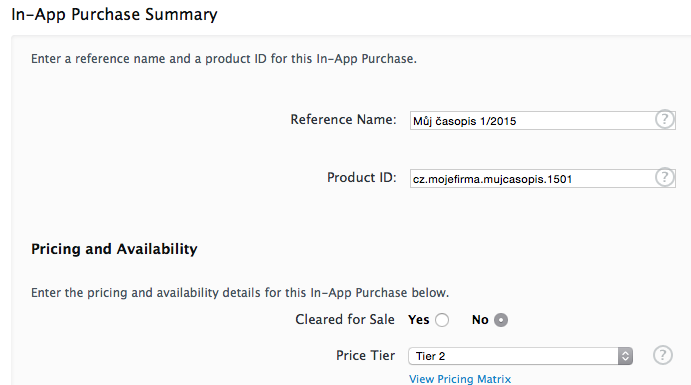
Now through iTunes Connect site, navigate to your application and click on In-App Purchases option. Using the Create New button selection, create individual In App purchases – for magazine purposes we have used “Non-Consumable” option – which means permanent purchase that will stay forever with the customer. Enter all product codes gradually and set correct price to each of them, especially do not forget to set the Clear for Sale parameter to “No”.

Follow with correct product code names: similarly as with internet addresses use reverse entry

The filling process is somewhat tedious: you must enter at least one language (English), and then fill in the issue name with brief description. Also, you have to insert the “Screenshot for Review” image – in practice you can insert any image with size of 768×1024 (eg. default starting wallpaper that is used in the Reader), it is also not necessary that it is a magazine cover-page.

Once you have entered correct product codes and everything is published in Triobo publicly, it is time to ask Apple for approval. While the ordinary public Reader does not display your fake issues because product codes are invalid, Apple employees will see all your issues and will approve them accordingly.

After Apple’s approval

In about one week (in some cases it may take a month!) you will be notified by email that your product codes were approved. Go to Triobo Editor and publish all your fake issues. Later you can simply remove appropriate product code and use it in entirely different issue.

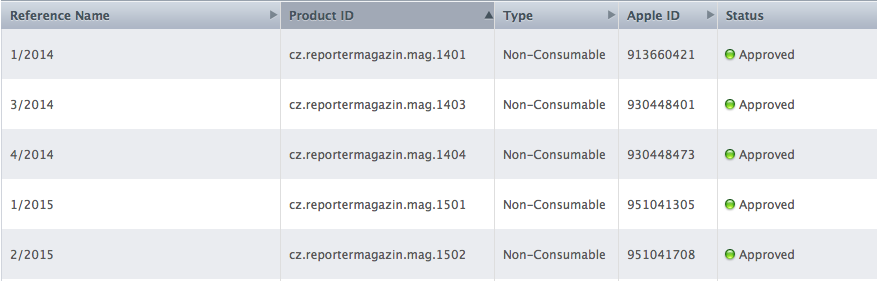
Go to iTunes Connect website and you will see red information next to all pre-approved product codes notifying you that you have removed codes from in app sales. Open them individually and adjust Clear for Sale value to “Yes”. When color changes to green, the product code is approved and ready to sell.

All your codes should have a green label

Once your have paid, the issue is ready

Once you have finished your issue in Triobo and you are happy with how it looks in Triobo Reader, you may also publish it to public Reader. Fill in the appropriate Product ID and you are free to publish. Once the data is sent to distribution server, you may immediately go to your Reader and see that your issue is available for immediate purchase by readers.

Note: The procedure described above is right on the edge of Apple’s rules. Although publishers from around the world do it exactly like this, we can’t guarantee that this process will always work in the future.

Categories
1. Starting with digital publishing

Preparation: how to get a publisher account for Apple AppStore and Google Play

You need to establish a Publisher (Developer) account in order to distribute magazines or any other digital publications on Apple or Android devices. Also for distribution inside of AppStore you need Publisher Apple ID and for Android devices Developer registration on Google Play. What else does it involve?

Apple AppStore publisher’s registration

Will cost you 99 US dollars per year (paid directly with your credit card to Apple). Remember that this is a publisher’s registration not a title registration – ie. with one Apple ID, you can distribute an unlimited number of titles and applications. You can file a registration request on Apple website, and approval process usually takes several days with approximate time of one week.

The registration is relatively simple if you are a freelancer. You must primarily have credit card issued in your name, which is a condition for approval. Be aware that you have authorized option for Internet payments on your card.

In case you are a company (with legal entity), you’ll need so called DUNS number. It is available free after completing a simple form on the internet. DUNS number will be sent to you by mail, usually within one or two days.

Once you have a DUNS for your company, you can start filing application for registration with Apple. It is highly recommended that you as a publisher provide universal contact email address (typically publisher@company.com) instead of email to specific employee, you may get into trouble when that person leaves your company.

As part of your registration process you will also need to file a specific name and contact details of a person who is authorized to act on behalf of your company. This person will receive verification call from Apple within few days after application filing. If you choose that the contact person is anyone other than authorized person, be aware that Apple may require later a power of attorney for that employee.

As far as the payment for developer’s account is concerned, you can use any credit card with company developer account, of course, again with authorized option of Internet payments.

WARNING: unless you have fully functional Apple developer ID, we can’t send your magazine Reader to Apple for approval or any other application as a matter of fact on your behalf. The approval process for Apple application takes another 3 days, be aware of this delay when making your schedule.

Google Play publisher’s registration for Android

Will cost you a one time payment of 25 USD and is valid throughout the existence of your publishing activities. The fee is paid directly to Google with your credit card. Similarly as with Apple it is obvious that Google’s registration is to the publisher, not the title – therefore you can publish and distribute an unlimited number of titles and applications under one account.

The good news is that the Google Play registration has NO approval process, therefore registration is a matter of few minutes. To register we again recommend using universal email publisher@company.com (may be the same email address that you use with Apple). Registration of publisher’s account is arranged on Google website, all you need is a credit card with authorized option of internet payments.

Categories
3. Content publishing for tablets 7. Vocabulary

API for external systems (custom made eshop etc.)

The publishers of tablet magazines and publishing portals usually depend only on the distribution of their subscription titles through the App Store, Google Play or Amazon Store. Until now, the ordinary publisher did not have the option to sell subscriptions of tablet magazine through his website and certainly could not sell subscription packages of printed and tablet magazines in one bundle. This solution is now available to all Triobo publishers – the option of connecting the tablet magazine reader to external payment gateway of a publisher (using Triobo API).

With the use of Triobo API…

  • you can sell any specific issue of your tablet magazine (issue sales) through your website or any tablet subscription, typically semi-annual or annual.
  • on your website you can also sell bundles of tablet content with any other product – for example the package of printed and digital subscription
  • in case of digital content, sales through your web substantially increase your profit, by saving (about 30%) on commission fees, that you otherwise pay for direct sales through App Store / Google Play / Amazon Store.
  • sales money from website go from your customers directly to your account, without any intermediaries

It should be noted that even in case of connection to the external payment gateway you must maintain the option of selling your digital content directly from your reader, and also you must not sell the digital subscription or single issues from your website cheaper than directly from the reader. Simply said, you should not disadvantage the sales through the App Store / Google Play / Amazon Store against sales through your web site.

Reportér magazine example

Connecting conditions

You will get a simple description of technical interface from us to be specified to your developers. It does not matter what kind of web you may have for subscription sales (or e-shop), it does not matter what technology you are using on your website. You only need a qualified developer who is able to connect our Triobo API interface with your software. If you have any payment gateway for online payments, you may sell your digital subscriptions completely on-line through your web (and the money go directly from your client to your bank account).

Similarly you may sell tablet digital publications completely off line – perhaps so in such case the customer calls your call center, subsequently the invoice will be sent to him after the payment “somewhere” inside of your software was made, which could be very simple, marking that the user John.Smith@world.com has already paid for it and is eligible eg. for annual digital subscription of tablet magazine Happy Reader. Your developer only sends this information to our digital publication distribution system using a secure mode of Triobo API.

The external payment gateway (Triobo API) connectivity is available to customers who use the Triobo Professional tariff within its premium services. If you are interested in using Triobo API please contact us.

The scenario when reader had purchased magazine subscription through the publisher’s web site

The customer must disclose his e-mail address that will be used for logging into the tablet reader. At the same time his password will be generated (for digital subscriptions) or the customer will enter it through the web site for subscription sales (in ideal scenario), or he will register directly in the reader.

The customer will download your tablet magazine reader, which is usually free – you are selling the reader content, not the reader itself. By clicking on the people icon, the customer logs into the Reader’s zone. Using his email address, that he received when the payment was made, and he uses his password. From this point he has access to all purchased issues he had paid for.

Categories
2. Triobo editor

Previewing your publication in publishing reader

Publishing reader Triobo Reader is now available for tablets and phones with iOS and Android. Download it from the following addresses:

You will see the default welcome issue after the first start.

Clicking the envelope thumbnail will open the issue detail, where you can press the download button. After some time this will change to Read inscription (once the first page is downloaded).

Tap it to open the first issue page and you can start browsing through it.

To access this offer, pull down the page – in upper section of the article thumbnails will appear including the Close button.

If you want to display your own publication, leave the default journal and return to the default view. On the top left side press the Login button and enter your login information into the Triobo system.

After a while you will see a list of your published issues.

Caution: We emphasize that only those issues that were published in the editor for Triobo Reader will be displayed (see Issue publishing).

You may bring the reader the original position by using the Logout button.

Categories
3. Content publishing for tablets

Before sending your application to AppStore / Google Play / Windows Store

Should you decide to buy a price package Triobo Professional, we will do all substantial things for you. Nevertheless, we still need some information and graphic materials from you. Here is a list of some of them. In following examples we will assume that your publishing company is called OurCompany and operates in the Czech Republic, owns the domain ourcompany.cz and will publish a magazine called MyMagazine.

Internal setting of application

The following information is generally hidden to readers, but we still need to enter it and therefore it is good to think of them ahead of time because they cannot be changed afterwards:

  • App ID – internal name of application, only English characters, no spaces, typically “mymagazine”
  • Bundle ID – globally unique application identifier, Apple recommends reverse entry, as in the domain case, i.e. typically “cz.ourcompany.mymagazine”
  • Product ID – if you want to sell the magazine by individual issues, by subscription, or even by individual articles, each such product has to have its own ID. It must start similarly as Bundle ID. If in 2013 for example you will be issuing publications from 1 to 12, then we suggest to use the following product ID: “cz.ourcompany.mymagazine.1301”, “cz.ourcompany.mymagazine.1302”, “cz.ourcompany.mymagazine.1303” etc. to “cz.ourcompany.mymagazine.1312”. For subscriptions always (!) use “cz.ourcompany.mymagazine.subscr.length”, where the subscription length is the month, quarter, half, year
  • SKU – apparently the completely unnecessary item, that is mandatory, is at least two-character identifier. You can use it later if you want to pair something with your accounting, otherwise we recommend numbering the applications as 11, 12, 13, 14 …

Application settings

The following information will affect the behavior of this application:

  • applications for iPad or universal – let us know if you want your application for iPad only, or whether it is intended for iPhone as well. Do not forget to supply the appropriate graphics (see below)
  • rotation lock – we can ban the rotation on iPad or iPhone, independently from each other. Typical are the following options:
    • permitted rotation on iPad and iPhone – common setting if your application is “portrait oriented”, it will be possible to also read landscape text on iPad and iPhone, the content stretches to the entire width of the screen.
    • restricted rotation on iPad, but permitted on iPhone – you may, for example, force portrait reading on iPad, but on iPhone rotation is allowed. This is convenient on iPhone because at landscape rotation the text size that was originally intended for iPad stays sufficiently legible. By iPad locking you namely force the reader to read magazine as originally intended, however in automatic galleries it will not be possible to display rotated images in formats that fill display optimally.
    • restricted rotation both on iPad and iPhone – we do not recommend this, however it is possible. On iPhone it is possible to restrict only the portrait orientation (it is not possible to force the complete publication only to “Landscape” – we are preparing this feature in succeeding versions)
  • Newsstand placement (Newsstand) – Newsstand for iPad / iPhone is nothing more than a special folder for applications, however this information is necessary to know in advance when setting up the reader. Advantages and disadvantages:
    • placed within the Newsstand – magazine is not presented by an icon, but the actual envelope. The publication must be subscription based (if this is a free magazine, it can be a free subscription). The application name will not be displayed anywhere (see the next point). The Newsstand will contain only publications (= periodically issued publications).
    • placed outside of Newsstand – magazine will be presented by its icon, at first glance it looks like any other application. The advantage is that the reader can rearrange it wherever he needs. The purchases within the application are not limited in any way, they may or may not – be subscription based.
    • note.: separate publications Triobo Single cannot be added to the Newsstand
  • application name on display – how the application will be named on device display. Note that when the text is longer than about 12 characters, it may be inadvertently shortened. In our case, we recommend “My Journal”, but definitely do not recommended “My Exclusive Magazine”, which will be shortened to “My Exluz ine…”

Application settings in AppStore

AppStore currently does not support the Czech language. Therefore it is necessary to use English as the default language. You can write captions in Czech, however we recommend to use English texts when you first submit them to the AppStore, which will be followed by words “CZECH” and it will continue with Czech texts. The point is that the person in Apple has an idea of what it is. Most captions can be changed later and English be removed. Alternatively, you may swap the Czech and English text so that the Czech is more visible.

  • application name in AppStore – may be longer than the application name on display such as “My Magazine – tablet edition.” This information cannot be changed after the approval of application, but you may change it with the next version and sent to the AppStore (therefore it will always be subjected to Apple approval)

  • copyright – information that the application displays, such as “Our company, a.s.”

  • description – text that will be shown in the application. Firstly we recommend at least one sentence description in English, which may be followed by the Czech version. Description can be always changed later, so you can delete it after the approval of English version.

  • key words – words by which readers can easily find your application. This is limited to 150 characters, so we recommend that the magazine about tourism and trips to Europe, uses for example the description “magazine hiking tours Europe”

  • internet link, support – ideally to refer to magazine website, e.g. “http://mymagazine.ourcompany.cz”

  • privacy Policy document link – the item is mandatory if your magazine is present at the Newsstand. Somewhere on your website create a statement containing provision of personal data use in Czech and English (example here: http://www.epublishing.cz/zasady-ochrany-osobnich-udaju)

  • age restrictions – this is the information on whether the application contains information about violence, alcohol, drugs, light erotica, vulgarity, etc. – if your magazine may contain any such facts, we strongly recommend to disclose it before the approval and identify the application as a 17+

  • screens – we can prepare screens for you, just let us know which pages should we use, or send us your samples. For iPad they must be sized 768×1024 or 1024×768 for iPhone 640×960 or 960×640 for iPhone5 640×1136 or 1136×640. Screen samples in AppStore, can be changed only until the final application is approved by Apple, screen samples in Google Play can be changed any time.

Graphics

In the following list, we always state requested name and in brackets behind it the size in pixels. Do not think of data as dpi, we need you to have the real image dimensions in your graphic editor exactly as we state. Use exclusively the PNG format.

  • Main icon – has dimensions of 1024 x 1024 and we may derive all other required sizes from it. When designing make sure that the icon would be recognizable even at the resolution of 57 x 57 (iPhone). iPad readers will see the icon at the size of 72 x 72. Name the file as follows:
    • mymagazine-icon.png (1024 x 1024)
  • startup screen for iPad – is that what appears when the application starts. Regardless of the fact that the application has or has not locked its rotation, we need both formats. Pay attention to the correct size and use the following names:
    • mymagazine-landscape.png (2048 x 1536)
    • mymagazine-portrait.png (1536 x 2048)
  • startup screen for iPhone – we need this only if your application will be also used on iPhone. Urgently both formats (one for the older iPhone, the other for the iPhone5):
    • mymagazine-iphone.png (640 x 960)
    • mymagazine-iphone5.png (640 x 1136)
  • startup cover – is needed only if your magazine is to be present at the Newsstand. This must be a picture that evokes the appearance of magazine cover while this is not a real cover. The easiest way to do this is to take a real cover and delete all texts from it except the logo and replace the main motive with something else. Size may be either 1024 x 768 or 768 x 1024, according to the format size of your publication:
    • mymagazine-cover.png (1024 x 768 or 768 x 1024)
  • screenshot examples of your app – if you want to select which screenshots will appear in your application, send us either numbers of pages you want to use (and we will implement them to your reader), or PNG images of selected pages. You may use at most 5 screenshots so supply them in three following resolutions:
    • IPad and Android devices: 768 x 1024 or 1024 x 768 (depending on the orientation of your publication)
    • For iPhone4: 640 x 960 or 960 x 640
    • For iPhone5 and higher: 640 x 1136 or 1136 x 640 (if you do not provide us with application samples, we will choose 3 screens ourselves – you can easily change them later. In case of Apple it is necessary to do this before the application is approved)

Summary

So what to send then? In addition to the files listed in the previous section you may also fill in the following table and send it to us:

Item Value
App ID
Bundle ID
SKU
Applications for the iPhone Yes No
Lock rotation iPad No Portrait only Landscape only
Lock rotation iPhone No Portrait only
Newsstand placement Yes No
Application name on display (12 characters)
Application name in AppStore
Copyright
Description
Key words
URL support
URL privacy policy
age restrictions No Yes, what age: