Categories
2. Triobo editor 5. Succesfull digital publication

Web export and Internet Explorer: watch your fonts

When publishing to tablets, smartphones, or ordinary computers, you do not have to deal with fonts – you are working with common fonts in standard TTF or OTF format. In case you want to have a web export (webview) of your tablet publication, there are some specifics arising from fragmentation of Internet browsers.

For internet browsers Google Chrome, Apple Safari, Microsoft Edge (standard part of Windows 10), Mozilla Firefox or Opera you do not have to solve anything, all listed programs use the standard fonts without any exceptions.

Unfortunately, the situation with the Internet Explorer browser is different (see this page dedicated to fonts on the Internet). Internet Explorer has unfortunately only limited TTF and OTF support for websites. When your selected font is not displayed properly in the Internet Explorer, you need to have the duplicate format of TTF/OTF equivalent to Microsoft’s proprietary format – the EOT format. Or you may select a different TTF/OTF font, which does not have problem with Internet Explorer…

Do you still insist on the full support of Internet Explorer? Maybe you need a font in EOT format.

How to get the EOT font

One possibility is to use freely available online converters on the Internet. Unfortunately, it is necessary to experiment, each of them has certain limitations.

How to set up the EOT support in Triobo

When you need a specific TTF or OTF equivalent of EOT font, go to Triobo editor font dialog and upload the EOT equivalent to selected TTF/OTF fonts. * WARNING: alternative font in EOT format must be named identically to its “parent” font TTF or OTF. Names may differ only in its extension*

Once you have the EOT font named correctly and uploaded among the standard fonts, you need to republish the Web export (WebView) of your digital publication. If you named your EOT font correctly and the EOT font is valid, your Internet Explorer selects the correct variant of font by itself and everything will be fine. Make sure of that this is true in the preview mode (Preview) of Triobo Editor.

Categories
1. Starting with digital publishing 2. Triobo editor 3. Content publishing for tablets 5. Succesfull digital publication

PREVIEW: preview mode in editor

The preview mode is a very useful tool for making digital publications. It is symbolized by the eye icon.

Preview Mode Icon

When you press the Preview icon, the preview of current article opens in a new window, on its last saved version.

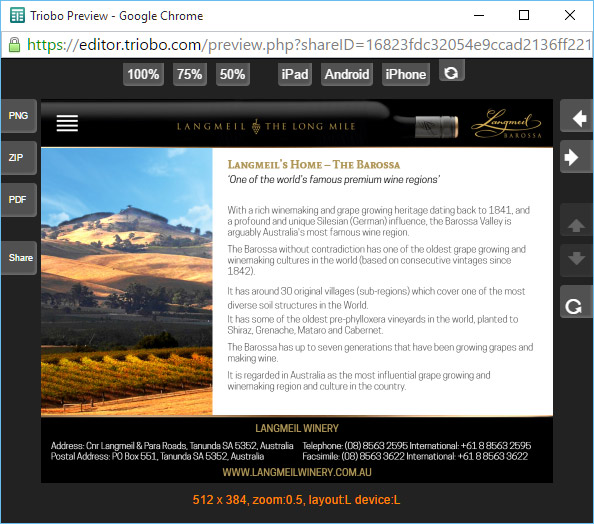
Preview Mode Window

Buttons at the top

Are used for of making the preview window larger or smaller. Besides, you can see how the page will look like on devices with different aspect ratios (iPad, Android and iPhone). The last button lets you change the display orientation on the simulated device.

Buttons on the right

Left and right arrows are used for browsing through previous / next article.

Up and down arrows are used for moving to next or previous page in current article (active only with paged articles).

Button with a circular arrow invokes reloading of the entire article (or for example animation restart, etc.).

Buttons on the left

These buttons are only visible when you look at the Preview window directly in the Editor, not when using the Share button for sharing (more in text below).

PNG button: exports visible part of the article to PNG format (eg. to App store / Google Play / Windows Store, etc.).

ZIP button: exports the visible part of the article as one package of files dimensionally modified (in pixels) for sending applications to all markets: The App Store / Google Play / Windows Store.

PDF button: (at this time only experimental alpha version) exports article to PDF format

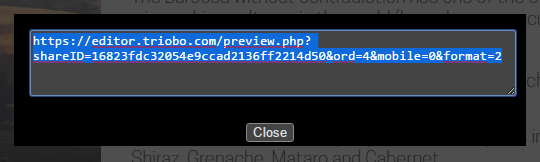
SHARE button: opens a dialogue with the Internet address for preview sharing:

Dialog with address for preview sharing

When you copy this address link to a clipboard and send it by e-mail to another person, you may preview the actual state of currently prepared publication easily on the Internet. Remember that when viewed on the Internet you are dependable on speed of your Internet connection, typically synchronization of animations might not work smoothly during the preview (unlike reading on tablet; we recommend to use Triobo Reader for final inspection).

The validity period of shared link? Up to 24 hours from the creation of sharing link. The preview sharing is not intended for publishing on social networks or for real use of digital publication.

HINT: When you plan to use the Triobo web export for your digital publications, you may use the preview mode or SHARE option for inspection in different browsers. Simply copy the link and open the address, typically in Internet Explorer, so you can check the font compatibility.