Categories
5. Succesfull digital publication 6. Marketing & digital publications 7. Vocabulary

Promote your application using the Triobo Ad Banner

Triobo Ad BannerTriobo Ad Banner is a useful marketing tool that is offered totally free to all Triobo digital publishing clients. This may be used as an extension of any website where a banner on the top of the page notifies visitors that there is a possibility to download suitable mobile application.

The main advantage? Triobo Ad Banner detects the platform from which the reader looks at the web (Apple, Android, Windows 10 …), and offers him appropriate version of digital application for download.

Triobo Ad Banner may be used with all Triobo price tariffs including Triobo Single.

What can be set

  • When you want the Ad Banner to display the application icon or – in the case of digital magazines – the cover of current issue
  • The delay between the first and second display of Triobo Ad Banner. The default value is 0, ie. banner is displayed continuously until the reader closes it. You may also specify, for example, that after the page reload the banner will be displayed for additional 10 minutes (with next page load).
  • After how many days from banner closure the Triobo Ad Banner reappears to the reader (the default value is 14 days).
  • Short descriptive text under the application heading

How to launch Triobo Ad Banner

  • Each publisher receives a simple HTML code that can be easily inserted to any web page or into any CMS. This is similar process like Google Analytics tracking code implementation.
  • Publishers with Triobo web export already have their Ad Banner launched automatically on their web site – of course only in case they also have Triobo tablet application.

Practical example

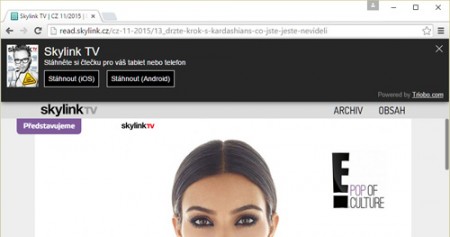
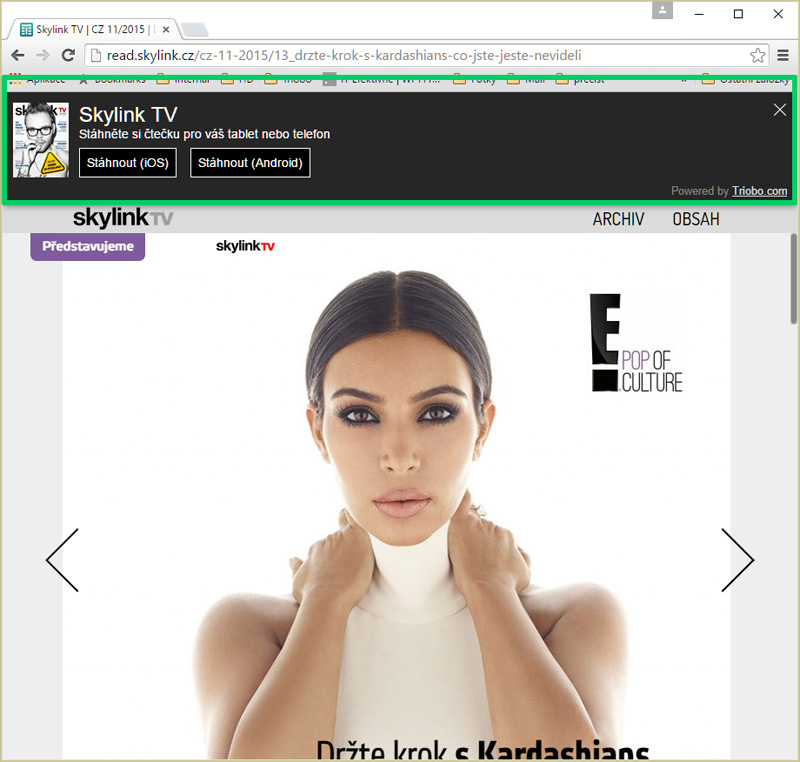
This is how it looks in real world: when reader visits the web site from ordinary PC with Windows 7. The application download is offered only for Apple iOS and Android because there are no applications for Windows 7 available. Triobo Ad Banner - desktop
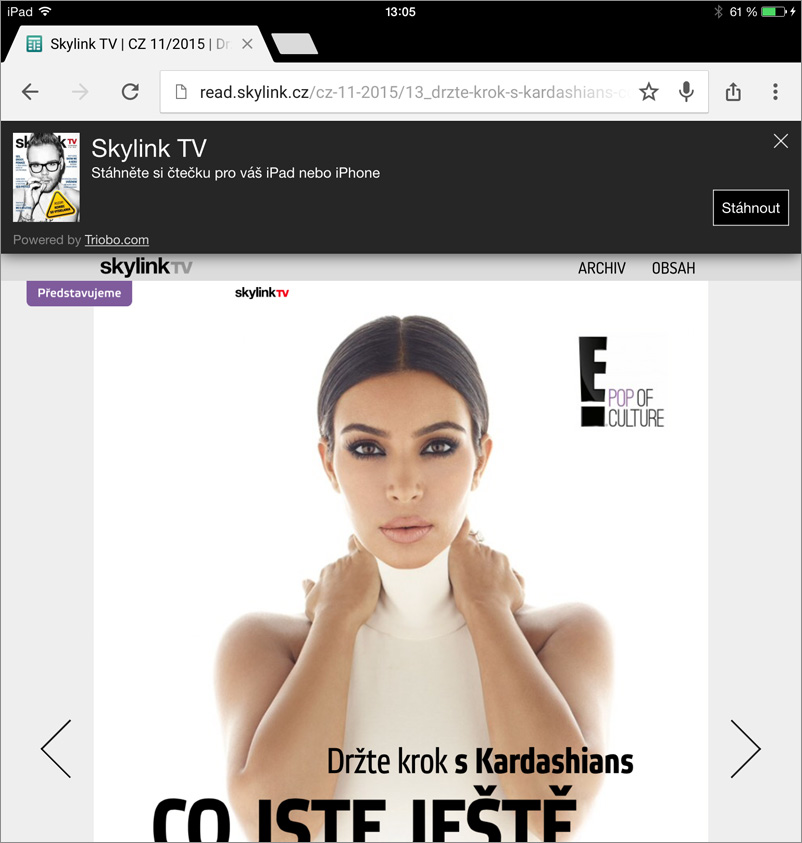
Here you can see the same situation, but this time on the Apple iPad tablet. Readers are offered direct app download of Apple iOS. It also works similarly with Android. Triobo Ad Banner - Apple iPad
Categories
2. Triobo editor

Issue publishing

It is required to publish your publication on the distribution server so that it is accessible to all reading devices. Each publication can be published in several “channels”, and thus accessible to different readers. At this moment we support three public channels and web:

  • iOS – your publication will be available to readers who are running the application on Apple iPad tablets or Apple iPhone smart phones
  • Android – your publications will also be available on devices running Android operating system, which meets the minimal requirements for running the Triobo reader
  • Amazon Kindle – your publication will be available to readers with Amazon Kindle
  • Webview – web preview of tablet publication, on your own internet domain

The fifth independent channel is the editing reader Triobo Reader. In that you need to enter your login information. Right here you can test that your publication looks exactly as you desire.

How to publish an issue

On the list of issues, click the icon Issue attribute. You will find basic information about the issue. Firstly, instead of an envelope there will be only the question mark icon, as the issue has not been yet released and thumbnails of individual pages were not generated:

In the upper part of a dialog you may choose whether the first page of your issue cover will be automatically generated during publishing (overview of issues in your Reader), or if you want to upload your own cover page in PNG format. If you select “custom cover” using drag and drop mode for working with files in PNG format (required) drop it into the frame box on the left.

The bottom part of the dialog contains switchable tabs: The first one is called Triobo Reader – this is the distribution channel to the Triobo Reader. Here you will publish your unfinished publications. You can also select a quick publication preview with no image optimizations. The second tab is called Public channels – here you will publish your finished publications. The third tab is called Webview – here your web content will be published (when you have agreed with web publishing). Each tab contains a color that immediately indicates the state.

Issue properties

  • Not published – (red color). There is a Publish button available. When pressed, the entire issue of your publications will be generated. Remember that in Triobo Reader the content will be visible only to those users who have the right to see the given publication. For public reading devices you must first select in which channels will be the issue visible (iOS, Android …).
  • Published, no changes in articles – (green color). It has been published but no changes were made to the articles. There is an Update button available which makes the update (even though there are no article changes, for example you may publish a revised description of an issue) or in the case of public reading devices to change the selection of channel iOS, Android …) and an Unpublish button for issue removing.
  • Published, ready to update X articles – (orange color) the issue has been published, but X articles were changed. With the Update button you may publish these changed articles. Press the Unpublish button to remove the issue again.

After pressing the Publish, Update or Un publish buttons wait until the the entire action is accomplished. You will be informed about the status and estimated time period during publishing and updating. It takes about one minute to publish an ordinary issue.

Categories
1. Starting with digital publishing 3. Content publishing for tablets

Proof read before publication release

Before you publish your digital publication (for digital magazines) or send it to the approval process (for Triobo Single), do not forget to verify the correctness and performance of interactive elements on a real tablet. Publishing reader Triobo Reader serves this purpose and is available at both Apple iOS and Android. Instructions how to use Triobo Reader, are available here.

If you publish on Apple and Android, we strongly recommend to double check your work on both types of devices. Do not count on the fact that tablets with Android will always behave identically as Apple. Risky are tablets with Android version 4.0, whose operating system has unfortunately a number of imperfections. These errors have been fixed on newer versions of Android indeed (4.1 and above), nevertheless a number of tablet manufacturers still sell the old versions.

If you encounter setbacks with specific interactive element on Android 4.0, it is necessary to update the operating system – or design your interactive element in other way. The problem lies in tablet operating system and not in Triobo solution.

Encourage your readers to select only those tablets, for which the manufacturer guarantees Android updates and bug fixes, version 4.1 is already perfect for such use.