Text objects, images and groups of objects may have configured the action On tap. Click on the item and select one of the following actions:
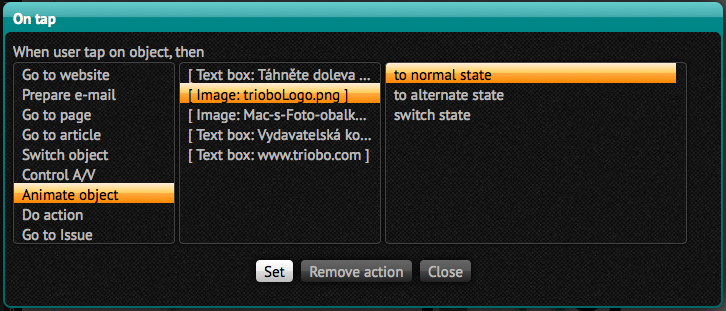
- Go to website – enter web address that will appear in the browser of tablet reader
- Prepare e-mail – enter e-mail address, click on the object to open the e-mail application on your tablet with such previously prepared email address
- Go to page – select the page of given article or next/previous page. Selecting the first page can be used for “go to the beginning of the article,” which may be useful with the multipage articles. For non-paged articles, that are long (and scrollable), you can enter value in pixels, to which it will scroll after the button pressing. Zero Value can be used to return to the top.
- Go to article – select which article the reader it to be transferred to. You can choose from all articles from given edition. You can also go to the next/previous article. The “to last article” command switches the reader to the article from which the current article originated. It is not possible to switch between different editions.
- Switch object – switches the variable object. At first on the left side of pertinent object select the action that applies to it (in caase there are more of them on page). Then select one of the following actions:
- to next – switches to the next stage. If this is the last stage of a variable object, this action switches you to the first state
- to previous – returns to the previous state. If it is the first stage, this action switches you to the last state
- to first – switches to the first object
- to last – switches to the last object
- to state – offers a list of states so you can choose to which action it should switch
- Control A/V – controls the video or audio. On the left, select which video/audio you want to select, and then select an action:
- Play – starts playback
- Stop – stops playback
- Toggle Play/Stop – switches playback (if not running then it starts, if running, it pauses)
- Play full screen – starts playing over the full tablet screen (only for video)
- Animate object – animates object (see chapter 26. animation). Select the object that has animations set, and then select one of the following actions:
- to normal state – animates object, which is in alternative state into normal state. If the object is already in the normal state, nothing happens
- to alternate state – animates object, which is in normal state to alternative state. If the object is already in alternative state, nothing happens
- switch state – switches between object states
- Do action – executes selected action: opens dialogue sharing for Twitter / Facebook / E-mail (on Android always induces the system dialog Share) or will go to the issue library
- Go to issue – moves to selected issue. This issue, of course, must be published openly, otherwise the reader will go to the issue library. If the check box Open if ready to read, issue will be open directly (cover page), otherwise the issue detail page will be shown.
- Set language – if you have reader application with multilanguage support, thanks to this option you can switch language version directly from your publication.
 . The left panel shows a list of „Variable object“, in which all the states will be listed – at the beginning the object has only one state. Now, in this panel, click +, which duplicates the selected state.
 below the list of states. Any state can be also removed by clicking on the cross icon.
 to set the variable object.
 button – the states are then displayed net to each other. This may be utilized so that you can edit individual objects and then regroup them into a variable object.
 ,
,  etc. The area into which you insert a new object is highlighted with red interrupted border. By dragging the mouse you can then draw new object. As you drag, the object edges snap to the guides. If you click within the area, a dialog box for entering object position and dimension appears, the position is pre-filled and corresponds to the position of a mouse click. Instead of drawing you may directly double-click the icon to create a new object: a dialog box appears where you can enter the coordinates of the upper left corner and object width and height.
 for changing of objects order on the page. Above objects the overlap will appear with objects placed beneath. You can also use keyboard shortcut Ctrl + arrow up/down (Windows) or Cmd + arrow up/down (OS X)
 button – it opens a dialog box where in the first column you can enter the issue and in the second column the article of this issue into which you want to copy or transfer the object. If the article has multiple pages, you may want to choose the third column. Action is done by clicking the Copy or Move button.
 button – creates a copy of selected object and retains all its properties
 button – deletes object. The operation cannot be reversed. You may also use the keyboard shortcuts Ctrl + Delete (Windows) or Cmd + Delete (OS X) or consequently Ctrl + Backspace (or Cmd + Backspace)
 aligns selected objects so that all of them will have the left edge on the former left edge position of the group
 aligns selected objects so that it first determines the vertical axis of objects and further moves each of them in the horizontal direction so that the vertical axis of the object is lying on such axis
 aligns selected objects so that all of them will have the right edge on the former right edge position of the group
 aligns selected objects so that all of them will have the upper edge on the former top edge position of the group
 aligns selected objects so that it first determines the horizontal axis of objects, and subsequently moves each in the vertical direction so that the horizontal axis of the object lies on this axis
 aligns the selected objects so that they will all have the bottom edge on the former bottom edge position of the group
 from the space between the left and right edge of the group of selected objects the width of individual objects is subtracted and the remaining area is evenly divided between objects. When using this function it depends on the order in which you have selected objects – the object selected first will now be on the far left side, the one selected last on the far right side. This can be used to easily rearrange objects.
 from the space between the upper and lower edge of the group of selected objects the height of individual objects is subtracted and the remaining area is evenly divided between objects. Again, it depends on the order in which you have selected objects – the object selected first will now be at the top, the one selected last on the bottom.
 tool, you can drag the page or click (see
  turns on or off audio control display. If controls are not displayed, the audio object is not visible at all and you should make a button for launching.
  is used to turn the repeat audio play function on.
 enables automatic playback when the reader opens the article.