Categories
1. Starting with digital publishing 2. Triobo editor 5. Succesfull digital publication

Preview of paid content

Publishers of paid publications can enable free access to selected pages of every issue to the readers.

This can be used as an equivalent of flipping through a magazine in newsstand before buying it, and at the same time it is very useful when sharing on social sites. If you have, for example, a five-page-long interview in your magazine you can unlock the first page and share it on Facebook as enticement.

Reader’s View

A new button titled Preview has been added, that opens the first unlocked article of given issue. After a couple of seconds a dialog box will open offering the choice to buy the full issue, the reader can close this box by clicking and continue reading.

If the reader clicks on page preview, a free preview or (when the article is locked) a general graphical preview of said page with dialog box offering the choice to buy the full issue will open, according to the specific situation. In this case the dialog box with the offer cannot be closed, the reader can only continue to the next page.

Preview button

This is how the dialog box with the offer to buy the full issue looks like. Notice the buttons Previous free article/Next free article.

Buying

Settings according to the Publisher’s Request

As soon as you set any issue as paid, the column preview will show up in its overview. This column can be used for unlocking individual pages as free to read. Do not forget to publish the issue at the end, or more precisely update it, otherwise the changes will not take effect.

enter image description here

Categories
1. Starting with digital publishing 2. Triobo editor 3. Content publishing for tablets 5. Succesfull digital publication

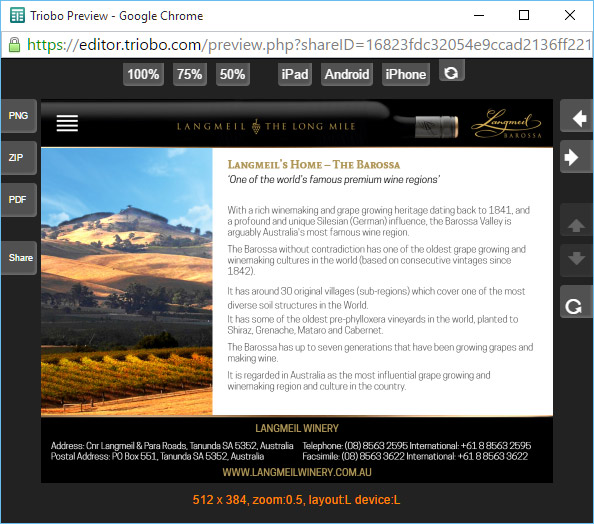
PREVIEW: preview mode in editor

The preview mode is a very useful tool for making digital publications. It is symbolized by the eye icon.

Preview Mode Icon

When you press the Preview icon, the preview of current article opens in a new window, on its last saved version.

Preview Mode Window

Buttons at the top

Are used for of making the preview window larger or smaller. Besides, you can see how the page will look like on devices with different aspect ratios (iPad, Android and iPhone). The last button lets you change the display orientation on the simulated device.

Buttons on the right

Left and right arrows are used for browsing through previous / next article.

Up and down arrows are used for moving to next or previous page in current article (active only with paged articles).

Button with a circular arrow invokes reloading of the entire article (or for example animation restart, etc.).

Buttons on the left

These buttons are only visible when you look at the Preview window directly in the Editor, not when using the Share button for sharing (more in text below).

PNG button: exports visible part of the article to PNG format (eg. to App store / Google Play / Windows Store, etc.).

ZIP button: exports the visible part of the article as one package of files dimensionally modified (in pixels) for sending applications to all markets: The App Store / Google Play / Windows Store.

PDF button: (at this time only experimental alpha version) exports article to PDF format

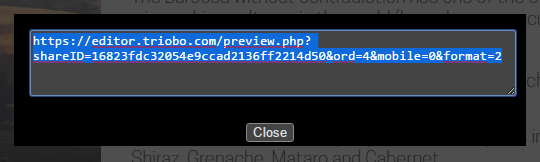
SHARE button: opens a dialogue with the Internet address for preview sharing:

Dialog with address for preview sharing

When you copy this address link to a clipboard and send it by e-mail to another person, you may preview the actual state of currently prepared publication easily on the Internet. Remember that when viewed on the Internet you are dependable on speed of your Internet connection, typically synchronization of animations might not work smoothly during the preview (unlike reading on tablet; we recommend to use Triobo Reader for final inspection).

The validity period of shared link? Up to 24 hours from the creation of sharing link. The preview sharing is not intended for publishing on social networks or for real use of digital publication.

HINT: When you plan to use the Triobo web export for your digital publications, you may use the preview mode or SHARE option for inspection in different browsers. Simply copy the link and open the address, typically in Internet Explorer, so you can check the font compatibility.

Categories
2. Triobo editor

Previewing your publication in publishing reader

Publishing reader Triobo Reader is now available for tablets and phones with iOS and Android. Download it from the following addresses:

You will see the default welcome issue after the first start.

Clicking the envelope thumbnail will open the issue detail, where you can press the download button. After some time this will change to Read inscription (once the first page is downloaded).

Tap it to open the first issue page and you can start browsing through it.

To access this offer, pull down the page – in upper section of the article thumbnails will appear including the Close button.

If you want to display your own publication, leave the default journal and return to the default view. On the top left side press the Login button and enter your login information into the Triobo system.

After a while you will see a list of your published issues.

Caution: We emphasize that only those issues that were published in the editor for Triobo Reader will be displayed (see Issue publishing).

You may bring the reader the original position by using the Logout button.