It is somewhat complicated to sell paid magazines through the App Store because Apple wants to approve every issue in advance. This may be a problem because approval usually takes one week or sometimes even longer. However here is a proven procedure used by publishers from around the world: the pre-approval.
In principle it is all about the fact that Apple approves so called Product ID – which is always linked to price. In Triobo, on the other hand, the same Product ID is assigned to particular issue. So in advance you may arrange approval of several product codes (even for the entire year) so you can use them later.
Fake issues
First, create required number of “fake” issues in Triobo. For each of them create one page, that will be more than enough, ideally they all should look like magazine cover pages. It does not even matter that all these fake issues have identical cover (avoid using words like demo, fake, pre-release … – in any case there is no need to irritate Apple employees.)
Assign suitable Triobo product codes to all issues, for example com.mycompany.mymagazine.1501, com.mycompany.mymagazine.1502 and so on. Do not label issues as free issues (because they will be paid) and publish them to your public Reader.
The Reader will not display any of these issues, because it does not have required Apple product code – therefore your readers will not see anything on display.
App Store settings
Now through iTunes Connect site, navigate to your application and click on In-App Purchases option. Using the Create New button selection, create individual In App purchases – for magazine purposes we have used “Non-Consumable” option – which means permanent purchase that will stay forever with the customer. Enter all product codes gradually and set correct price to each of them, especially do not forget to set the Clear for Sale parameter to “No”.
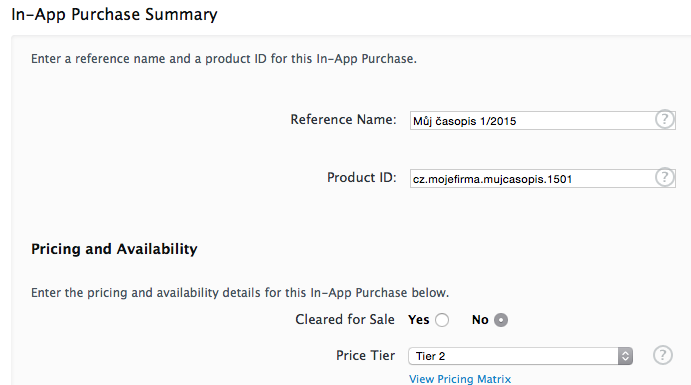
The filling process is somewhat tedious: you must enter at least one language (English), and then fill in the issue name with brief description. Also, you have to insert the “Screenshot for Review” image – in practice you can insert any image with size of 768×1024 (eg. default starting wallpaper that is used in the Reader), it is also not necessary that it is a magazine cover-page.
Once you have entered correct product codes and everything is published in Triobo publicly, it is time to ask Apple for approval. While the ordinary public Reader does not display your fake issues because product codes are invalid, Apple employees will see all your issues and will approve them accordingly.
After Apple’s approval
In about one week (in some cases it may take a month!) you will be notified by email that your product codes were approved. Go to Triobo Editor and publish all your fake issues. Later you can simply remove appropriate product code and use it in entirely different issue.
Go to iTunes Connect website and you will see red information next to all pre-approved product codes notifying you that you have removed codes from in app sales. Open them individually and adjust Clear for Sale value to “Yes”. When color changes to green, the product code is approved and ready to sell.
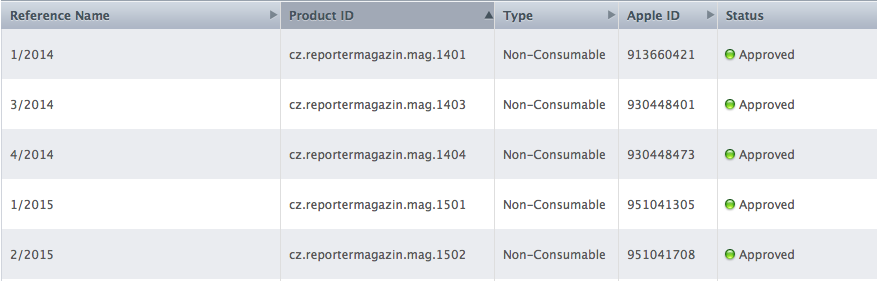
Once your have paid, the issue is ready
Once you have finished your issue in Triobo and you are happy with how it looks in Triobo Reader, you may also publish it to public Reader. Fill in the appropriate Product ID and you are free to publish. Once the data is sent to distribution server, you may immediately go to your Reader and see that your issue is available for immediate purchase by readers.
Note: The procedure described above is right on the edge of Apple’s rules. Although publishers from around the world do it exactly like this, we can’t guarantee that this process will always work in the future.


