We are open to publishers who lack the time to create portable optimised design, but still want to profit from all the benefits of Triobo digital publishing, such as detailed statistics, animations, web links etc. You can use so called Replicas, which are based on print quality PDFs.
What are the benefits?
- Digital publishing in a blink of an eye – can be finished in just three minutes
- Content created from print PDFs can be combined with interactive features created in Triobo editor – for example, you can comfortably create a 300 page catalog using replica and the cover page with Triobo, where you add animations, hyperlinks (e.g. for e-shop) and even animated advertisement for your client
- The result can be easily published to web, tablets, smartphones (Android, iOS, Windows 10, Amazon Kindle Fire) and desktop PCs (Windows 10)
- The support of all Triobo features remains (detailed statistics, animations, readers zone, non-public section, language versions etc.)
- Very comfortable reading both on web and mobile devices
- PDF file can be (optional) available for common download
What will you need
Whole publication in one PDF file in the best possible quality (don´t compress the images unnecessarily), without cropmarks, each page individually (meaning not exported as spreadsheets).
How to do it?
In issues overview (Issues) click on the button “+” to create a new issue. Based on your Default settings the following dialog box will appear.
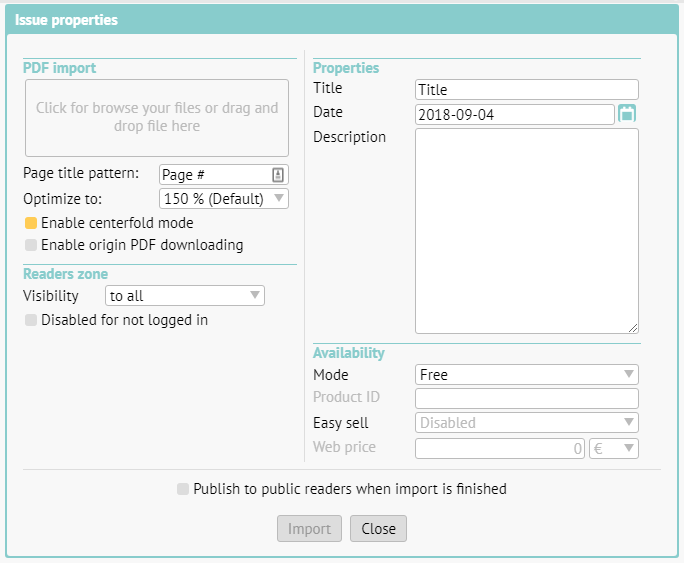
Drag the PDF file with the mouse cursor to the top left rectangle.
Page title pattern – here you can select how should imported PDF pages be named. A pattern will be used, where # is automatically substituted with a page number. On the picture you see „Page #“ as and example, which means that first page will be named Page 1, second Page 2 and so on. You can name each page individually in the editor.
Optimization – We recommend to leave default value at 150 %, providing a reasonable compromise between quality (necessary for zooming) and file size. If you select higher value, publication could be zoomed-in futher at the cost of higher data transfer.
If you´re working with a portrait oriented content, you can set 2-page (centerfold) layout support – see red rectangle on the screenshot above.
If you want to offer PDF for common download (bonus for readers), set on the option Enable PDF downloading. If you allow this feature, the access to PDF download is the same like main publication: in case of paid content, download is available only after the payment. Keep in mind that your readers can distribute the downloaded PDF freely with no limitations. Note: The Triobo web platform is a prerequisite for using this feature.
Readers zone > Visibility of issue: you can set, who will be able to see the cover of the issue, usually just leave this on the default value (everyone). More in a separate article.
Title: is shown in the reader application under the issue’s cover. It is pointless to repeat the publication title (usually it is identical to the application or web name), rather specify the issue’s number etc.
Date: is decisive, beside other things, for sorting the issue in-between others.
Description: a short description of the issue. It is important particularly for the web version, it is used for search engines (Google etc.).
Availability Mode: if the issue is available for free or if it is necessary to use one of the available methods to pay for it. Details can be found in a special article.
Web price: you can set any price (regardless of Apple’s tier) to sell this digital issue on the web. Triobo web reader application is necessary.
Publish to public readers when import is finished: right after the PDF import is finished an automated process of publishing will begin. If you plan to make further changes to the content before publishing (typically renaming individual pages) leaves this option unchecked.
When everything is set, press Import.
In the issue list you can see the progress of the PDF import.

When the import is finished and digital replica is created, you can add hyperlinks or animations to any individual page or add new pages created in Triobo and, for example, combine animated title page with other catalog pages, which is automatically created by import as print PDF replica.
Do not forget: in order for any issue to appear on the web site or in your reader application, you must publish the issue (or have an automated process of publishing after the import is finished set as default).
Thumbnails and color – how to
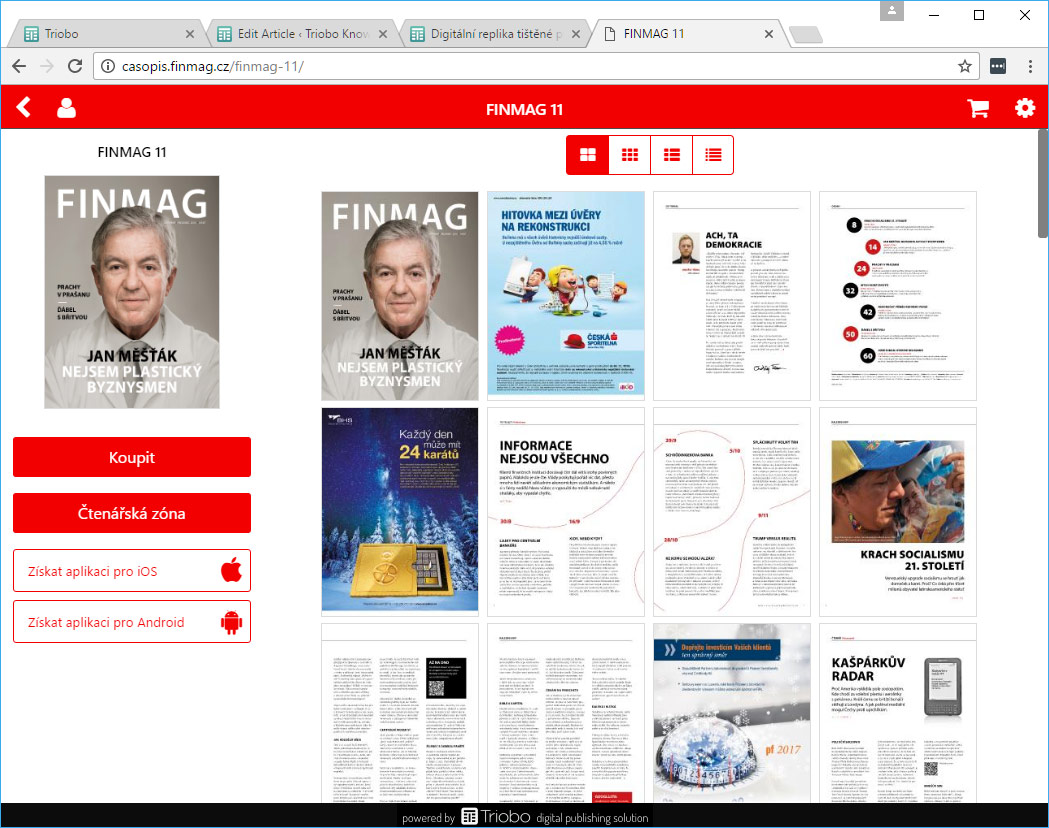
You can set the preview mode of your publication issue detail. Plus, if you have the Triobo Professional subscription, you can set a color scheme. On the image below you can see „full page“ preview mode, that is particularly suitable for previews of print magazines replicas. Read the tutorial about these settings.


 . You will find basic information about the issue. Firstly, instead of an envelope there will be only the question mark icon, as the issue has not been yet released and thumbnails of individual pages were not generated: