Categories
1. Starting with digital publishing 3. Content publishing for tablets 6. Marketing & digital publications

Availability and visibility of digital content

Issue Availability

Individual issues can be distributed to the readers in several ways. Every issue must always have one of these modes configured:

  • free – immediately accessible.
  • paid – by this we mean the direct sale through Appstore and Google Play. The issues must have a product ID assigned, that must in addition be approved by Apple. Google does not require approval. In this variant the issue can be made available to the readers using external payment gateway or vouchers. Or in archive.
  • locked – this variant requires assigning product ID as well, however in this case no approval from Apple is needed. Therefore, direct sale using the button Buy in the reader application is not possible, the option to sell (or in any other way make accessible) the issues using external payment gateway or using coupons/vouchers is available. Or using archive.
  • hidden – same properties as locked issue. In addition, the issue is not visible in the issue overview until the reader obtains the option to access it by coupon or external payment gateway. Or by archive.

You can set these modes of availability in the dialog box with issue properties – you can access this dialog box by clicking on the icon [i] in the issue overview.

Access to issue

Issue Visibility

You can also choose between variants of how the issue will be visible to the reader:

  • Visible to all readers.
  • Visible only to logged-in readers (in the Readers zone – see next paragraph). This can be used typically for internal commercial materials or internal corporate magazine protected by password.
  • • Visible only to the readers, that are not logged-in.

You can find all variants of visibility in the issue properties as well.

Issue visibility

Readers sign-up into the Readers zone

In connection to the option to set visibility of digital content only to logged-in readers you can choose, if the readers can sign-up on their own (then the content is available basically to anyone, who registers in the reader application or on website, plus you do know his e-mail) or if the signs-up are solely yours as a publisher to decide and nobody from outside is able to gain access inside without you.

You can alter this option in the settings of Readers zone. The primary screen (see next picture) is accessed by clicking on the house button that you can find under the Triobo logo.

primary screen

After clicking on Readers zone, you can see its options.

Readers zone options

In the dialog box for Settings you can choose, whether the readers can register themselves or not. If the readers can not register themselves, you must register individual users yourself in the menu of Readers zone (see preceding picture, option Members).

Readers zone settings

Typical Scenarios of Use

  1. Digital magazine, small amount of published issues – choose the subscription type (with archive or without). For individual issues approve product IDs by Apple, so that you can also sell individual issues. Issues will have the availability set to “paid”, visibility will be set to “for all”.

  2. Digital magazine with extensive archive – approving product IDs of every single issue is very time consuming (in sum total), that is why you can decide, that issues older than the year 2017 will be configured with availability set to “locked”, and only issues from January 2017 onwards will be set to “paid”. Thus – new issues will be available for purchase separately directly in the reader application, older issues will be available only as a part of archive or for purchase through your website or coupons/vouchers.

  3. Application combining publications for end users with internal corporate documents – you will configure public publications with availability set to “free” and visibility set to “for all”. With internal publications you have several options – ideally you want to configure them with availability set to “free” and visibility set to “visible only to logged-in” (do not forget to disable registration into Readers zone and register your employees in the editor).

All settings can be combined as you please.
Categories
3. Content publishing for tablets 5. Succesfull digital publication 6. Marketing & digital publications

Reader’s Zone (vouchers and coupons)

In the context of pricing options, Triobo Professional offers advanced functions to support the marketing of paid digital magazines – Reader’s Zone with vouchers (coupons).

Why Reader’s Zone?

Thanks to the Readers Zone, publishers have the opportunity to use coupons as a marketing tool of digital publications as an alternative payment channel. Coupons represent the unique group of letters and numbers that you may send to your readers or business partners with an e-mail, or printed to any type of media connected to your publication.

Coupon – a tool for digital magazine promotion

Typical use of coupons:

  • time-limited digital magazine subscription that is free to current subscribers of your printed version
  • gift to your business partners (e.g. free annual subscription to the magazine)
  • gift to clients of your advertisers (“when you buy a tablet in your online shop, you will get an annual subscription worth $ 30 from MyMagazine for free”)
  • option to sell digital magazine subscriptions alternatively to the Appstore / Google Play – saving charges

Coupon may also be:

  • unique – can be used only once – suitable for sending target marketing e-mails
  • general – (e.g. suitable for placement in printed advertising – an unlimited number of readers may use it, but only within predefined time period)

Voucher value

Each coupon can be an equivalent to the payment of a particular issue of your digital magazine, or a specific type of subscription.

Example: you may have a coupon for a “single item purchase”, which allows free downloading of the paid edition of MyMagazine, Edition 1/2014. Or you can create a coupon that corresponds to a quarterly subscription you are offering in Appstore.

How coupons work

Prepare simple instructions for your readers describing how to use coupons (see example). Your reader must simply start the digital magazine reader on his device and select the Reader’s zone, then fills his/her email and password (if they do not have it, they must register). Here is the point where the appropriate coupon is inserted. Depending on the type of coupon the reader selects a relevant issue of digital magazine as “paid” and then they are free to download it.

Readers who want to use the coupon must register first (using e-mail and password) – so in the future they can renew their subscriptions. Registration will take place inside of Triobo publishing account; only the publisher has access to this information. The advantage is that you know specific emails of your particular readers and are able to work with them.

Categories
3. Content publishing for tablets 5. Succesfull digital publication 6. Marketing & digital publications

Reader’s Zone – user guide for your readers

Reader’s zone is an advanced function of Triobo digital publishing tool that is primarily used for marketing support of paid digital magazines.

Thanks to Reader‘s Zone you may offer coupons to your readers which will replace payments that are made through the Appstore/Google so the reader can recieve free magazines. This is ideal in situations where you want to give a gift to your already subscribed readers of printed magazines by offering them a free digital magazine for limited time.

It is recommended that you inform your readers about how they can use your gift. Instructions for using coupons and Reader’s Zone might look like this:

How to redeem a digital magazine coupon

To get a specific issue of a free digital magazine (or subscription), you need to be registered to Reader‘s Zone. Registration is required for your future identification which allows you to restore your purchases when needed.

Operating procedures for Apple iOS:

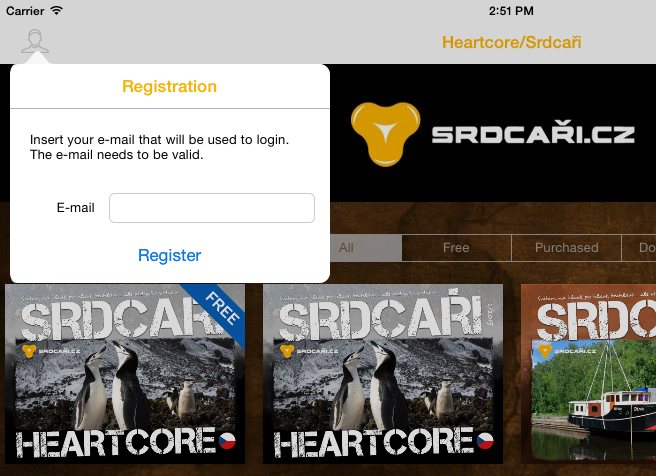
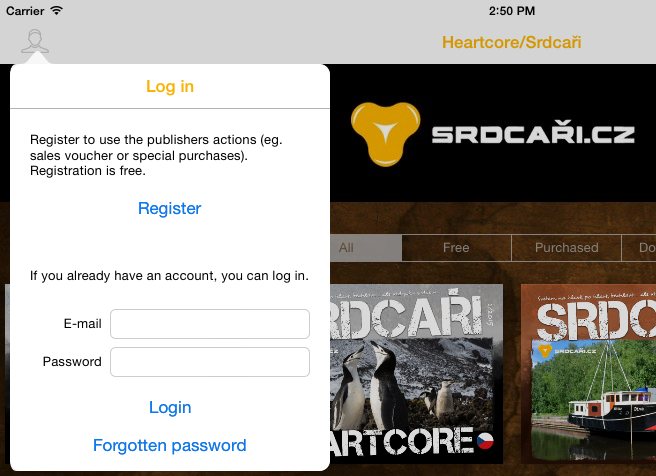
  1. In your magazine reader, in issue overview, select the “Reader’s Zone” at the top left (for Android: “Login” at the top right), press the last button “Register”and fill in your e-mail. The e-mail must be valid, because we will use it for sending you an activation message. If the publisher allows you to log in without e-mail verification, you may immediately log in and insert your coupon. In any case, activate your e-mail and pick the password so you can log in again in the future.
  2. An activation message will be delivered to your mail box with a link – click on it (or copy it to your web browser and press Enter). Choose your password and fill it in. Your account is active.
  3. Now you can log in to your reader with e-mail and password, by clicking the “Subscribe” in menu of the “Reader’s Zone”.
  4. After logging in, select the “Insert coupon” option. Just type in the coupon text that you have received from us, and press Send
  5. Your magazine reader will recognize the specific issue XX/2014 as paid, you can always come back later and read this magazine
  6. Now you can download free issue of required digital magazine