Categories
2. Triobo editor 5. Succesfull digital publication

Web export and Internet Explorer: watch your fonts

When publishing to tablets, smartphones, or ordinary computers, you do not have to deal with fonts – you are working with common fonts in standard TTF or OTF format. In case you want to have a web export (webview) of your tablet publication, there are some specifics arising from fragmentation of Internet browsers.

For internet browsers Google Chrome, Apple Safari, Microsoft Edge (standard part of Windows 10), Mozilla Firefox or Opera you do not have to solve anything, all listed programs use the standard fonts without any exceptions.

Unfortunately, the situation with the Internet Explorer browser is different (see this page dedicated to fonts on the Internet). Internet Explorer has unfortunately only limited TTF and OTF support for websites. When your selected font is not displayed properly in the Internet Explorer, you need to have the duplicate format of TTF/OTF equivalent to Microsoft’s proprietary format – the EOT format. Or you may select a different TTF/OTF font, which does not have problem with Internet Explorer…

Do you still insist on the full support of Internet Explorer? Maybe you need a font in EOT format.

How to get the EOT font

One possibility is to use freely available online converters on the Internet. Unfortunately, it is necessary to experiment, each of them has certain limitations.

How to set up the EOT support in Triobo

When you need a specific TTF or OTF equivalent of EOT font, go to Triobo editor font dialog and upload the EOT equivalent to selected TTF/OTF fonts. * WARNING: alternative font in EOT format must be named identically to its “parent” font TTF or OTF. Names may differ only in its extension*

Once you have the EOT font named correctly and uploaded among the standard fonts, you need to republish the Web export (WebView) of your digital publication. If you named your EOT font correctly and the EOT font is valid, your Internet Explorer selects the correct variant of font by itself and everything will be fine. Make sure of that this is true in the preview mode (Preview) of Triobo Editor.
Categories
1. Starting with digital publishing 3. Content publishing for tablets

How to prepare entry materials for the Web

To start the Web export of your tablet publication (WebView), we need the following documents from you:

Your own domain

The web publication must run on its own website (own Internet domain). Usually it is the domain of second order (typically www.magazinename.com), but it may also be a third order domain (e.g. http://magazine.publisher.com). You may register this domain at your domain registrar. After this you need to redirect the domain to us – authorize your administrator to set up the so-called CNAME record of domain to webview.triobo.com value. And do not forget to send to support@triobo.com information about what domain you have selected for your web export.

Logo

There is publication logo on the header menu of Web pages made in Triobo (see example below). Send us a monochromatic logo in PNG format (with transparency), 64 pixels high including the protection zone above and below the logo (i.e. including spacers), the width is not limited. Logo in the site header

FAVICON: icon of your webpage

You may also display your own webpage icon called Favicon. Triobo will put the icon to your web, you just need to send us the icon. There is plenty of freely available tools and recommendations on the Internet how to create the icon. Favicon example may be seen on the example below. Example favicon

Publisher info

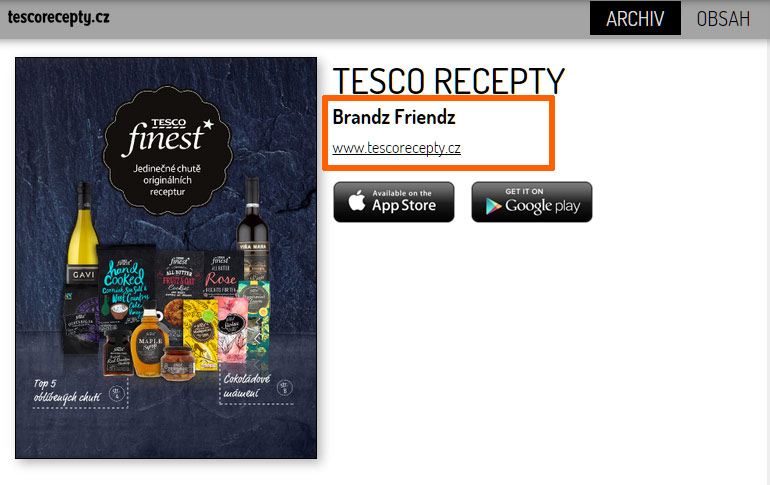
Send us the required name of the publisher and Internet address – both will appear on the page summary of published issues. See the figure below. Publisher information on the site

Statistics: Google Analytics code

Web sites made by Triobo digital publishing are supporting statistics and detailed traffic analytics using Google Analytics. Send us your code (you can download it free of charge on the link) and we will take care about implementation to your site.

How to publish to the Web

Once you get the message from us that everything is ready on our side, just publish your content in Triobo editor. When a new tab (Webview) appears in the publishing dialog press the Publish button (or Update, depending on the situation). Publishing dialog Triobo

Categories
1. Starting with digital publishing 3. Content publishing for tablets 5. Succesfull digital publication 6. Marketing & digital publications 7. Vocabulary

Triobo digital publications on the Web (web export)

Interactive digital publications made in Triobo are now available also to people who do not have a tablet or smart phone. They may simply use a web export Triobo.

Why to use a Web export

  • The reader does not need to own tablet – make your digital publications accessible to every reader on any computer. Including all interactive elements, animations, etc., everything is identical to tablet version
  • Immediate reading without need to install anything – users do not need to install reader application to their tablet / phone
  • Ideal for sharing on social networks (Facebook, Twitter …) – reader can read immediately from the Facebook
  • Full support of Internet search engines Google, etc. – texts in machine-readable form, Triobo additionally generates sitemap.xml). As a standard feature are provided nice Internet address of each page (URL * cool *).
  • Promotion of your applications on tablets and smartphones – for example, through Triobo Ad Banner
  • Your own Internet domain – Web based publications made in Triobo work on any web address based on choice of publisher
  • Publication Logo in the menu bar and User icon in the title of browser bar (ie. favico)

Superb reading experience

As stated before, the reader does not need to install anything and can immediately start with reading. It does not matter whether he starts on tablet, phone or any computer. The most important thing is reading comfort, where we try to mediate similar experience to iPad reader.

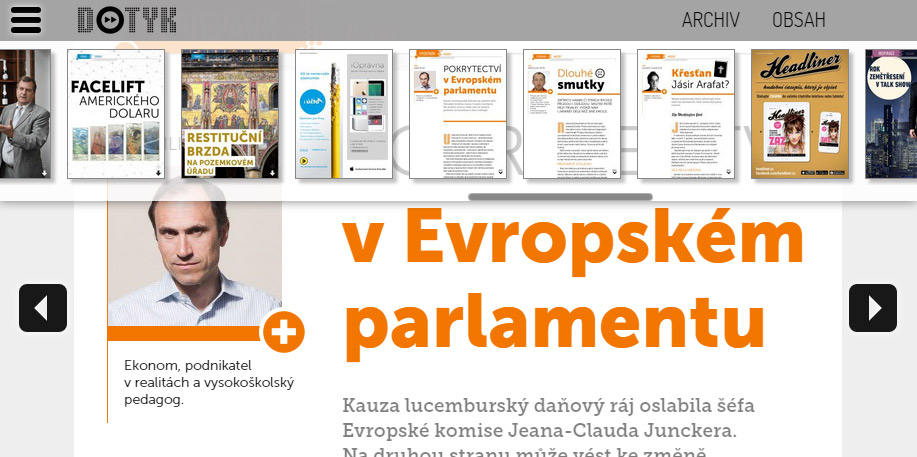
Each web publication has menu with previews of all pages – for a quick overview and browsing. Just click on the appropriate icon located at the top left or right side by publisher’s choice.

Menu interactive publications on the Web

On most devices with touch screen display you may scroll between pages using the classic finger motion (swipe) to the left or right. Where it is not possible for technical reasons (typically the default Web browsers of older Androids) at the touch of a finger or mouse movement the left / right arrows will appear.

Sample of scrolling arrows

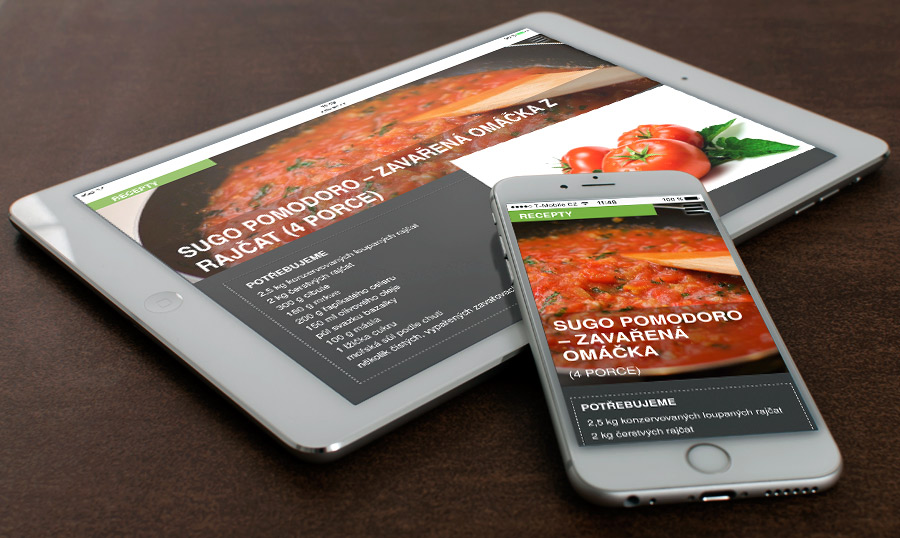
Phone vs. Tablet content versions on the Web: The content made specifically for tablets is commonly displayed on the web. However, in case the publisher has also prepared a separate phone version, we can recognize the device on the web from which the reader opens web pages, and display this page correctly either in tablet (on computers and tablets) or phone (smartphones) mode.

Tablet vs. phone on the Web

Advanced zoom mode is also available, and (on desktop) it works in several steps:

  • 100% display 1:1,
  • fit to width: content expands to the width of browser window,
  • fit to windows: content shrinks so the browser window fits to entire page (format “one iPad display”)
  • and several intermediate steps in between

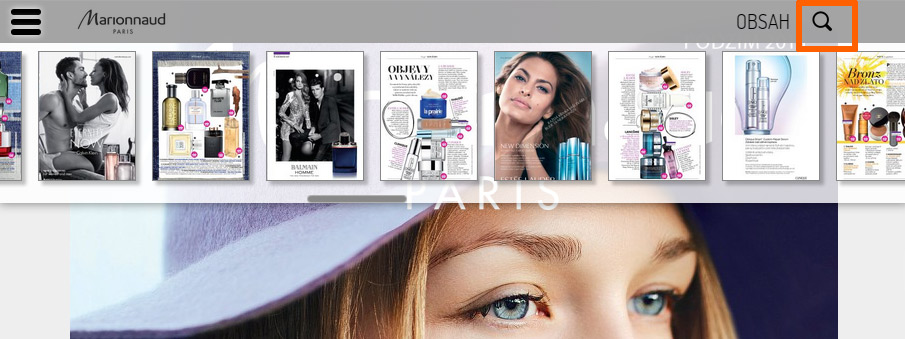
Triobo zoom on the Web

You may bring up the zoom mode menu on computers (i.e. in desktop browser) by clicking the magnifying glass icon or by repeated pressing the “F” key. Publisher may also change the default zoom settings for given website, as described in a separate article. When browsing the Web on mobile devices zoom works using two fingers.

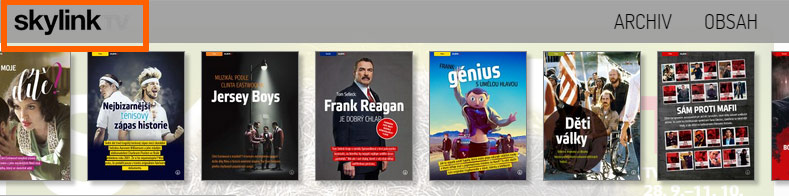
Look at how the Web export of Triobo digital publication may look like – visit read.skylink.cz.

Example of Triobo export - www.dotyk.cz

Categories
1. Starting with digital publishing 3. Content publishing for tablets

How to get your application to the Apple Appstore / Google Play / Windows Store or on the web

Your own application in the official Apple Appstore, Google Play, Amazon Store, the Windows Store or on the web

So, this is it. You have already tried Triobo digital publishing and you know that this is the right solution for you. Now you want your interactive publication or digital magazine to be officially distributed to the public – through the Apple AppStore, Google Play, Windows Store or the Amazon Store. Or, on your Internet domain in the case of Web export.

Please contact us at support@triobo.com with a request to prepare your application. We will take care of all technical requirements for you.

The final application is always created under your brand name, with your graphics and is published under your Developer account in AppStore / Google Play / Amazon Store / Windows Store. In case of Web export the publication is always running on your internet domain.

Please remember

To include in your email your log-in username under which you log into the Triobo Editor (do not send us your password!), the desired product tariff (Triobo Start, Professional or Single, see Triobo price-list), the name of your publication you have made in Triobo Editor and, ideally, your telephone contact. We will contact you accordingly to arrange for details.

In case of any questions we are ready to serve you.